Apps appear grayed out on your child's Galaxy device

Apps appear grayed out on your child's Galaxy device
Understanding app statuses on your child's device
When managing your child’s apps through Samsung Parental Controls, apps will display in different states depending on your approval settings. Here is what each status means for access and visibility on their screen:
- Grayed-out: The app is waiting for a parent or guardian’s approval. The child cannot open it, but they can still uninstall it by pressing and holding the app icon.
- Hidden: A parent or guardian has blocked access to the app, so its icon is hidden on the child’s screen. The app is not deleted, but a parent or guardian must approve it again before the child can see or uninstall it.
Managing allowed apps with or without Galaxy device
Sign in to your Samsung account as the parent or guardian
- On your device, navigate to and open Settings.
- Tap Accounts and backup, and then tap Manage account.
- Tap Add account, and then tap Samsung account.
- If you already have an account, sign in with your credentials. If not, select Forgot password or don’t have an account?, and then tap Create account.
- You can also create an account by visiting account.samsung.com.
- For children under the age of 13, click here to learn how to create a new Child Account.
- Children's accounts cannot serve as the organizer of a Family group. They can only become members by accepting an invitation from a parent or guardian, and their accounts will be subject to parental controls.
Create a Family group under your account and invite your child as a family member
With a Galaxy device
- Go to Settings on your device, then tap your Samsung account name at the top of the menu.
- Tap Family, and then tap Create family group.
- From the Family menu, tap Invite family member.
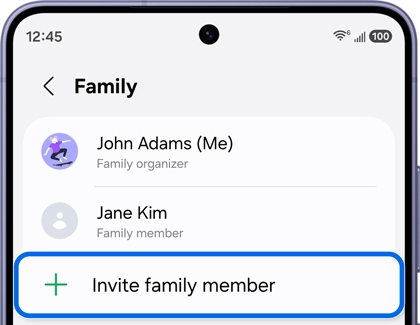
- Tap Invite someone, and then choose how you’d like to invite someone.
Note: A text or QR invitation is recommended for inviting the child to the Family group.- QR code: If you’re with the recipient, they can scan a QR code using their phone to immediately join your Family group.
- Email: Enter the recipient’s email, and then tap Send.
- Text message: Enter the recipient’s mobile number or Select contacts, and then tap Send.
- Depending on the option, you will need to follow the on-screen instructions to add the person to your Family group.
Once your child accepts the invitation and joins the Family group, you can manage app permissions.
Without a Galaxy device
- Install the Samsung Account and Samsung Parental Controls (SPC) apps on your PC.
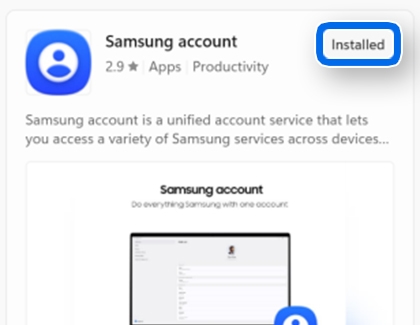
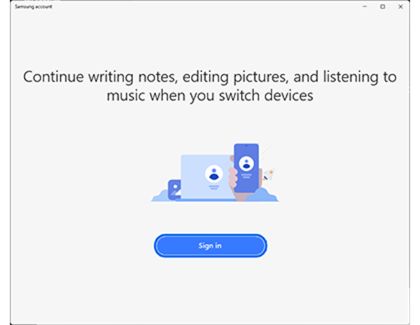
- Open the Samsung Account app on your PC, then sign in to your Samsung account.
- Click the Family tab, then click Create family group.
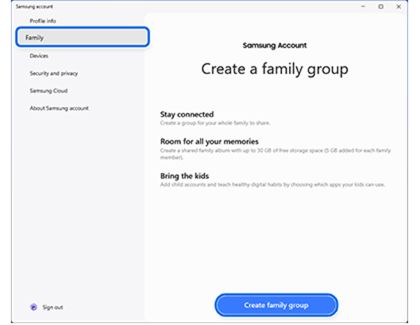
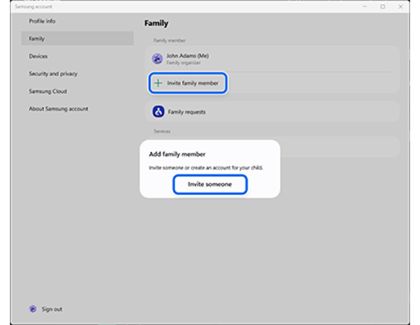
- Click Invite family member, then click Invite someone.
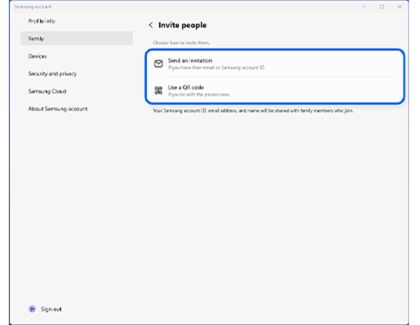
- Choose Send an invitation or Use a QR code to invite your child to your family group.
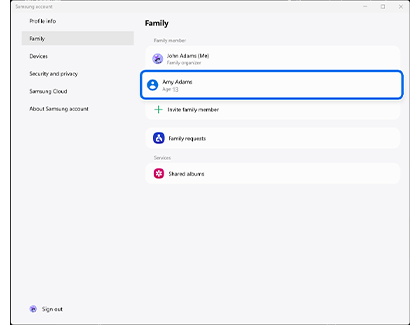
- Once your child’s account has been added to your family group, click their profile.
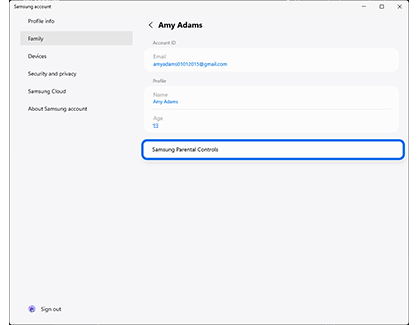
- Click Samsung Parental Controls to launch the SPC app to enable parental controls and configure the settings.
Adjust app permissions for your child
- Go to Settings on your device, then tap your Samsung account name at the top of the menu.
- Tap Family, and then tap your child’s profile.
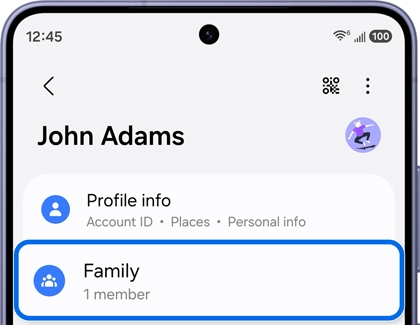
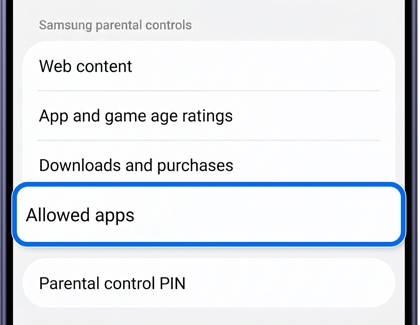
- Depending on your device's One UI version, select the appropriate menu option:
- For devices running One UI 9.0 or later software version: Tap Allowed apps.
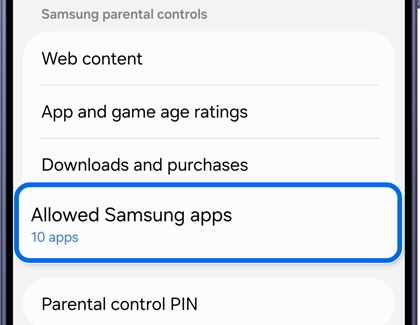
- For devices running One UI 8.5 or earlier: Tap Allowed Samsung apps.
- For devices running One UI 9.0 or later software version: Tap Allowed apps.
- Turn on the switch for each app you want to allow and turn off the switch for any app you wish to block.
- Alternatively, open a suspended (grayed-out) app directly on the child’s device to send an approval request: Ask in message or Ask in person. Parents or guardians can then grant permission on the spot or remotely.
Note: If you don't have a Samsung phone, use this option to approve or deny app access on your child's device when you're together.- To approve locally: Enter the parent or guardian PIN directly on the child's screen.
- To approve remotely: Tap the request notification delivered to the parent or guardian's device.
Frequently asked questions
I already set up Google Family Link. Why is my child’s app still blocked?
Google Family Link and Samsung Parental Controls work separately. If either one restricts an app, your child will not be able to use it. To unlock the app, you need to approve it in both systems.
My child’s device is on the latest software, but mine is not. Do I need to update my phone to approve their apps?
No. As long as your child’s device is updated to the latest One UI 9.0 or later software version, you can set up the Family group invitation and parental control setup and approve their app requests from your phone, as long as your device is running One UI 5.1 or later.
Does this only apply to newly activated devices, or also to devices already in use?
It applies to both. If your child is already using a phone that updates to the latest One UI 9.0 or later software version, all apps other than designated exceptions will turn gray after the update. Your child will be able to use those apps again only after joining a Family group, enabling Samsung Parental Controls, and receiving your approval.
How can a parent or guardian who does not have a Galaxy device approve the use of grayed out apps on their child’s device?
They can use a Windows PC to set up parental controls. Install the Samsung Account and Samsung Parental Controls (SPC) apps, create a Family group, add the child's account, and enable controls. Sign in to your child's account on their device, then allow or block access to grayed-out apps using your Samsung Parental Controls PIN.

