How to back up your Galaxy Watch before repairing a broken back cover
If your Galaxy Watch has a cracked or broken back cover, it will need to be serviced at a repair center. Before handing over your device, it is highly recommended to back up your personal data to prevent any data loss during the repair process.

How to back up your Galaxy Watch before repairing a broken back cover
Back up your watch data using your phone
You can manually back up your watch data using the Wearable app on your connected phone.
- Open the Wearable app on your phone > Tap the Watch settings icon.
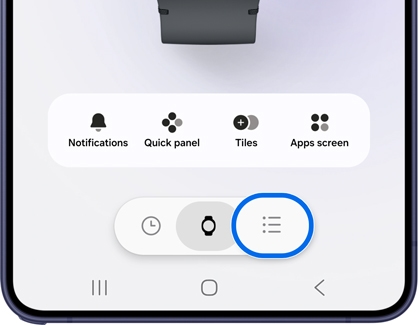
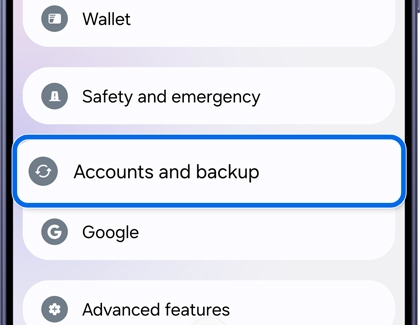
- Tap Accounts and backup.
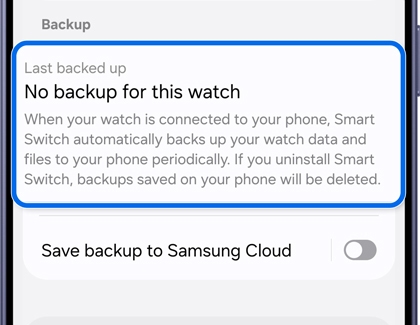
- Tap on the Last backed up section under Backup.
- Tap Open Smart Switch.
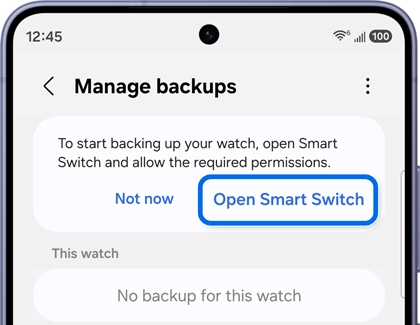
- Tap Allow to give Smart Switch permisison to start backing up your data.
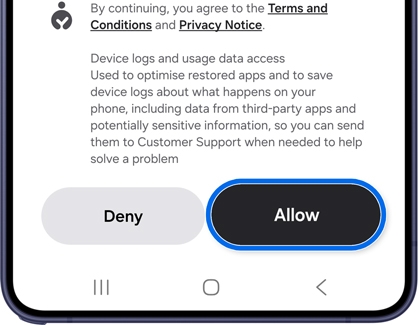
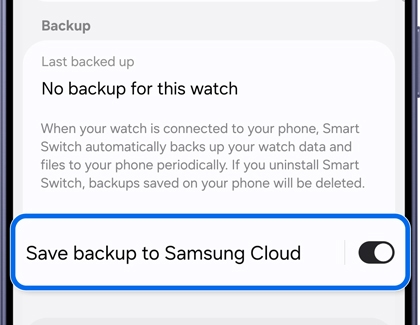
Note: If your watch has not been backed for 29 days, an automatic message will prompt you to complete a back up. - To automatically save your data to the cloud, you can toggle on Save backup to Samsung Cloud.
Supported backup data:
- Data and settings for pre-installed apps.
- All downloaded apps installed on your watch.
- Watch face settings (current watch face, customized watch faces, and recently used watch faces).
- App and widget settings, including home screen layouts.
- System settings such as Display and Sound and vibration.
Note
Some exceptionally large files may not be backed up.
Regular backups will be performed when the following conditions are met:
- More than 24 hours have passed since the last backup.
- The phone is connected to a Wi-Fi network.
- The phone's battery level is above 30%.
- The watch's battery level is above 15%.
- Both the phone and watch screens are turned off.
Read less
Restore your watch data using your phone
After your watch is repaired, you can easily restore your saved data back to the device with Smart Switch during the initial setup process on your phone.
- Connect the watch to your phone via the Wearable app > Select your desired backup data from the list > Tap Next.
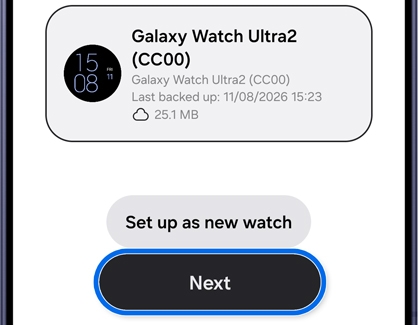
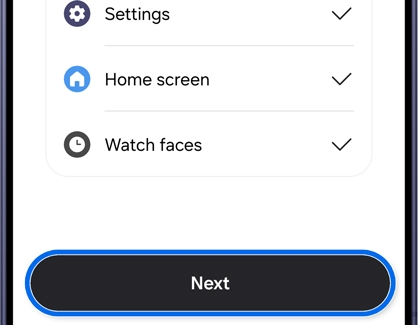
- Follow the remaining on-screen instructions. Once completed, a Data restored confirmation screen will display a breakdown of the recovered items > Tap Next to finalize the restoration.
Read less
Recommended Articles
We're here for you
Contact Samsung Support
Contact us online through chat and get support from an expert on your computer, mobile device, or tablet. Support is also available on your mobile device through the Samsung Members App.

