Adjust auto-correct and predictive text on Samsung Galaxy devices

Adjust auto-correct and predictive text on Samsung Galaxy devices
- This guidance is for using predictive text on the Samsung Keyboard. If you are using a third party keyboard the steps may differ.
- Some options for predictive text will not be available for older devices and operating systems.
Enable or disable predictive text
You can quickly access the predictive text settings anytime the Samsung keyboard is open or via the Settings menu.
To find out more about how to add or remove a word follow the steps in the section “Adding and removing words to predictive text suggestions".
Via the keyboard
- Tap the Settings icon on the keyboard menu.
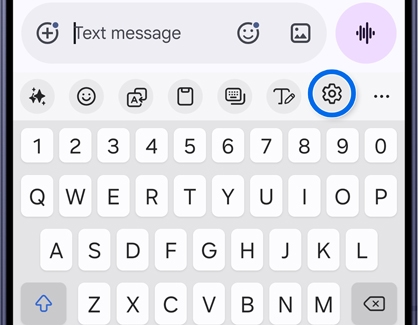
- Tap Predictive text.
- Tap the switch next to Predictive text to enable or disable it.
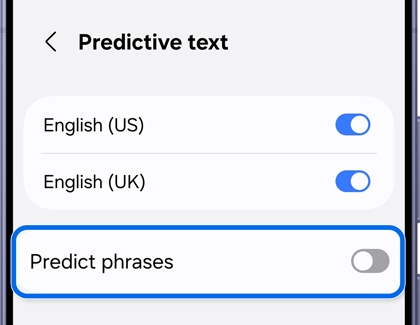
Via the Settings menu
- Go to Settings, then tap General management.
- Tap Samsung Keyboard settings.
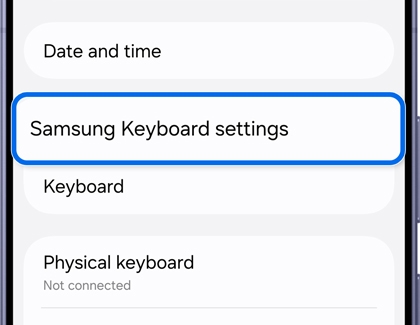
- Tap Predictive text.
- Tap the switch next to the input language you wish to activate.
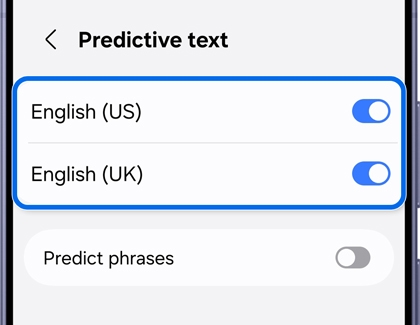
These are the steps for the latest Samsung operating system. If your device settings look different, try following a different path.
- Settings > Language and input > On-screen keyboard > Samsung Keyboard > Smart typing
- Settings > Language and input > Samsung Keyboard > Predictive text
- Settings > General management > Language and input > On-screen keyboard > Predictive text
Text shortcuts
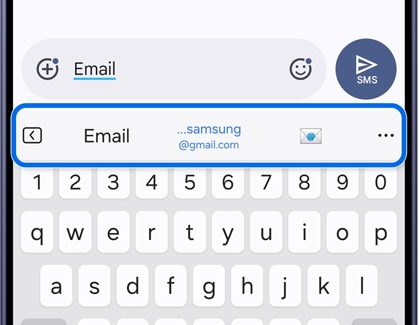
Text shortcuts allow you to quickly and easily type your commonly used words and phrases. Once added, your text shortcuts are displayed in the predictive text bar.
- Go to Settings, then tap General management.
- Tap Samsung Keyboard settings.
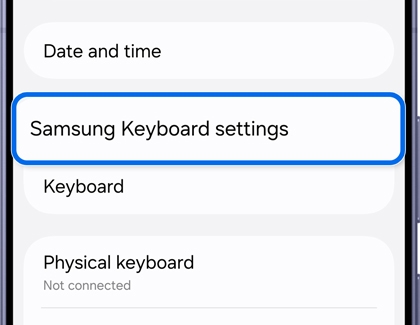
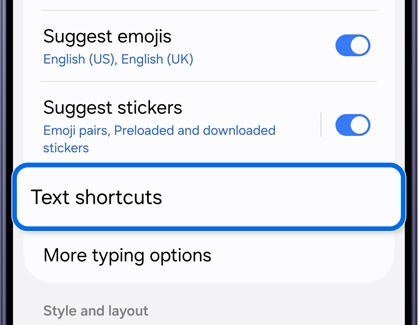
- Tap Text shortcuts.
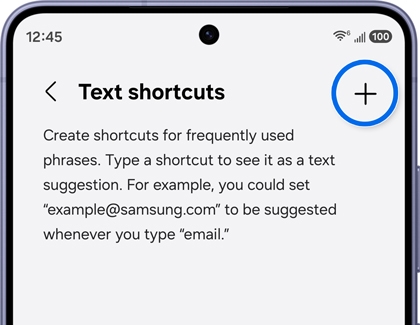
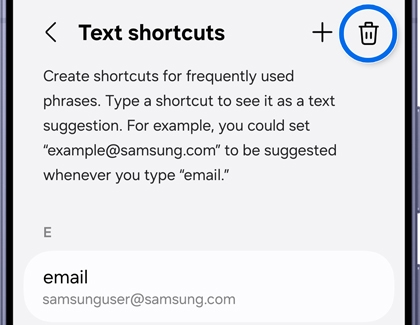
- Tap the + icon in the top right corner of the screen.
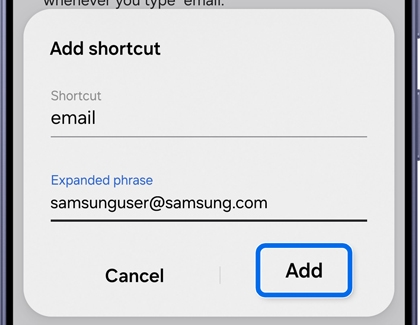
- Enter the Shortcut phrase and the Expanded phrase, then tap Add.
- Your shortcuts will be displayed on the text shortcut screen. To remove a shortcut, tap the bin icon in the top right to delete it.
- When you type your shortcut into the Samsung keyboard, your Expanded phrase will appear in the predictive text bar. Tap the Expanded phrase to insert it.
These are the steps for the latest Samsung operating system. If your device settings look different, try following a different path.
- Settings > Language and input > On-screen keyboard > Samsung Keyboard > Smart typing
Clear personalized data
As you use predictive texting, it will learn your most used words and phrases and prioritize them in the predictive text bar. You can clear everything that predictive texting has learned through the Smart typing settings.
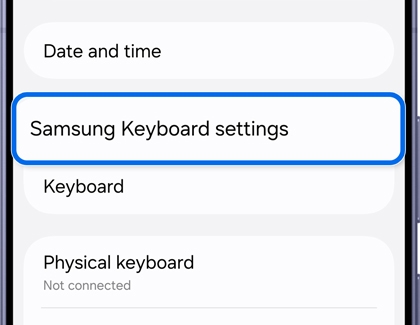
- Go to Settings, then tap General management.
- Tap Samsung Keyboard settings.
- Scroll down and tap Reset to default settings.
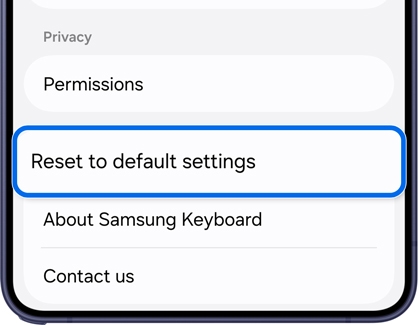
- Tap Erase personalized predictions, then tap Erase.
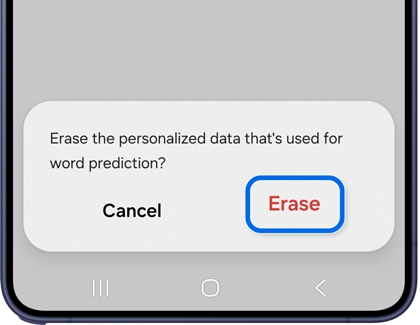
These are the steps for the latest Samsung operating system. If your device settings look different, try following a different path.
- Settings > Language and input > On-screen keyboard > Samsung Keyboard > Reset to default settings > Erase personalised predictions
- Settings > General management > Language and input > On-Screen Keyboard > Samsung Keyboard > Reset to default settings > Clear personalised data
- Settings > General management > Language and input > On-Screen keyboard > Samsung Keyboard > Predictive text > Clear personalised data
Add and remove words from predictive text suggestions
Adding a word
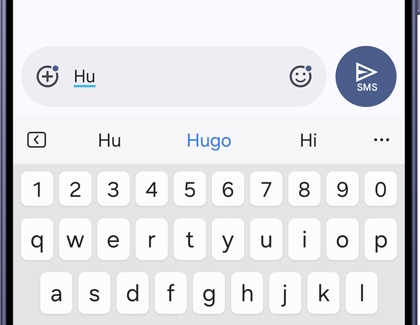
Your phone will automatically save words as 'learned words' as you type.
- Once you have finished typing a word for the first time, tap the spacebar and the word will automatically be saved.
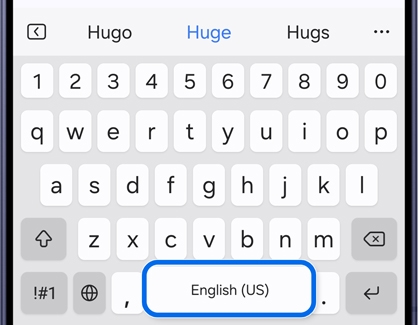
- The next time you start to type the word it will appear in the predictive text toolbar as a suggested word.
Removing a word
If you'd like to remove a single word from the predictive text suggestions, you can do so directly from the Samsung Keyboard.
- On the Samsung keyboard, when a word appears in the predictive text toolbar that you want to remove, tap and hold it.
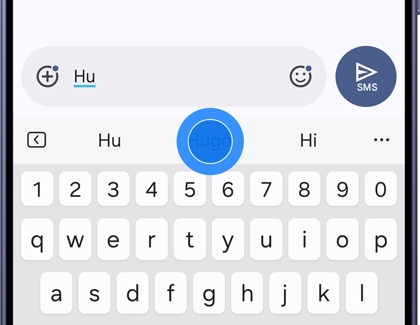
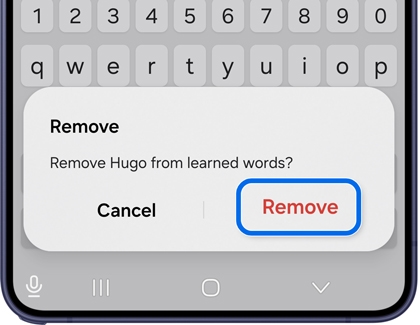
- You will see a popup confirming you want to remove the word. Tap Remove to remove the word from your learned words.
Auto replace
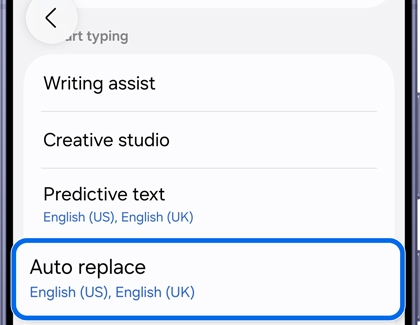
Auto replace will complete or replace the word you are typing with the word it thinks is the most likely for the sentence. As you type, words will be highlighted blue in the middle space of the predictive text bar. To insert the highlighted word, tap the space bar or enter key.
This feature can be activated or deactivated via the Samsung Keyboard settings menu. Tap Auto replace, then tap the switch to activate or deactivate the setting.
Auto spell check

Auto capitalize

Auto spacing

Auto punctuation


