How to use AI Mode on your Samsung TV

How to use AI Mode on your Samsung TV
- Feature is currently available on Samsung 2026 Smart TV models that support AI Mode settings. Availability of specific features may differ by model or region.
- Samsung 2026 Smart TV must be running software version 1247 or later.
- Ensure your TV software is up to date, as updates may resolve technical issues.
- Device screens and menus may vary depending on the TV model and software version.
Enable AI Mode
You can quickly activate AI Mode through your TV’s settings menu using your remote control.
- Press the Home button on your TV remote, and then press the left key.
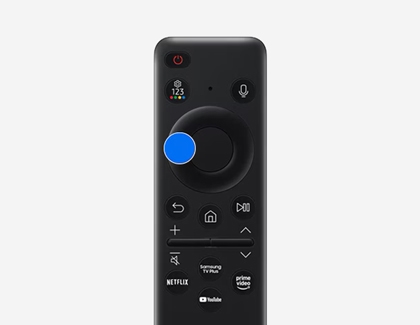
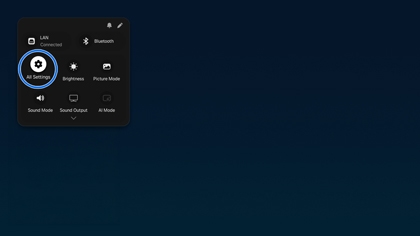
- Navigate to and select Settings.
- Select All Settings.
- Select Advanced Features.
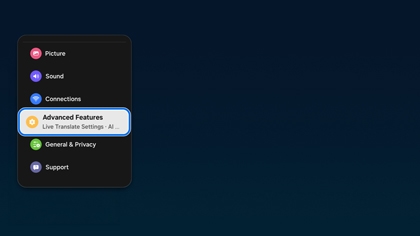
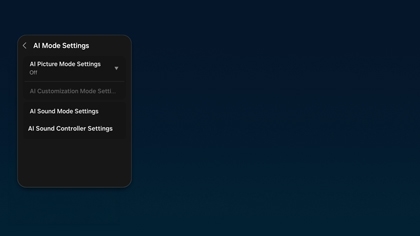
Note 1: Following a software update, AI Mode settings are now integrated into the Picture and Sound mode settings. The dedicated AI Customization menu has been removed.
Note 2: After the update, picture mode will automatically switch to Standard and sound mode will switch to AI Optimized for existing AI Customization Mode users. - Select AI Mode Settings.
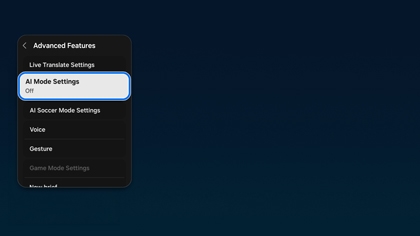
- Toggle AI Mode to On.

- Once AI Mode is enabled, you can fine-tune display options directly within your picture settings to adjust automatically based on room lighting and viewing conditions.
Picture settings
- To use EyeComfort mode, configure the current time via Home > Settings > All Settings > General & Privacy > Time.
- Certain picture modes and apps (such as Game Mode, Ambient Mode, or Art Mode) may not support picture optimization features.
Select your preferred picture optimization mode:
- AI Optimized: Adjusts brightness and picture quality in real time based on ambient lighting conditions and the content you are viewing.
- EyeComfort: Syncs with local sunrise and sunset times to lower brightness and provide warmer colors after sunset for comfortable viewing.
To configure schedule settings when EyeComfort is active, navigate to EyeComfort Mode Settings:
- EyeComfort Mode Duration: Select Auto to sync with sunrise/sunset, or Custom to specify start and end times.
- Start Time / End Time: Set specific schedules (available when set to Custom).
- EyeComfort Mode Level: Adjust screen warmth and brightness levels.
AI Customization Mode Settings
AI recognizes the type of content currently being viewed (e.g., Sports Games or Movies) and automatically switches to the customized picture quality settings.
Using AI Customization Mode Settings, users can customize the picture quality, such as Brightness, Contrast, Color, and Color Tone, for each content type (Sports Event, Movie, General).
- Some models, modes or apps may not support AI Customization Mode Settings.
- Settings adjustable via AI Customization may vary by region.
Sound settings
- Audio optimization features require the sound output to be set to TV Speaker.
- The names of each function may appear differently depending on the TV model.
- Active Voice Amplifier and Adaptive Sound+ require the built-in microphone switch at the bottom of the TV to be turned on. The switch location and functionality may vary by model and region. The TV does not store voice data during audio processing.
With AI based content recognition, scenes, such as sports events and movies, are automatically customized to your preferred picture settings.
Toggle your preferred sound optimization options:
- Active Voice Amplifier / Active Voice Amplifier Pro: Analyzes ambient noise and voice volume level to enhance dialogue clarity.
- This function may not be supported by some modes or apps (e.g., Game Mode).
- No data is saved while using this function.
- Adaptive Sound+ / Adaptive Sound Pro: Provides optimised sound quality by analyzing the viewing space and the acoustic components of the content.
- This function may not be supported by some modes or apps. (e.g., Ambient Mode, Game Mode, Art Mode and apps that control the TV sound).
- Adaptive Volume: Analyzes your volume usage history across time periods and automatically adjusts levels when switching inputs or apps.
- This function may not be supported by certain apps or external devices.
- Enabling this feature affects Auto Volume, but adjusting Auto Volume will not affect this function.
- This feature operates based on your volume usage history and requires sufficient listening history by time period to function properly.
- Volume adjustments made by this function are capped within +/- 5 levels of the current volume and will not apply if the current volume is set above 40.
Last Update Date: October 13.2026

