Troubleshoot an app crashing or not working on your Samsung Galaxy device
Experiencing app crashes or performance issues on your Samsung Galaxy device can be frustrating. This guide offers step-by-step troubleshooting solutions to solve your problem. Clearing the app cache, checking if the app is compatible with your device, rebooting your device, optimizing your device, uninstalling and reinstalling the app, and even checking for additional updates are all things that may help.
Troubleshoot an app crashing or not working on your Samsung Galaxy device
Note
Menu names, settings options, and screen layouts may vary depending on the device model, software version, and app version.
Restart your Galaxy device when an app is crashing or not working
Background processes or temporary software issues may affect the performance on your Galaxy device. Restarting your device can close all running apps and refresh the system.
- Swipe down from the top right of the screen to open the Quick panel.
- Tap the Power off icon, and then tap Restart.

If the device freezes or the Restart menu does not appear, press and hold the Side key and Volume down key at the same time for more than 7 seconds until the device restarts.

Read less
Clear the cache and data for an app that's crashing or not working on your Galaxy device
A temporary app error may prevent the app from opening or working properly on your Galaxy device. Clearing the app cache and data may help restore normal operation.
Note
The only way to clear the cache on every app at the same time would be to perform a factory reset on your Galaxy device.
Clear the cache for the app on your Galaxy device that's crashing or not working
- Open Settings, then tap Apps.
- From the list of Apps that appears, select or search for the app that is causing the issue.
- Tap Storage.
- Tap Clear cache.

Important
Clearing the data will reset the app to factory default settings. Clearing the app will remove any personal settings or data saved in it. Some system apps cannot have their data cleared.
Clear the data for the app on your Galaxy device that's crashing or not working
- Open Settings, then tap Apps.
- From the list of Apps that appears, select or search for the app that is causing the issue.
- Tap Storage.
- Tap Clear data, and then tap Delete to confirm.
Note: This will permanently delete all app data. This includes all files, settings, accounts, databases, etc.

Read less
Check for low storage space on your Galaxy device when an app is crashing or not working
Apps running in the background may affect the performance and cause slowdowns on your Galaxy device.
Free up storage on your Galaxy device when an app is crashing or not working
- Open Settings, then tap Device care.
- Tap Storage.
- Select your desired category, and then select the item(s) you’d like to remove.

- Tap Delete or Delete all, and then tap Move to Trash.
Free up memory on your Galaxy device when an app is crashing or not working
- Open Settings, then tap Device care.
- Tap Memory, and then tap Clean now.

Read less
Check for software updates when an app is crashing or not working on your Galaxy device
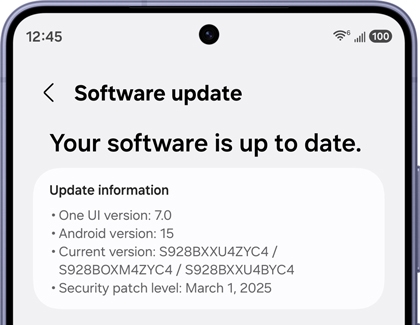
Keeping your Galaxy device updated helps improve performance, stability, and compatibility.
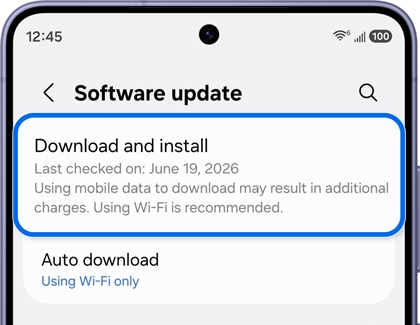
Update the software on your Galaxy device that's running One UI 8.0 or earlier
- Open Settings, then tap Software update.
- Tap Download and install.

- Follow the on-screen instructions if an update is available.

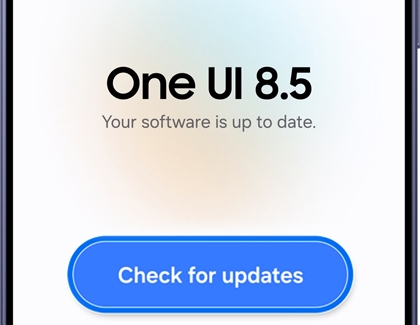
Update the software on your Galaxy device that's running One UI 8.5 or later
- Open Settings, then tap Software update.
- Tap Check for updates.

- Follow the on-screen instructions if an update is available.
Read less
Check if updates are available for the app that's crashing or not working on your Galaxy device
Note
- A Samsung account is required to access the Galaxy Store.
- A Google account is required to access the Play Store.
- Some menu paths may vary depending on the app store version, device model, and software version.
Outdated apps on your Galaxy device may cause app issues or abnormal behavior due to compatibility problems. Check for app updates to help keep your device working properly.
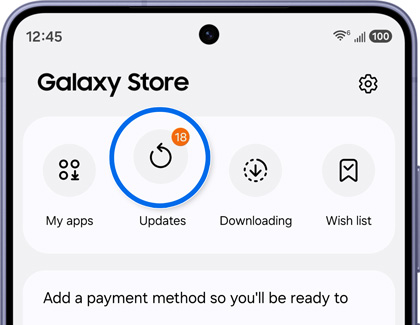
Check for app updates on your Galaxy device using the Galaxy Store
- Open the Galaxy Store, then tap Menu (the three horizontal lines) in the bottom right corner.

- Tap Updates.

- From here, you can either tap the circling arrow next to individual apps to update one at a time, or tap Update all to install all available updates.
Check for app updates on your Galaxy device using the Play Store
- Open the Play Store, tap your profile picture, and then tap Manage apps & device.

- Tap Updates available.
- From here, you can either tap Update next to an individual app, or tap Update all to install all available updates.

Read less
Remove the app that's crashing or not working on your Galaxy device
If the app on your Galaxy device still operates abnormally, uninstall the app from your device and reinstall it after a few minutes.
- Tap Settings, then select Apps.
- Select the app.
- Tap the Uninstall button.

- Go to the Galaxy Store or Google Play Store, and reinstall the app again.
As a last resort, a factory reset can resolve persistent app crashes by restoring your Galaxy device to its original state. However, a factory data reset will erase all data, so back up your information first.
Read less
Last Update Date: November 11, 2026.
Recommended Articles
Mobile hotspot issues with a Samsung phone
If you're experiencing issues with your phone's Mobile Hotspot feature, it might be due to a problem with your mobile carrier or data connection. To resolve the issue, you can try rebooting your phone, updating the software, or performing a factory reset.

Recorded videos are muffled or quiet on Galaxy phone
Is your Galaxy phone recording videos that sound muffled or quiet? Don’t worry, this is a common issue with simple fixes. Learn how to troubleshoot and improve audio quality for clearer, louder recordings. Explore tips to ensure your videos sound great every time!
Screen flashes green on Galaxy A57 5G
If your Galaxy A57 5G screen briefly flashes green when you turn it on, updating your device to the latest software version can quickly resolve the issue.
We're here for you
Contact Samsung Support
Contact us online through chat and get support from an expert on your computer, mobile device, or tablet. Support is also available on your mobile device through the Samsung Members App.