Galaxy phone or tablet's GPS signal is lost
Checkpoint
GPS works best where signals can be received. It requires a direct, open view of the sky in order to communicate with satellites.
The following can result in a lost connection of GPS signals:
- Tall buildings are blocking a direct view of the sky, or there is not a clear view of the sky.
- A storm is causing obstructed views of the satellites.
- There are too many clouds, although this is highly unlikely.
- The GPS settings are not turned on.
- The device's screen has been turned off.
- The device is being held in a manner which blocks the antennas. This is especially true for Galaxy Z Flip models that are folded and closed.
- The phone is set to a Power saving mode. For the best GPS signal, the device should be set to High performance or Optimized.
- The app that uses GPS (like Google Maps) is listed as a sleeping app. You'll need to remove it from the list.
Although the GPS on your device will work inside a building or a house, it is not recommended to use GPS while indoors.
Navigate to Location settings.
Swipe down from the top right of your screen to open the Quick settings panel.

Turn on Location.
Touch and hold the Location icon, and then tap the switch at the top of the screen to enable location services.

Navigate to Location settings.
Navigate to and open Settings, and then tap Location.

Adjust the accuracy setting.
Tap Location services, and then tap the switch(es) next to your desired options under Improve accuracy. For the best results, make sure both Wi-Fi scanning and Bluetooth scanning are turned on.

Improve the Location accuracy.
Tap Google Location accuracy, and then tap the switch next to Improve Location Accuracy.

Next, tap Back, and then tap Google Location Sharing. You can use this setting if you plan to share your location with others. Review the information on the screen, or check out the Google Maps Help page for assistance.
Open Location settings.
Navigate to and open Settings on your device, and then tap Location.

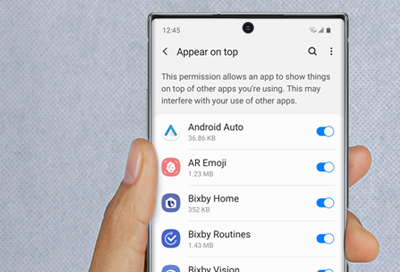
Open App permissions.
Tap App permissions to view your apps. Apps that have location enabled constantly will be listed under Allowed all the time. If your GPS app is listed under this section, then the location is enabled.

Apps that use your device’s location only when you open them are listed under Allowed only while in use. Apps that are not allowed to use your location are listed under Not allowed.
Set the app to Allow all the time.
If your GPS app requires permission, tap it, and then choose Allow all the time. Now your GPS app will be allowed to use your location whenever it's necessary.
Additionally, make sure the option for Use precise location is enabled for apps that require location access. When this option is turned off, apps will only be able to access your approximate location instead of your precise location.

Download updates manually.
- On your device, navigate to and open Settings.
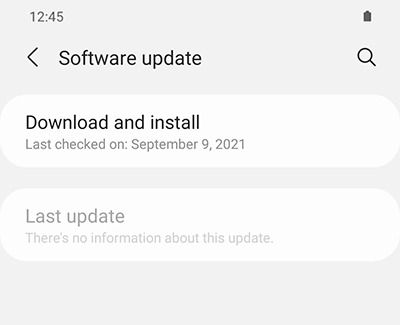
- Swipe to and tap Software update or System updates. It will vary between models.
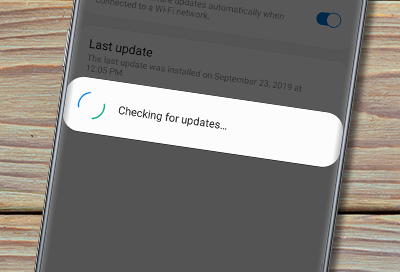
- Tap Download and install or Check for software updates. If an update is available it will begin downloading, though you may need to tap Download now on some devices.

- When the download is complete, follow the on-screen instructions to install the update.
You can also check for updates using Smart Switch.
Make sure your device has enough space.
- Make sure the phone or tablet is connected to the internet and charged to at least 50% before installing a software update.
- Some carriers require a Wi-Fi network connection and will not allow you to update using mobile data.
- If an error occurs during a software update and your phone or tablet keeps restarting, learn how to get out of a boot loop.
- If your phone or tablet doesn't have enough storage space, you can clean up your storage with Device care. You can also back up extra files using Smart Switch or your Samsung or Google account.
Check your phone or tablet after the update.
If you were having issues before the software update, use the phone or tablet normally to check if the problem has been solved.
Thank you for your feedback! Your comment has been submitted.
Contact Samsung Support
- Home Home
- Support Support
- Galaxy phone or tablet's GPS signal is lost Galaxy phone or tablet's GPS signal is lost