Samsung Health has incorrect or missing sleep data
Samsung Health can track your sleep through a connected Wearable, such as a Galaxy Watch. If you have a connected watch, but believe your sleep data is inaccurate or not recording, try the steps in this guide.
Samsung Health has incorrect or missing sleep data
Samsung Health shows an inaccurate sleep score
Note
If the watch is in power saving mode, it may only record limited sleep data.
- Make sure your Galaxy watch is connected to your phone. You can do this by opening the Galaxy Wearable app on your phone. If your watch isn't connected, tap the Connect button.
- If the watch will not connect, follow the troubleshooting steps in our connection guide to reset and repair your watch.
- Once the watch and phone are connected, open Samsung Health on your phone and pull down on the Home page to refresh the data.
- Tap the Sleep widget to review any captured sleep data.
- A sleep score will only be given if the sleep data is within your sleep target. If you need to set or adjust your target, tap the three vertical dots in the upper right corner of the Sleep menu, and then tap Set target.
- Tap the times inside the clock circle to adjust your bed time and wake time.
Read less
Issues with the Sleep tracker in Samsung Health
Note
If your phone is low on memory or battery, it may not be able to properly track or estimate your health data.
Irregular sleep patterns and frequent movement during sleep can interfere with Samsung Health's ability to track your sleep data. If your watch detects a lot of movement, it may consider that awake time.
When Samsung Health isn't quite sure of your sleep information, you may get a notification on your phone asking if you were asleep during certain hours. Respond to the notification with yes if it's correct, or input the correct time to help Samsung Health learn your pattern.
It also helps to have a Sleep target set. If you don't have one, follow the steps below to set one, and then wait for three hours after your set wake up time to review the data.
- Open Samsung Health on your phone.
- From the Home tab, tap the Sleep widget.
- Tap the three vertical dots in the upper right corner.
- Tap Set target, and then tap the times in the center of the clock to set your target sleep and wake times.
Read less
Recommended Articles
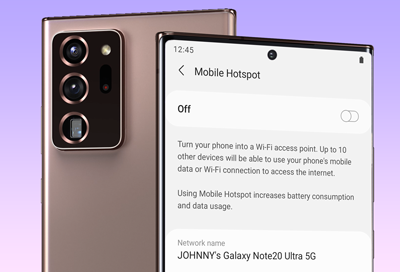
Mobile hotspot issues with a Samsung phone
If you're experiencing issues with your phone's Mobile Hotspot feature, it might be due to a problem with your mobile carrier or data connection. To resolve the issue, you can try rebooting your phone, updating the software, or performing a factory reset.
Recorded videos are muffled or quiet on Galaxy phone
Is your Galaxy phone recording videos that sound muffled or quiet? Don’t worry, this is a common issue with simple fixes. Learn how to troubleshoot and improve audio quality for clearer, louder recordings. Explore tips to ensure your videos sound great every time!
Screen flashes green on Galaxy A57 5G
If your Galaxy A57 5G screen briefly flashes green when you turn it on, updating your device to the latest software version can quickly resolve the issue.
We're here for you
Contact Samsung Support
Contact us online through chat and get support from an expert on your computer, mobile device, or tablet. Support is also available on your mobile device through the Samsung Members App.