Why Is my phone discoverable to everyone?
When you use Quick Share, your device may become discoverable to everyone nearby by default. This can lead to unwanted contacts finding your phone unless you manually adjust the sharing settings.
Read more
Read less
How to change Nearby Sharing options in Quick Share?
You can adjust sharing options through the Quick Share settings.
- Using two fingers, swipe down from the top right corner of the screen to expand the Quick panel on your Galaxy phone. Then, tap the Quick Share icon.
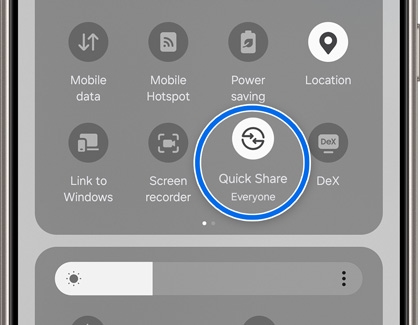
- At the bottom of the "Who can share with you" pop-up, tap your preferred option:
- No one: Your device won’t be discoverable to anyone.
- Contacts only: Only your saved contacts can discover your device.
- Everyone: Your device will be discoverable to all nearby devices (default setting).
Read more
Read less
Why should I change this setting?
Adjusting the Nearby sharing option ensures that only trusted contacts can discover your device. This prevents unwanted individuals from accessing your phone or sending you files through Quick Share.
Read more
Read less
Additional Tips
- Check settings regularly: Since the sharing option changes temporarily each time you access Quick Share, it’s a good idea to double-check the settings periodically.
- Use contacts only: If you only want to share with people you know, select ‘Contacts only’ for added privacy.
- Disable Quick Share When Not in Use: If you don’t frequently use Quick Share, consider disabling it when not needed to avoid accidental discoverability.
Read more
Read less