Cannot move items to Secure Folder on Samsung phone

Follow the steps below to resolve issues moving items to the Secure Folder on your Samsung phone, such as the absence of the "Move to Secure Folder" option in Gallery or My Files.
 Secure Folder screen on a Galaxy phone displays a blue scheme, with various apps neatly arranged, indicating the contents of the folder.
 Secure Folder screen on a Galaxy phone displays a blue scheme, with various apps neatly arranged, indicating the contents of the folder.

Cannot move items to Secure Folder on Samsung phone

Why this happens

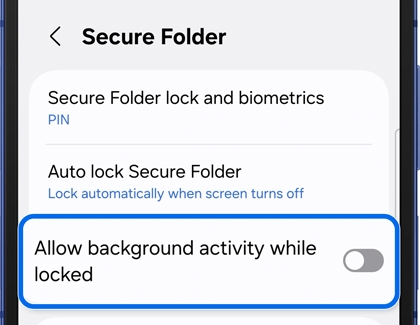
When the "Allow background activity while locked" option is turned off, the "Move to Secure Folder" option will not be displayed in apps like Gallery or My Files.

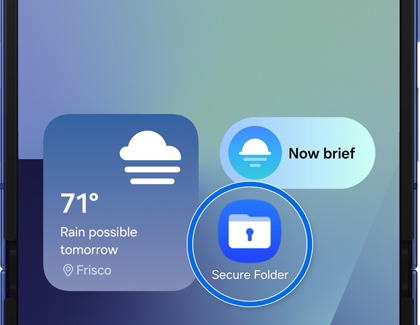
Secure Folder app icons displayed on the Galaxy phone screen.

Read more
Read less

Enable Allow background activity while locked

To resolve this issue, ensure that the "Allow background activity while locked" option is turned on. Here’s how:

  1. Open the Secure Folder on your Samsung phone.
    Secure Folder icon on the Galaxy Z Flip cover screen.
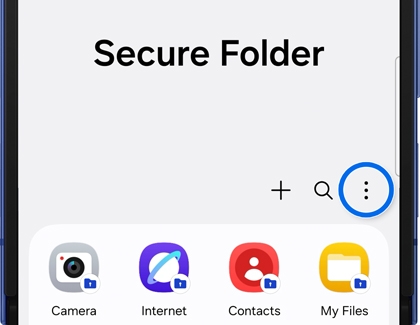
  2. Tap on the More options (the three vertical dots) icon in the top-right corner.
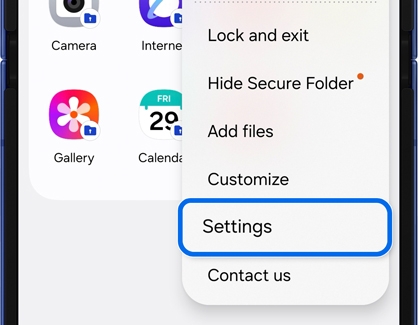
    Secure Folder opened on a Galaxy phone with the options menu highlighted.
  3. Tap Settings from the menu.
    Secure Folder settings on a Galaxy phone showing Allow background activity while locked enabled.
  4. Turn on the switch next to "Allow background activity while locked."
    Secure Folder settings on a Galaxy phone showing Allow background activity while locked disabled.

Once this setting is enabled, the "Move to Secure Folder" option will be available in Gallery or My Files.

Read more
Read less

Additional tips

  • Ensure your Samsung phone is running the latest software version for optimal performance.
  • If the issue persists, consider restarting your device or checking for any pending updates for the Secure Folder app.
Read more
Read less
Was this content helpful?
We're here for you

Contact Samsung Support

Contact us online through chat and get support from an expert on your computer, mobile device or tablet. Support is also available on your mobile device through the Samsung Members App.
auto-contact_us-pc-2x auto-contact_us-pc-2x