How to fix call issues on your Samsung Galaxy Buds
- Make sure your earbuds are worn correctly for the best call quality.
- Keep your phone close to your earbuds to maintain a stable Bluetooth connection.
When sound is missing from one earbud
- If you do not hear the notification sound when wearing the earbuds, remove them and insert them again. If needed, try a different ear tip size to improve the fit.
- For Galaxy Buds4 Pro, make sure the ear tips are securely attached to the earbuds. Improperly fitted ear tips may affect audio quality and noise controls.
How to wear the earbuds properly

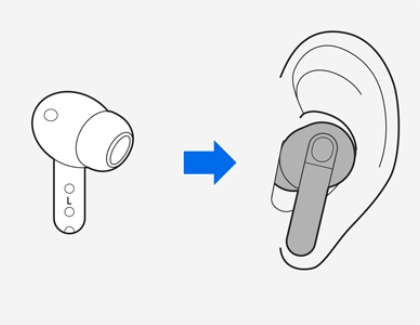
- Check the left and right direction marks, then insert the earbuds into the correct ears with the microphones facing your mouth.
- Rotate the earbuds until they fit comfortably. When the earbuds are detected, you will hear a notification sound.
Check the earbuds’ battery status
If they have a low battery, it may be necessary to charge the earbuds. You can check their battery level by going to the Bluetooth settings menu in your phone and selecting your connected buds.
Inspect the earbuds for dirt and damage
- Be sure to regularly clean the earbuds. The build-up of dust, earwax, or other debris in the microphone can also make you sound muffled.
- Check the air ducts and speakers to make sure they are clean.
- Inspect for a cracked or lifted case, and broken, bent, or loose parts.
- If you see obvious damage, cracks, or small chips on the earbuds, this means that the earbuds have suffered from an external impact. This can impair the earbuds and their functions.
- The earbuds are not impervious to water damage in any situation. Exposure to water, liquids, or chemicals can cause damage or issues with the earbuds.
Restart both your phone and earbuds
To restart your phone, swipe down on your phone's home screen twice, and then tap the Power icon in the upper right corner. Tap Restart, and then tap Restart again to confirm. Instructions for restarting your buds can be found in our guide. If restarting the buds does not work, try completely resetting them.
Check for software updates
Check for software updates on your Galaxy buds. If an update is available, install it.
When the other person hears your voice as distorted or has difficulty hearing you in noisy environments
If your voice sounds distorted, echoing, or robotic to the other person, try the following.
If both your voice and the caller’s voice are unclear:
- This issue may occur due to a weak Bluetooth connection between your earbuds and your phone. If you are in a crowded area or your phone is in a pocket or bag, try keeping your phone closer to your earbuds.
If only your voice sounds unclear to the other person:
- This issue may occur if the earbuds do not fit your ears properly. If the earbuds are not seated correctly, external noise may be picked up by the internal microphone, or the fit may become unstable, which can distort your voice during calls.
- For Galaxy Buds4 Pro, check that the ear tips fit your ears properly and are securely attached. If the ear tips are damaged or not installed correctly, audio quality and noise controls may not work properly.
- Do not pull, twist, or press the ear tips excessively, as this may damage them.
- Be careful not to scratch the ear tips with hard or sharp objects, such as fingernails.
- If an ear tip becomes caught in the gap around the outside of the earbud, remove it and reinstall it correctly.
Replacing ear tips (Galaxy Buds4 Pro)

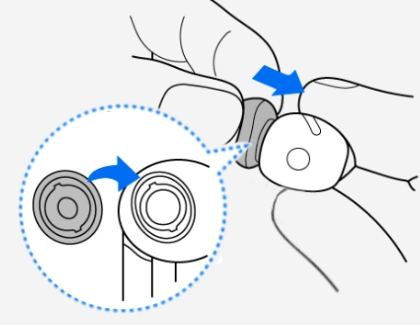
- Turn over the ear tip, then pull the middle part of the ear tip straight away from the earbud to remove it.
- Select the ear tips that fit your ears.
- Align the groove on the ear tip with the protruding part of the earbud speaker, then push the ear tip into place until it clicks.
Make sure your microphone isn't muted
If others cannot hear you during the call, make sure you haven't muted the microphone. When you tap and hold the touchpad during a call on the Galaxy Buds or Buds+, you may accidentally turn off the microphone that's built into the earbuds. Nothing will be displayed on the device when you mute the call using the earbud touchpad, so you may not be aware that the microphone was disabled.
To unmute the call, just tap and hold the touchpad to turn on the microphone again.
Check the phone to make sure the call isn't muted in the Phone app.
When your voice is hard to hear with Active noise canceling enabled
When Active noise canceling blocks surrounding noise, you may unknowingly speak more quietly, causing the other person to hear your voice at a lower volume.
Try speaking slightly louder and more clearly than usual.
When the other person cannot hear you clearly while Ambient sound is turned on
When Ambient sound is turned on, surrounding noise may pass through the internal microphone and be transmitted to the other person during calls, making it harder for them to hear your voice clearly.
In noisy environments, try turning off this feature temporarily or moving to a quieter place before continuing the call.
When you cannot hear the other person or their voice is not clear
The ambient sound feature on Galaxy Buds4 and Buds4 Pro has been improved to deliver more natural surrounding sound. In noisy environments, this may cause the other person’s voice to be less clear and harder to hear due to background noise.
- Open Settings, then tap your Galaxy Buds.

- Tap Auto switch to ambient sound.

- Turn off Use Ambient sound during calls.