Missing or incorrect transaction information in Samsung Wallet

When you use your credit or debit cards in Samsung Wallet, you'll be able to view your recent transactions for those cards. However, a weak internet connection or a card issuer's policy may prevent transactions from showing up in the app. Other times, the full transaction amount may not display until a later date. There are a few steps you can follow to resolve this issue and see your transactions.

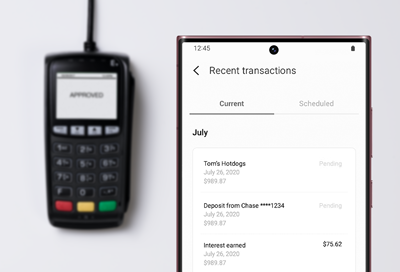
Galaxy phone displaying recent transaction history in Samsung Wallet near a payment terminal

Missing or incorrect transaction information in Samsung Wallet

Note
If transaction information is not received, Samsung Reward points may not be issued.
1

Recover your missing transaction information.

Open Samsung Wallet on your phone. Tap the All tab, and then tap Payment cards. Select your desired payment card, and then swipe up to view your transactions in the Recent transactions section.
Note
Samsung Wallet requires an internet connection to download your recent transactions. Make sure your phone is connected to Wi-Fi or mobile data. 
2

Remove the payment card.

Next, try removing the payment card. Open Samsung Wallet on your phone, tap the All tab, and then tap Payment cards. Select the card you want to remove, and then tap More options (the three vertical dots). Tap Delete card. You may be asked to enter your Samsung Pay PIN or biometrics. Then, tap Delete when prompted. 
3

Re-add the payment card.

To re-add your card, tap the All tab, and then tap Payment cards. If this is your first time adding a card, tap Add credit or debit card. If you have existing cards, tap the Plus sign in the upper right corner, and then tap Add credit or debit card. If you prefer, you can tap Add card manually, and then enter the card number, cardholder name, and tap Next. Follow the instructions to register your card, which may include verifying with your card's banking app or website. When you add a card, you must agree to the card's terms and conditions.

If you have any questions about the terms, contact the card issuer.

4

Try making a purchase using Samsung Wallet.

Make a purchase using Samsung Wallet to determine if new transactions are displayed after following steps 1 and 2.

If the transaction information still doesn't display, it may be due to the card issuer's policy. Please proceed to the next step.

5

Download the card issuer's app.

Some card issuers and payment networks don't allow transaction information to be displayed in Samsung Pay. To view the issuer's policy or your card's transactions, you can try checking the issuer's app or website.

If the card issuer has a mobile app, you can download it from the Play Store.

6

Contact the card issuer or place of purchase.

If you are still unable to view your transaction information after following the above steps, we recommend contacting the card issuer. Confirm if there have been any recent policy changes that do not allow transactions to be displayed in Samsung Wallet. You can also contact the original place of purchase if you believe there is an error.
Was this content helpful?
We're here for you

Contact Samsung Support

Contact us online through chat and get support from an expert on your computer, mobile device or tablet. Support is also available on your mobile device through the Samsung Members App.
auto-contact_us-pc-2x auto-contact_us-pc-2x