Motion detection is not working on Galaxy XR

Motion detection is a key feature of the Galaxy XR, enabling smooth and responsive tracking for immersive experiences. If you're experiencing issues with motion detection, follow these steps to troubleshoot and resolve the problem.
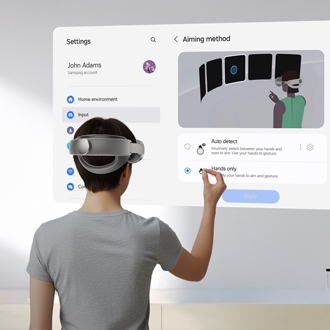
A person wearing the Galaxy XR headset indoors while raising one hand to point forward.

Motion detection is not working on Galaxy XR

1

Check for camera obstructions.

Ensure the camera is not blocked by any objects or accessories. Remove the protective covers and any other attachments that may interfere with the camera's view.
2

Optimize lighting conditions.

Ensure the surrounding area has sufficient lighting. Avoid environments with excessive shadows, glare, or unusual movements that may confuse the motion detection system.
3

Move naturally within tracking range.

Avoid overly fast movements. Ensure your actions are natural and within the camera's tracking range for accurate recognition.
4

Avoid interference from moving objects.

Do not stand too close to moving objects, large screens, or walls. These can interfere with the tracking system, causing inaccuracies.
5

Minimize accessories.

Avoid wearing excessive accessories that may interfere with body recognition. Remove bulky clothing or items such as gloves or sleeves that could obstruct the camera's view of your movements.
Was this content helpful?
We're here for you

Contact Samsung Support

Contact us online through chat and get support from an expert on your computer, mobile device, or tablet. Support is also available on your mobile device through the Samsung Members App.