Samsung Galaxy XR does not track hand movements correctly

Hand tracking on the Samsung Galaxy XR allows you to control the interface using natural hand gestures, providing a seamless and immersive experience. If hand tracking is not working correctly, it may be due to environmental factors, obstructions, or incorrect settings. This article provides troubleshooting steps and guidance to ensure optimal hand tracking performance.
A person wearing the Galaxy XR headset selecting the Auto detect aiming method in Settings.

Samsung Galaxy XR does not track hand movements correctly

1

Optimize lighting conditions.

Hand tracking relies on the camera, which may struggle to detect movements in dark environments. For the best experience, use the device in a well-lit area where the camera can clearly track your hand movements.
2

Remove obstructions.

Gloves, sleeves, or accessories may interfere with hand tracking. Remove any obstructive items before use to ensure proper functionality.
3

Use basic hand gestures.

Use the following gestures to control the interface: 

  • Select: Touch and release your thumb and index finger together.
    Hand gesture illustration showing the select gesture with a pinch and release.
  • Show more options: Touch and hold your thumb and index finger together for more than 2 seconds, then release.
    Hand gesture illustration showing the gesture to view more options with a pinch and hold.
  • Scroll or swipe: Touch your thumb and index finger together, then flick in the desired direction (up, down, left, or right).
    Illustration showing a hand performing the scroll or swipe gesture by dragging while pinching.
  • Move: Pinch and drag with your thumb and index finger.
    Illustration showing a hand performing the move gesture by pinching and dragging to reposition an object.
  • Zoom in or out: Touch your thumb and index finger of both hands together, then spread them apart or bring them together.
    Illustration showing both hands performing the zoom gesture by pinching with each hand and spreading them apart to zoom in.
4

Switch between hand and eye tracking.

In mixed mode (Hand and eye aiming), the system switches between hand gesture tracking and eye tracking based on the direction and speed of your hand movements:

  • Switch to hand tracking: Extend your hand forward as if pointing toward the screen.
  • Switch to eye tracking: Lower your hand below the screen while focusing your eyes on the target.
     

To use only hand tracking, navigate to and open Settings, then select Input. Select Aiming method, then select Hand aiming only, and then select Apply.

Switch between hand and eye tracking settings screen shown in the Galaxy XR interface with the Hands only option selected and the Apply button highlighted.

5

Adjust gesture sensitivity.

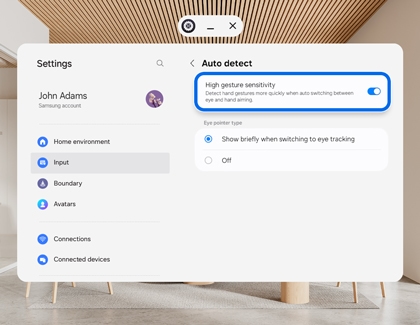
In the aiming method settings, you can turn on the High gesture sensitivity option to make hand gestures more responsive during auto-switching between eye and hand tracking. To do so, navigate to and open Settings, and then select Input. Select Aiming Method, and then choose Hand and eye aiming. Select the Settings icon (it looks like a gear) next to Hand and eye aiming, and then turn on the switch next to High gesture sensitivity.

High gesture sensitivity option highlighted in the Galaxy XR Auto detect settings screen.

6

Access tutorials for pointing modes.

For a tutorial on how to use pointing modes effectively, navigate to and open Settings, and then select User Guide
Was this content helpful?
We're here for you

Contact Samsung Support

Contact us online through chat and get support from an expert on your computer, mobile device or tablet. Support is also available on your mobile device through the Samsung Members App.
auto-contact_us-pc-2x auto-contact_us-pc-2x

