Ghosting or flare in the Galaxy XR display

Ghosting or flare (light streaks) in the Galaxy XR display can occur due to various factors, such as contaminants on the lens or visor window, or interference from external light sources. This article provides steps to address these issues and improve display clarity.
A Galaxy XR headset showing smudges and fingerprints on the front visor.

Ghosting or flare in the Galaxy XR display

Caution
Avoid using chemicals or detergents when cleaning the headset, as they may damage the surface.
1

Clean the lens.

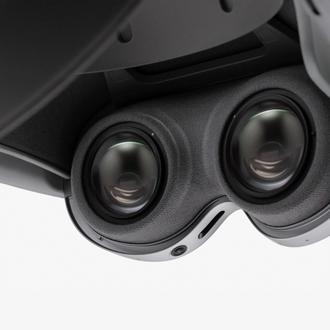
If there is dirt or smudges on the lens, gently clean the pancake lens with a soft cloth to remove oils or fingerprints. This can help reduce ghosting caused by contaminants.

A hand wiping the Galaxy XR headset lenses with a soft microfiber cloth. 

2

Clean the visor window.

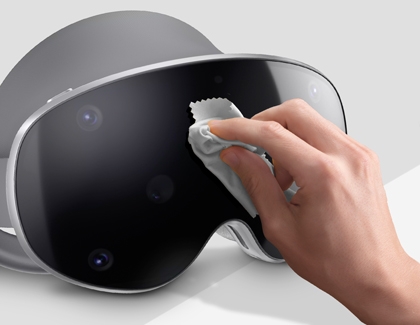
Wipe the front of the visor window (around the PT camera hole) with a soft cloth to remove any contaminants that may cause reflections or flare. 

Visor window on the Galaxy XR being cleaned with a soft lens cleaning cloth.
3

Block external light.

Use the Light Shields (Left and Right) to minimize interference from external light sources, such as fluorescent lights. This can help reduce ghosting caused by external reflections.

A hand attaching the Light Shields to the inside of a Galaxy XR headset. 

4

Understand residual reflections.

Some reflections may remain even after taking the above measures, causing minor ghosting or flare under specific conditions, such as bright icons on a dark background. This is a normal occurrence in optical devices and may not be fully avoidable.
Was this content helpful?
We're here for you

Contact Samsung Support

Contact us online through chat and get support from an expert on your computer, mobile device or tablet. Support is also available on your mobile device through the Samsung Members App.
auto-contact_us-pc-2x auto-contact_us-pc-2x