
Fix lagging issues when mirroring to Galaxy XR via Wi-Fi 7

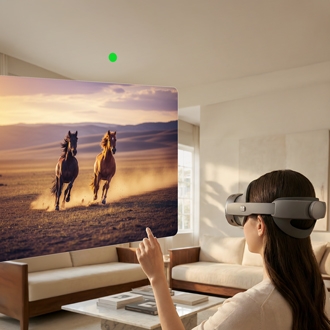
Experiencing lagging or stuttering when mirroring your PC screen to the Galaxy XR using Wi-Fi 7 6GHz? This issue may occur with programs like Virtual Desktop, PC Link, Game Link, Stream Link, Steam VR, or UEVR. As a temporary workaround, connect your device to a different Wi-Fi standard for improved performance.

Fix lagging issues when mirroring to Galaxy XR via Wi-Fi 7

Note
A software update is in progress to address this issue. The update will be rolled out gradually, varying by region and carrier. Be sure to keep your device updated for the latest fixes.
1

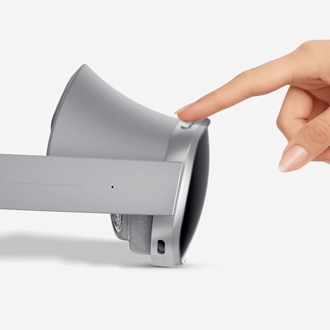
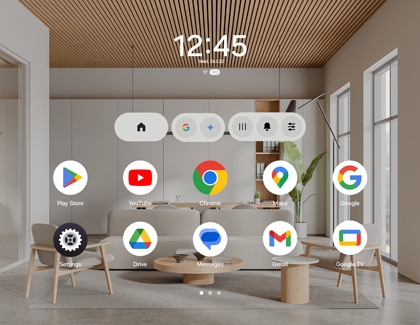
Open the Launcher menu.

Press the Top button on the headset to open the Launch menu.

Launcher (Home)  screen displayed on the Galaxy XR.

2

Disconnect from the Wi-Fi 7 network.

Select Settings, then select Connection, and then select Wi-Fi. Select the Settings icon (it looks like a gear) next to the Wi-Fi 7 6GHz network you're connected to from the list, and select Forget.

Connection menu selected in the Settings on a Galaxy XR

3

Connect to a different network.

Connect your headset to a different Wi-Fi network standard, like a Wi-Fi 6 5GHz network. Select the network from the Available networks list in the Connections menu. Enter the password, and then select Connect.

Wi-Fi connection menu displayed on the Galaxy XR.


 For hidden networks, tap Add network, and then enter the network name and password.

Was this content helpful?
We're here for you

Contact Samsung Support

Contact us online through chat and get support from an expert on your computer, mobile device or tablet. Support is also available on your mobile device through the Samsung Members App.
auto-contact_us-pc-2x auto-contact_us-pc-2x