Troubleshoot Cover screen battery widget on Galaxy Z Flip

After updating to One UI 8 (B OS) on the Galaxy Flip series, the cover screen battery widget may show the battery status of connected devices, such as watches or earbuds, by default. If you prefer to see only your phone's battery level, follow these steps to adjust the setting.
Blue Galaxy Z Flip7 standing partially unfolded with a battery widget shown on the cover screen.

Troubleshoot Cover screen battery widget on Galaxy Z Flip

Customize the battery widget:


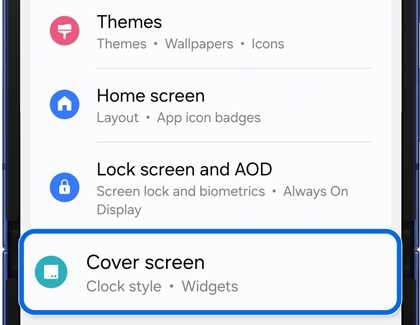
  1. Navigate to and open Settings, and then tap Cover screen.
    Settings list with the cover screen option highlighted by a blue border.
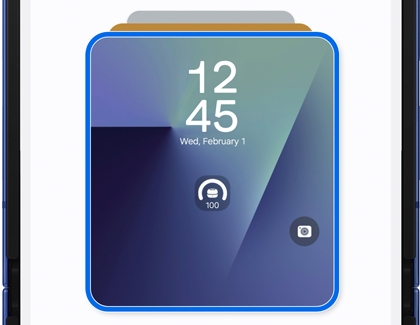
  2. Tap the Cover screen displayed at the top of the menu.
    Preview of a Galaxy Z Flip cover screen with a blue border indicating the customizable widget area.
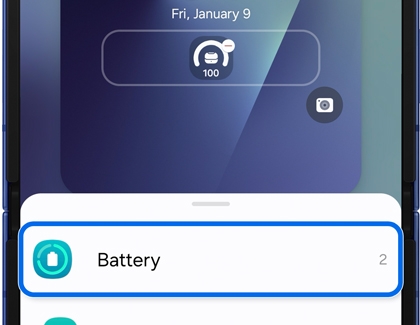
  3. Remove the widget showing connected devices' battery levels by tapping the Battery status widget, and then tapping the minus icon.
    Widget selection screen with the Battery widget highlighted.
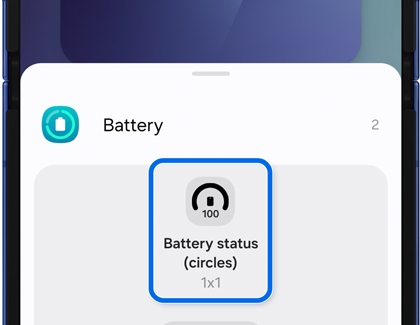
  4. Add the widget showing only your phone's battery level by tapping Battery from the list of widgets, then selecting Battery status (circles) 1x1.
    Widget selection screen showing the battery status circle option highlighted by a blue border.
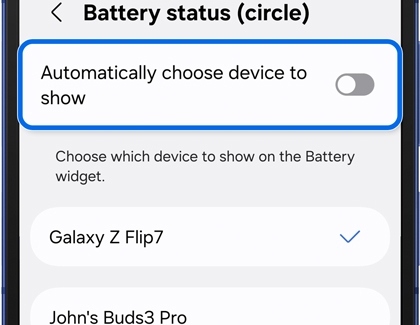
  5. Now, tap the Battery status icon you just added, then turn off the switch next to Automatically choose device to show, and then select your phone to show on the Battery widget.
    Settings menu for the battery status widget highlighting the Automatically choose device to show toggle switch.

Was this content helpful?
We're here for you

Contact Samsung Support

Contact us online through chat and get support from an expert on your computer, mobile device or tablet. Support is also available on your mobile device through the Samsung Members App.
auto-contact_us-pc-2x auto-contact_us-pc-2x


