Main and cover screens do not show the same things on the Galaxy Z TriFold

If you've changed the Lock screen clock, Brief widget, or shortcuts but notice the main and cover screens don't update simultaneously, this is because the design now allows separate customization for each screen. You can configure the main and cover screens independently.
A Galaxy Z TriFold in both its folded and fully unfolded states showing the lock screen.

Main and cover screens do not show the same things on the Galaxy Z TriFold

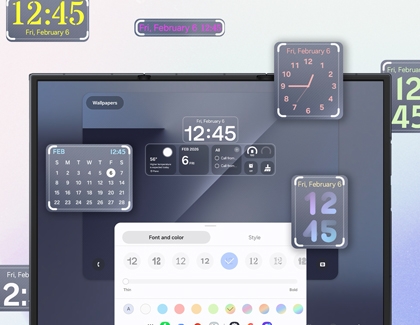
Adjust the Lock screen clock

A Galaxy Z TriFold showing lock screen clock customization with various clock styles floating around a preview of the main screen.
To customize your Lock screen clock, follow these steps:
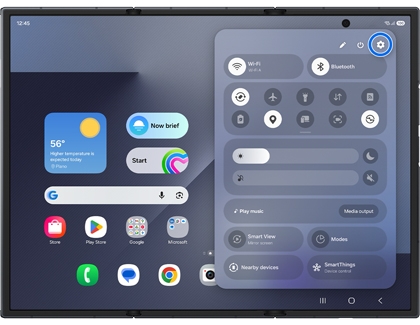
  1. Swipe down from the top-right corner to open the Quick panel.
  2. Tap the Settings icon (it looks like a gear).
    A Galaxy Z TriFold showing the Quick Settings panel with the gear icon for Settings in the top right corner circled in blue.
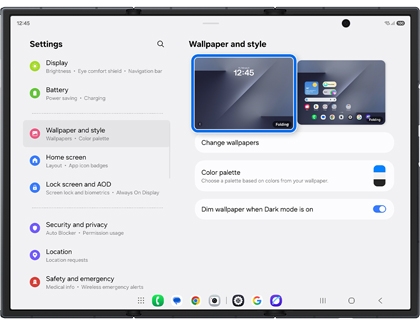
  3. Swipe to and tap Wallpaper and style.
  4. Tap the Lock screen card to the left of the screen.
    A Galaxy Z TriFold showing the Wallpaper and style menu with the lock screen preview highlighted by a blue rounded box.
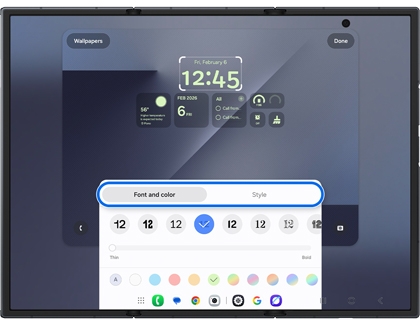
  5. Tap the current clock to change the Font and color, or Style.
    A Galaxy Z TriFold showing the lock screen editor with the Font and color and Style tabs highlighted by a blue rounded box.
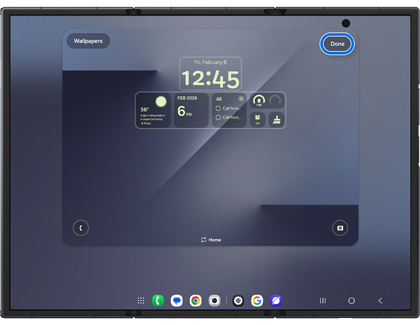
  6. Tap Done to save changes.
    A Galaxy Z TriFold showing the lock screen editor with the Done button in the top right corner highlighted by a blue rounded box.
Read less

Set up the Brief widget

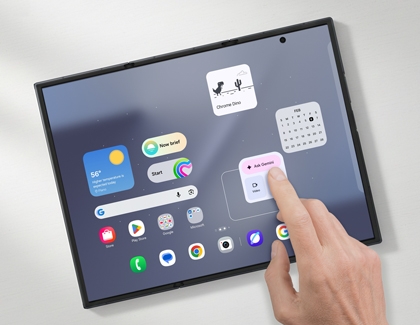
A hand touching an Ask Gemini widget on a Galaxy Z TriFold main screen with other widgets like Chrome Dino and a calendar floating above.
Customize your Brief widget to get tailored suggestions throughout the day on your Home screen.
  1. Tap the Now brief widget on the Home screen. If it's missing, pinch the Home screen, and then tap Widgets. Tap Now brief, select your desired widget size, then tap Add.Widget menu on an unfolded Galaxy Z TriFold main screen with the Add button highlighted in blue.
  2. Tap the Settings icon (it looks like a gear) in the lower right side of the screen.
  3. Tap Content to include, and then turn on the switch for categories you want to appear.
  4. To customize a widget, touch and hold the widget, and then select options like Create StackRemove, or Settings.
    Galaxy Z TriFold main screen showing a widget stack menu with Create stack highlighted in blue.
Read less

Turn on Cover screen mirroring

Folded and unfolded Galaxy Z TriFold side by side on a desk showing the same home screen layout.

The Galaxy Z TriFold now allows independent customization of the main and cover screens. Changes made to one screen won't automatically apply to the other unless you enable Cover screen mirroring. Here's how:

  1. Swipe down from the top right corner to open the Quick panel.
  2. Tap the Settings icon (it looks like a gear).
  3. Tap Home screen, and then tap Cover screen mirroring.
  4. Tap On, and then tap Apply to save changes.Home screen settings on the Galaxy Z TriFold with the On radio button highlighted in a blue circle under Cover screen mirroring.
Read less
Was this content helpful?
We're here for you

Contact Samsung Support

Contact us online through chat and get support from an expert on your computer, mobile device or tablet. Support is also available on your mobile device through the Samsung Members App.
auto-contact_us-pc-2x auto-contact_us-pc-2x

