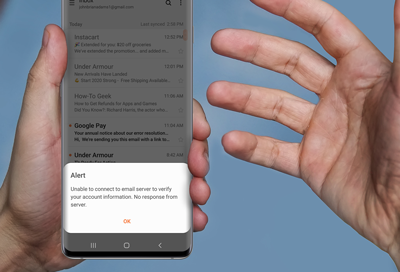
Sign-in failed error in the Samsung Email app

If you see a "Sign-in failed" popup in the Samsung Email app and are prompted to log in again, this is due to enhanced security for Google, Yahoo, and AOL accounts in the latest app version. Simply re-authenticate your accounts to resolve the issue.
A hand holding a Galaxy S25 showing a Sign in failed notification in the Samsung Email app.

Sign-in failed error in the Samsung Email app

Why this happens

The latest Samsung Email app update includes enhanced security measures for login methods. As a result, previously set-up accounts may require re-authentication.
Read more
Read less

Re-authenticate your account(s)

  1. Open the Samsung Email app.
    A Galaxy S25 home screen showing the Samsung Email app icon circled in blue next to various widgets.
  2. Enter your email address and password for the affected account.
    A Galaxy S25 showing the Add new account screen with text fields for Email address and Password.
  3. Follow the prompts to complete the sign-in process.
Read more
Read less

Check for updates to the Email app

Ensure your Samsung Email app is updated to the latest version via the Galaxy Store.

  1. Locate and tap the Galaxy Store app on your device.
  2. Tap the Menu (three horizontal lines) icon in the bottom right corner.
  3. Tap Updates from the menu, and then look for apps with an Update icon next to them.
  4. Tap Update for individual apps or Update all to install all available updates. If no update is available, check back later.
    Updates screen showing the Samsung Email app with the update button highlighted.
Read more
Read less
Was this content helpful?
We're here for you

Contact Samsung Support

Contact us online through chat and get support from an expert on your computer, mobile device or tablet. Support is also available on your mobile device through the Samsung Members App.
auto-contact_us-pc-2x auto-contact_us-pc-2x


