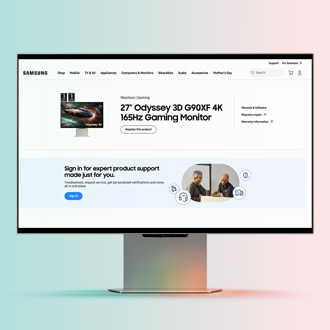
Samsung Odyssey 3D Hub Overlay UI not disappearing on G90XF monitor

The Odyssey 3D Hub Overlay UI on the G90XF 3D monitor is designed to enhance the experience by providing quick access to 3D settings. However, the Overlay UI may not disappear as expected, even after selecting "Overlay Off." This issue stems from a software bug in the Odyssey 3D Hub application (Version 1.2.2). This article offers a detailed explanation of the problem, its causes, and steps to resolve it, ensuring a smoother 3D viewing experience.
A Samsung Odyssey G90XF monitor showing a 3D Hub error message over a floral desktop background.

Samsung Odyssey 3D Hub Overlay UI not disappearing on G90XF monitor

1

Check the current software version.

Ensure the Odyssey 3D Hub application is updated to the latest version. The current version 1.2.2 contains the bug. 

To check for the application version, open Settings on your PC, and then select Apps. Select Installed apps, and then locate the Odyssey 3D Hub to view the version number.

2

Download and install the latest software version.

Visit the Samsung Download Center. Go to Samsung.com, and then select Support. Select Computing, and then select Monitors. Using the search field, enter and select your model code (e.g., LS27FG900XNXZA). Select Manuals & Software, and then locate the Odyssey 3D Hub (Installer) file under the "Software" section. Select Download next to the latest software version to download the file. Once the file finishes downloading, follow the on-screen instructions to complete the installation.
3

Contact Samsung Support.

If the problem persists, reach out to Samsung Customer Support for further assistance.
Was this content helpful?
We're here for you

Contact Samsung Support

Contact us online through chat and get support from an expert on your computer, mobile device, or tablet. Support is also available on your mobile device through the Samsung Members App.

