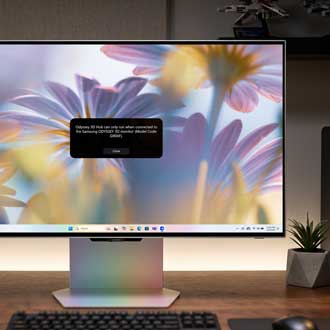
Samsung Odyssey 3D Hub does not run and terminates

If the Odyssey 3D Hub does not run and displays an error message on your G90XF model with Windows 11, this guide provides a solution. The issue is caused by a compatibility problem with the Windows 11 update version (KB5074105). Follow these steps to update the Odyssey 3D Hub to version 1.3.5 and resolve the issue.
A Samsung Odyssey 3D gaming monitor showing a product support page with a sign in banner.

Samsung Odyssey 3D Hub does not run and terminates

Update the Odyssey 3D Hub

  1. Visit Samsung Support, and then select Support.
  2. Select Computing, and then select Monitors
  3. Using the search field, enter and select your model code (e.g., LS27FG900XNXZA) in the search field, and then select your product.

    Note: If you do not know your model code, you can locate it on the back of the monitor. Or, press the JOG button on the back of the monitor, and then select Menu > Support Information.
  4. Select User Manual & Download, and then select Download next to Odyssey 3D Hub (Installer) version (1.3.5 or higher) in the Software section. 
  5. Follow the on-screen instructions to complete the installation.

Alternatively, you can open the Microsoft Store, search for Samsung Odyssey 3D Hub, and then download version 1.3.5.

Note
: Ensure your Windows 11 is up to date to avoid further compatibility issues.

Was this content helpful?
We're here for you

Contact Samsung Support

Contact us online through chat and get support from an expert on your computer, mobile device, or tablet. Support is also available on your mobile device through the Samsung Members App.

