
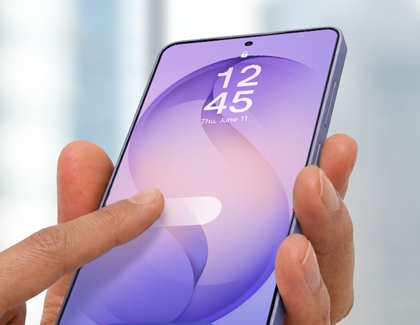

Biometric unlocking disabled on your Galaxy phone
Why is biometric unlocking disabled?

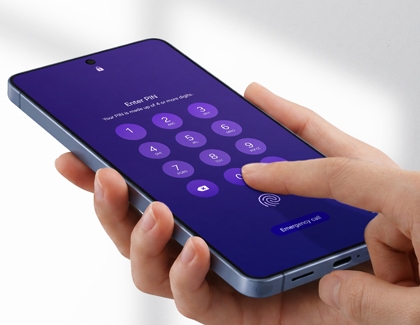
When biometric unlock is disabled, you can unlock your phone using your PIN, Password, or Pattern. However, biometric unlocking (fingerprint or face recognition) may be disabled on your Galaxy phone for the following reasons:
- Biometric lock option turned Off: The biometric lock feature might be deactivated in your settings.
- Lockdown mode is turned on: This security feature disables biometric unlocking to enhance protection.
- Company issued device restrictions: If your device is managed by your company or IT administration, biometric unlocking might be restricted.
Fingerprint unlock

To ensure fingerprint unlock works properly:
- Double-tap the screen, and then enter your PIN, Password, or Pattern to unlock your device.
- Navigate to and open Settings, and then tap Security and privacy.
- Tap Screen lock and biometrics, and then enter your credentials.
- Tap Fingerprints, and then make sure the Fingerprint unlock switch is turned on.
If the fingerprint sensor isn't recognizing your prints:
- Open Settings, and then tap Security and privacy.
- Tap Screen lock and biometrics, and then enter your credentials.
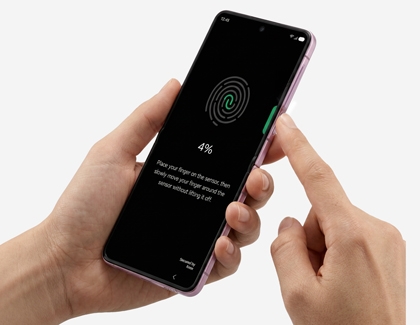
- Tap Fingerprints, select your registered fingerprint, and then tap Remove.
- Tap Remove again to confirm and clear existing data.
- Next, tap Add fingerprint, and follow the on-screen instructions to register your fingerprint(s) again.
Click here to refer to our guide on how to use the fingerprint sensor on a Galaxy device for more information.
Facial unlock

To ensure face recognition works properly:
- Double-tap the screen, and then enter your PIN, Password, or Pattern to unlock your device.
- Navigate to and open Settings, and then tap Security and privacy.
- Tap Screen lock and biometrics, and then enter your credentials.
- Tap Face recognition, and then make sure the Face unlock switch is turned on.
If face recognition isn't working:
- Open Settings, and then tap Security and privacy.
- Tap Screen lock and biometrics, and then enter your credentials.
- Tap Face recognition, and then tap Remove face data.
- Tap Remove again to confirm and clear existing data.
- Next, tap Register face, and follow the on-screen instructions to register your face again.
For more details on how to use facial recognition security on a Galaxy device, click here.
Lockdown mode

- Disabling biometric unlocking
- Blocking notifications
- Preventing USB connections
If Lockdown mode is enabled, you can unlock your phone using your PIN, password, or pattern. To do this:
- Double-tap the screen.
- Enter your PIN, Password, or Pattern.
Once Lockdown mode is unlocked, biometric unlocking (fingerprint or face recognition) will work normally the next time you lock your phone without using Lockdown mode.
To learn more about Lockdown mode on Galaxy phones, click here.
Company issued device restrictions