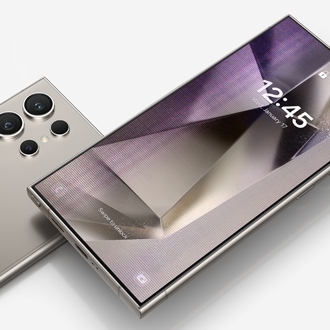
You can adjust display settings such as text size, screen zoom, screen color, dark mode, motion smoothness, screen resolution, and adaptive brightness for better visibility and comfort.
Adjust screen zoom
To make text and images bigger or smaller, you can adjust the screen zoom on your device.
- Open Settings, then tap Display.
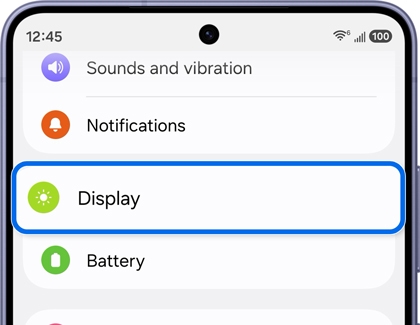
- Tap Screen zoom.
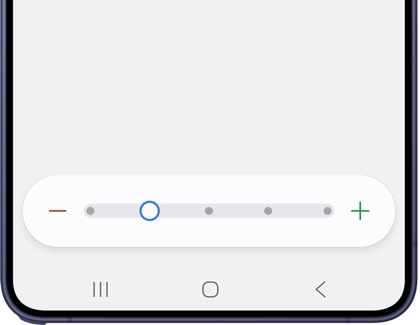
- Use the minus (-) or plus (+) slider to adjust the screen size.
Turn off Eye comfort shield
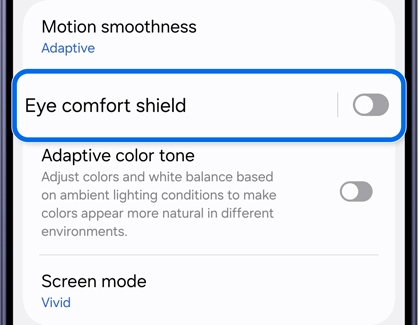
If the screen appears yellow or warmer than expected, the Eye comfort shield feature may be enabled.
- Open Settings, then tap Display.
- Turn off Eye comfort shield.
Adjust Dark mode
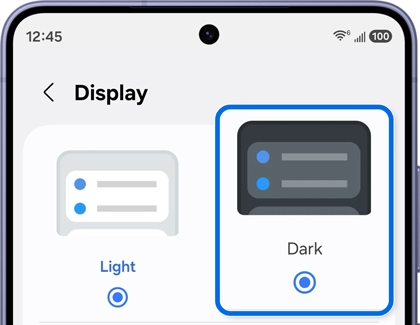
Dark mode can help reduce eye strain in low-light conditions and provide a more comfortable viewing experience.
- Open Settings, then tap Display.
- Tap Dark to activate it or Light to disable it.
Turn on Adaptive Brightness
Adaptive brightness automatically adjusts the screen's brightness based on the surrounding lighting conditions.
- Open Settings, then tap Display.
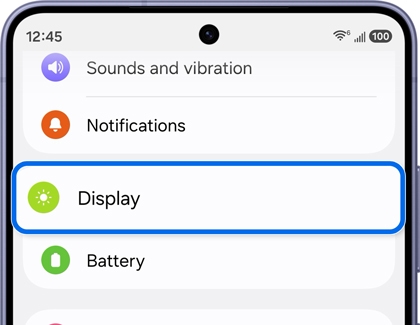
- Turn on Adaptive brightness.
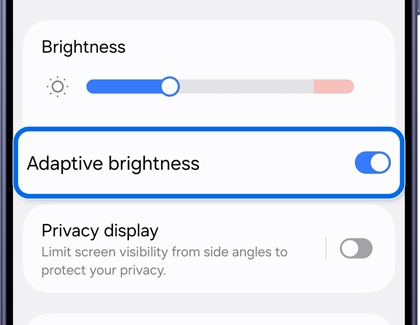
- You can also manually adjust the brightness level by swiping down from the top of the screen to open the Quick panel settings and using the Brightness slider.
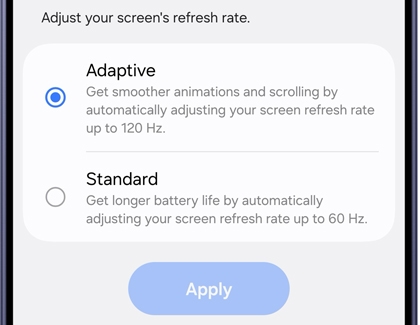
Change the Motion smoothness
Motion smoothness optimizes the screen's refresh rate for smoother visual experiences.
- Open Settings, then tap Display.
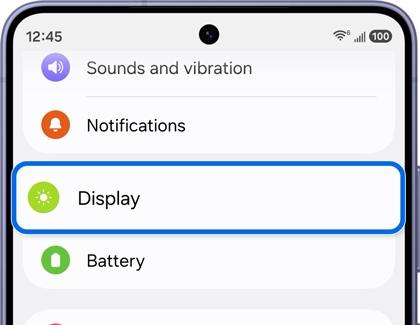
- Tap Motion smoothness, then select a different option:
- Adaptive for dynamic refresh rate adjustments.
- Standard for optimal battery life.
Note
Some devices may not have this option available, depending on the model.
Adjust the Screen resolution
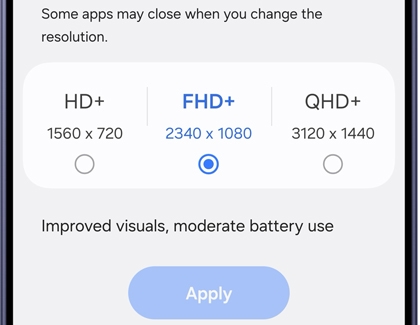
Changing the Screen resolution can make things look sharper, help your battery last longer, and improve how photos and videos appear.
- Open Settings, then tap Display.
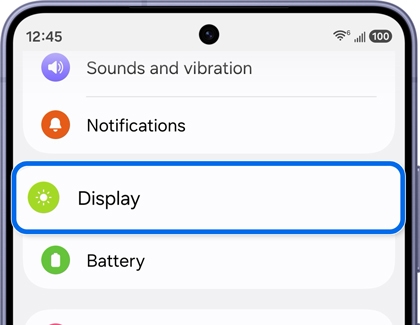
- Tap Screen resolution, and then select a different option.