How to troubleshoot and maintain your Samsung Galaxy Watch rotating bezel

The gap between the external rotating bezel and the display is an intentional design element that ensures smooth usability and structural integrity. If the bezel becomes unresponsive or stiff due to debris, simply clean and restart your watch. 
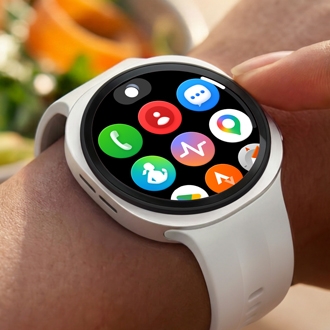
A hand twisting the rotating bezel of a silver Samsung Galaxy Watch.

How to troubleshoot and maintain your Samsung Galaxy Watch rotating bezel

1

Clean the bezel

If dust or foreign materials get trapped in the edges or under the bezel, use a soft-bristled brush to gently remove any debris from the gap between the bezel and the screen. Alternatively, you can use a gentle puff of air to clear out trapped particles.
2

Restart your watch

If your watch is not responding correctly or the interface feels sluggish, a simple restart can often resolve the issue.


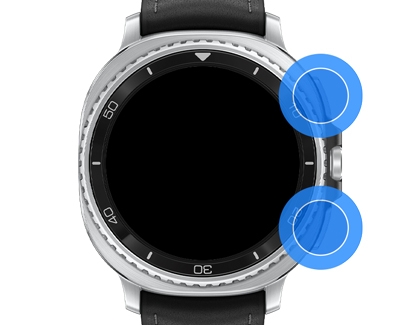
  1. Press and hold the Home key (Power key) and the Back key simultaneously until the Power off menu appears.
    A Samsung Galaxy Watch with the top and bottom buttons highlighted.
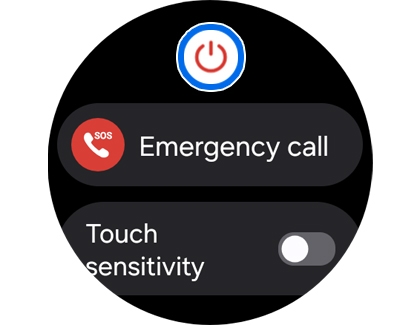
  2. Tap the Power off icon.

    Alternatively, swipe down from the top of the screen to open the Quick settings panel and tap the Power off icon.
    Galaxy Watch power off screen with the Power off icon highlighted.
  3. Once the device is completely off, press and hold the Home key for a few seconds to turn the watch back on.

    During the restart process, your watch and phone may be temporarily disconnected.
    A Samsung Galaxy Watch with the Home key highlighted.
3

Check for software updates

Keeping your watch software up to date ensures you have the latest performance improvements and functional fixes. To update your Galaxy Watch, first ensure it is connected to a compatible Android device.


  1. Open Settings.
  2. Tap Software update.
    A Galaxy Watch settings screen with Software update highlighted
Was this content helpful?
We're here for you

Contact Samsung Support

Contact us online through chat and get support from an expert on your computer, mobile device, or tablet. Support is also available on your mobile device through the Samsung Members App.