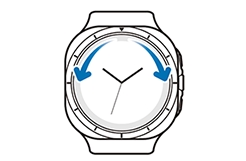
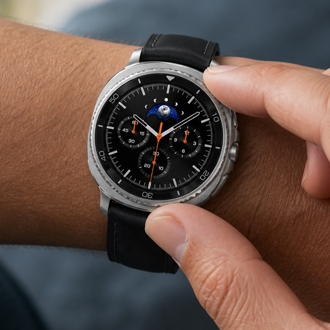
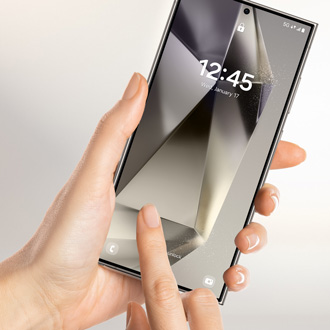
Your Galaxy Watch supports various touch and tap gestures alongside its physical buttons and rotating bezel. Review these gestures to ensure you are interacting with the screen correctly.
Note
Note: Models equipped with a physical rotating bezel do not feature a digital Touch Bezel.
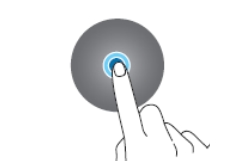
Tap: Lightly tap the screen to launch an application or select a menu item.
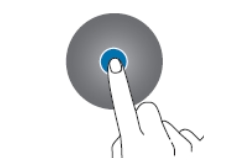
Touch and hold: Touch and hold the screen for more than 2 seconds to enter edit mode or view additional options on specific screens.
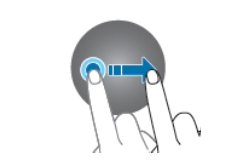
Drag: Touch and hold an icon or item, then slide your finger to move it to a new location.
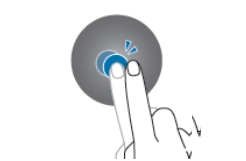
Double-tap: Double-tap the screen while viewing an image to zoom in or zoom out.
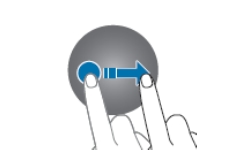
Swipe: Swipe your finger up, down, left, or right to scroll through pages or move to different screens.
Pinch to zoom: Spread to fingers apart or pinch them together on the camera preview screen to zoom in or out.
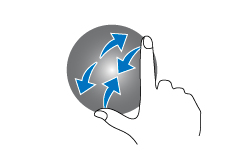
Swipe the Touch Bezel: Swipe along the outer edge of the digital screen (the
Touch Bezel) to move through items, adjust settings values, or control phone/alarm functions