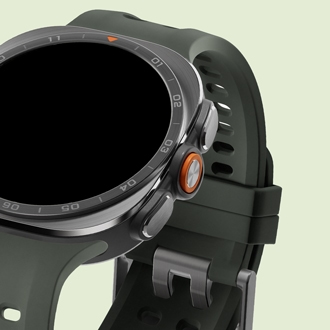
What to do if your Samsung Galaxy Watch buttons appear to be not working

If your Galaxy Watch buttons appear to be unresponsive or if the watch seems to freeze frequently, follow the troubleshooting steps below. If the device continues to appear unresponsive after these attempts, please visit your nearest Samsung Service Center for professional assistance.
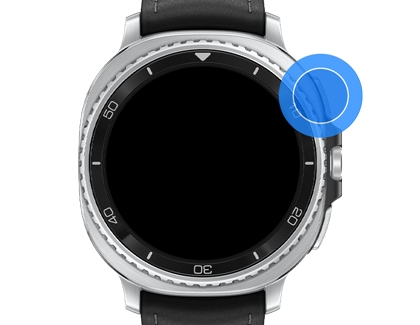
A close up of a thumb pressing the Home button of the Galaxy Watch with the screen off.

What to do if your Samsung Galaxy Watch buttons appear to be not working

1

Clean your Galaxy Watch

Over time, sweat, lotion, or dust from your skin can build up around the physical buttons, causing them to stick or lose sensitivity. Malfunctions can also be caused by debris or foreign substances accumulated between the buttons and the watch body. Regularly cleaning your device ensures optimal performance.
2

Restart your Galaxy Watch

A simple reboot can resolve temporary software glitches that cause the buttons to appear unresponsive.


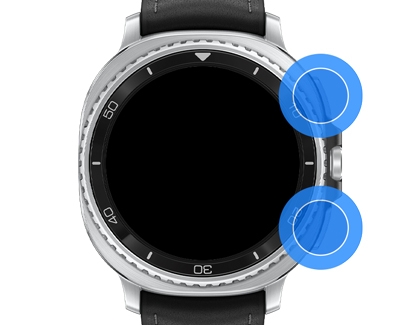
  1. Press and hold the Home key (Power key) and the Back key simultaneously until the Power off menu appears.
    A Galaxy Watch with the home button and back button highlighted.
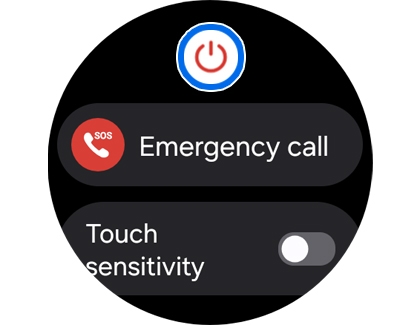
  2. Tap the Power off icon. Alternatively, swipe down from the top of the screen to open the Quick settings panel and tap the Power off icon.
    A Galaxy Watch screen with the Power off icon highlighted.
  3. Once the device is completely off, press and hold the Home key for a few seconds to turn the watch back on.
    A Galaxy Watch with the Home button highlighted.
Note
During the restart process, your watch and smartphone may be temporarily disconnected.
3

Update the watch software

Keeping your watch software up to date helps ensure you have the latest performance improvements and functional fixes. To update your Galaxy Watch, first ensure it is connected to a compatible Android device.


Update on your phone


  1. Open the Wearable app.
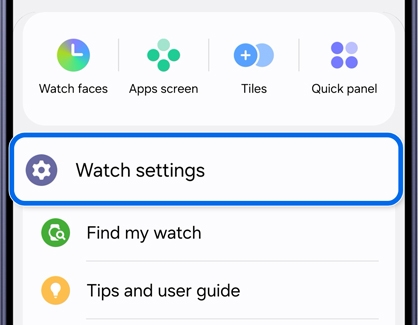
  2. Tap Watch Settings.
    Wearable app screen with Watch settings highlighted.
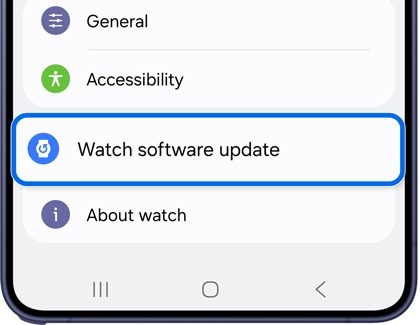
  3. Tap Watch software update to check for and install the latest update.
    Watch settings screen with Watch software update highlighted.


Update on your watch


  1. Open Settings.
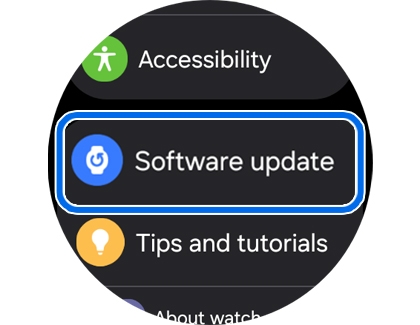
  2. Tap Software update.
    Galaxy Watch Settings screen with Software update option highlighted in the Settings menu.
4

Reset your Galaxy Watch

If the issue persists, resetting the device to factory defaults may resolve the issue.


Resetting via the Wearable app


  1. Open the Wearable app on your connected phone.
  2. Tap Watch settings.
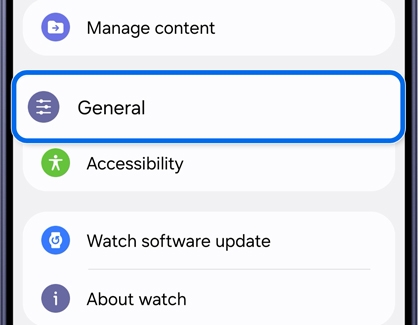
  3. Tap General.
    Watch settings screen with the General setting option highlighted.
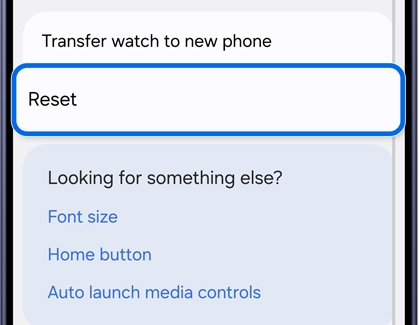
  4. Tap Reset, then tap Reset again to confirm.
    A Galaxy phone screen with the Reset option highlighted.


Resetting via the Watch


  1. Open Settings.
  2. Tap General.
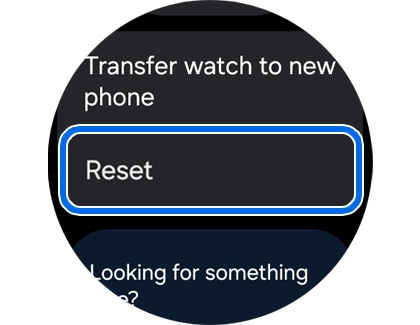
  3. Tap Reset.
    A Galaxy Watch screen with the Reset option highlighted in the General settings menu.
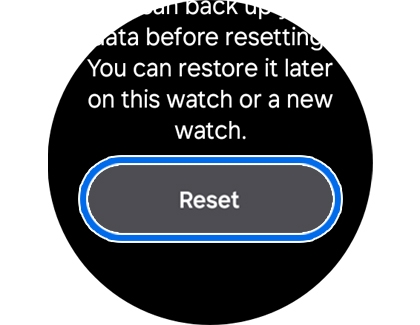
  4. Tap Reset again to confirm.
    A Galaxy Watch screen with the Reset button highlighted.
Note
  • All stored data will be permanently deleted once the device is reset. If you wish to keep your information, please back up your data to a safe location before resetting.
  • Available features, menu options, interface, and settings may vary depending on your specific watch model and software version.
Was this content helpful?
We're here for you

Contact Samsung Support

Contact us online through chat and get support from an expert on your computer, mobile device, or tablet. Support is also available on your mobile device through the Samsung Members App.