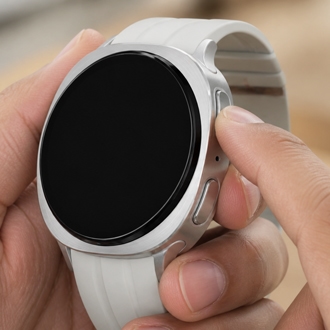
What to do if your Samsung Galaxy Watch buttons appear unresponsive, lag, or freeze

If your Galaxy Watch buttons seem to be unresponsive, lagging, or freezing, or experiencing errors during use, try the instructions below to resolve the issue.
A side view of a Galaxy Watch showing three buttons along the edge and a ridged bezel.

What to do if your Samsung Galaxy Watch buttons appear unresponsive, lag, or freeze

Note
Available features, menu options, interface, and settings may vary depending on your specific watch model and software version.
1

Close active apps or perform a standard restart

If a specific app is causing the watch to lag or the buttons to become unresponsive, closing the application or turning the watch off and back on can refresh the system.


Close apps


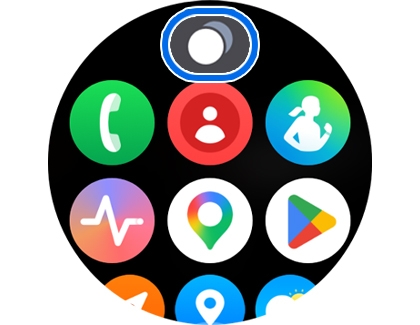
  1. Tap the Recent app icon.
    A Galaxy Watch home screen with the Recent app icon highlighted.
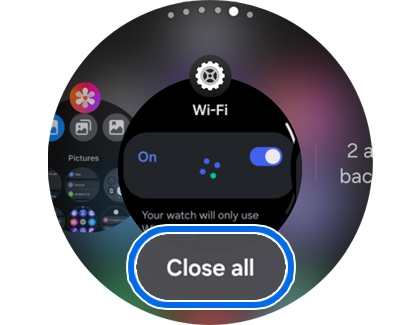
  2. Swipe up any running apps to close, or tap Close all.
    A Galaxy Watch showing the recent apps screen with the Close all option highlighted.


Restart watch


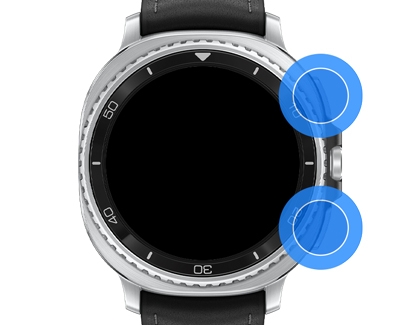
  1. Press and hold the Home key (Power key) and the Back key simultaneously until the Power off menu appears.
    A Galaxy Watch with the home button and back button highlighted.
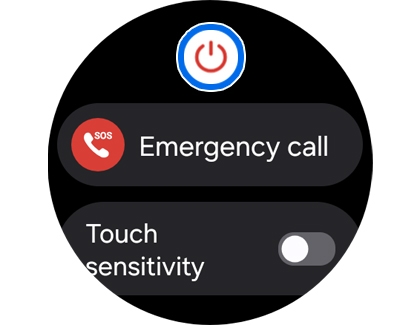
  2. Tap the Power off icon.
    A Galaxy Watch screen with the power button highlighted.
3

Factory reset the watch

If restarting the device does not fix the button malfunction, perform a factory reset.


  1. Open Settings. Alternatively, you can open the Settings app from the App screen.
  2. Tap General.
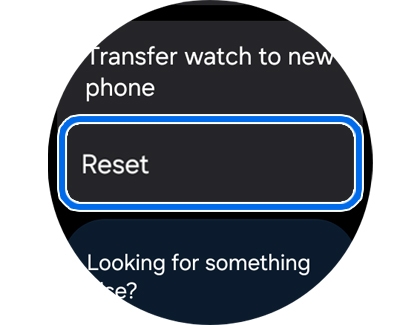
  3. Tap Reset.
    A Galaxy Watch showing the General menu with the Reset option highlighted.
  4. Tap Reset once more to confirm.
Note
All stored data will be permanently deleted once the device is reset. If you wish to keep your information, please back up your data before resetting.
Was this content helpful?
We're here for you

Contact Samsung Support

Contact us online through chat and get support from an expert on your computer, mobile device, or tablet. Support is also available on your mobile device through the Samsung Members App.