Samsung Galaxy phone will not charge wirelessly
- The following troubleshooting information only applies to Samsung wireless chargers.
- Wireless charging issues with 3rd party covers on Galaxy phones may arise due to non-Qi2 or non-Magnetic Power Profile (MPP) wireless charging technology compatibility. For optimal performance, use Qi2-certified covers and MPP wireless chargers, ensuring proper magnetic alignment and fast charging up to 15W.
Check device compatibility.

Ensure your device is compatible with wireless charging. Most Qi-Compatible Samsung devices can be charged wirelessly:
- Galaxy Note phones: Galaxy Note20 5G, Note20 Ultra 5G, Note10+, Note10, Note9, Note8, and Note 5
- Galaxy S phones: S25 series, S24 series, S23 series, S22 series, S21 series, S20 series, S10 series, S9 series, S8 series, S7 series, and S6 series
- Foldable phones: Galaxy Z Fold, Z Fold2, Z Fold3, Z Fold4, Z Fold5, Z Fold6, Z Fold7, Z TriFold, Z Flip, Z Flip 5G, Z Flip3, Z Flip4, Z Flip5, Z Flip6, Z Flip7, Z Flip7 FE, Z Fold8, Z Fold8 Ultra, and Z Flip8.
- Samsung earbuds: Galaxy Buds3, Galaxy Buds3 Pro, Galaxy Buds Pro, Galaxy Buds Pro 2, Galaxy Buds Live, Galaxy Buds+, Galaxy Buds2, and Galaxy Buds
- Samsung smart watches: Galaxy Watch 5 Pro, Galaxy Watch5, Galaxy Watch4, Galaxy Watch4 Classic, Galaxy Watch, Galaxy Watch3, Galaxy Watch Active, and Galaxy Watch Active2
- Galaxy Ring
Place your phone correctly.

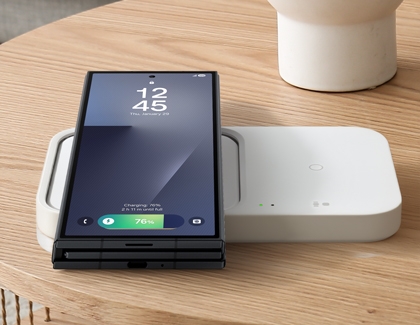
Place the device in the center of the charging pad and ensure there are no obstructions. The Galaxy Z TriFold, Galaxy Z Fold, and Galaxy Z Flip models should be closed with the rear side facing down.
Galaxy Z Fold8: Because of its redesigned aspect ratio, the internal charging coil is located near the bottom of the device rather than the center. To ensure proper charging, position the device's charging coil over the center of the charging pad.
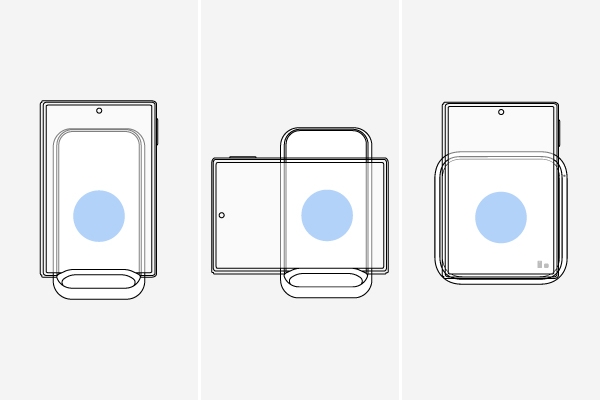
Additionally, please check the following when using wireless charging:
- Ensure there is no debris or foreign material on the back of the device or the surface of the charger.
- Confirm that your phone case is no thicker than 5 mm (for non-Samsung cases).
- Do not place credit cards or radio-frequency identification (RFID) cards (such as transit or key cards) between the device and its case while charging.
- Do not place conductive materials, such as metal objects or magnets, between the device and the wireless charger.
- Improper alignment may cause the device to charge slowly, stop charging, or overheat.
- For built-in vehicle chargers, coil misalignment may prevent the device from charging altogether.
- Third-party chargers may have different coil structures, which can interrupt charging even when centered. Refer to the charger's manual for proper usage.
- Sloped charging pads may make alignment difficult and prevent proper charging.
Remove third party accessories.
Remove any cases, skins, or protectors from your device. They could be blocking the wireless signal.

Disconnect wired headphones or charging cables.
If headphones are connected to your device, it could prevent the device from charging. Disconnect the headphones or place your device in a landscape position. Do not use your device while it is wirelessly charging.
If a charger or USB cable is connected to your device, the wireless charging feature may be unavailable. Disconnect any cables from the device’s USB port.
Use the correct charger.

- If a charger or USB cable is connected to your device, the wireless charging feature may be unavailable.
- Use only the AC adapter and USB cable that came with your device or wireless charger to power the wireless charger.
- Fast wireless charging will only be enabled on devices that have been certified by Samsung and the Wireless Power Consortium. If you are using a non-Samsung wireless fast charger, check with the manufacturer or WPC for the charger's certifications.
Check for software updates.
If your Galaxy phone experiences wireless charging disconnections or issues after a software update, check for additional updates. This may occur due to insufficient optimization for specific wireless charging pads and standards like MPP or Qi2. To check for updates, open Settings on your phone, and then tap Software update. Tap Download and install or Check for updates.
- If an update is available, it will automatically download. Follow the on-screen instructions to install the latest update.
- If no update is currently available, check back later.
Request service.