Screen flickering or glitching on your Samsung Galaxy device

The screen flickering, flashing or glitching on your Galaxy phone or tablet can stem from multiple causes, including screen damage, outdated software, app conflicts, or underlying bugs. To resolve these issues, inspect the device, check for software updates, adjust the display settings, and remove problematic apps in Safe mode if needed. 
Person holding a Samsung Galaxy phone with a glitching screen showing vertical lines over the home

Screen flickering or glitching on your Samsung Galaxy device

Causes for screen flickering

  • Hardware damage: Cracked or shattered screens, as well as loose or damaged internal cables, can disrupt display functionality.
  • Outdated software: Outdated software or interrupted updates can cause display-related problems. 
  • Display settings: Incorrect configurations, such as adaptive brightness, display refresh rate, or screen resolution, might contribute to flickering.
  • Power supply issues: Inconsistent power delivery or battery-related problems can cause the screen to flicker.
  • Software glitches or app conflicts: Issues with software or incompatible apps can disrupt the display, leading to flickering.
Read less

Inspect your device for damages

Is your phone's screen cracked or broken? That could be why it's flickering. Click here to learn what to do when your Samsung Galaxy screen is cracked or damaged and to find support options to fix it!

Note
If there has been any sort of damage to the device, please visit a Samsung walk-in service center or you can schedule a repair service online.
Read less

Check for software and app updates

Outdated software or apps may cause compatibility issues or abnormal display behavior. Make sure your device software and apps are updated to the latest version.

Update your device software

  1. Open Settings, then tap Software Update.
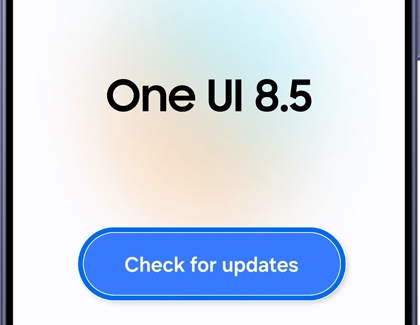
  2. Tap Check for updates.
     Software update screen with the Check for updates option highlighted.
  3. Follow the on-screen instructions. A confirmation will appear once the software is up to date.

Update apps from the Google Play Store

  1. Open the Google Play Store app, then select your Google account.
    Google Play Store app screen with the profile icon highlighted.
  2. Tap Manage apps & device to check for available updates.
  3. Tap Update all.
Read less

Adjust your display settings

Turn off Adaptive Brightness

Adaptive brightness automatically adjusts the screen's brightness based on the surrounding lighting conditions. If the flickering continues, tweak your brightness settings and turn off the Adaptive brightness feature to see if it helps.

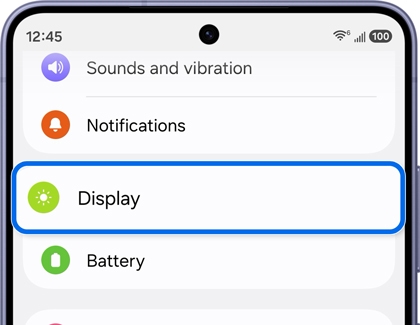
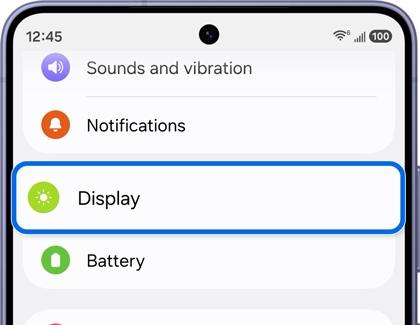
  1. Open Settings, then tap Display.
    Samsung Galaxy settings menu with the Display option outlined in blue.
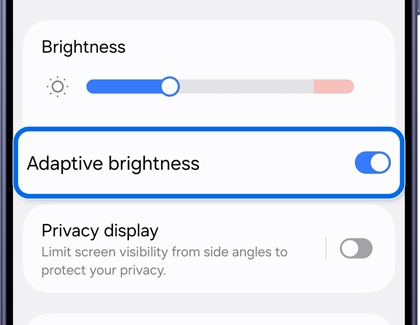
  2. Turn on Adaptive brightness.
    Samsung Galaxy Display settings screen with the Adaptive brightness toggle outlined in blue.
  3. You can also manually adjust the brightness level by swiping down from the top of the screen to open the Quick panel settings and using the Brightness slider.

Change the Motion smoothness

Motion smoothness optimizes the screen's refresh rate for smoother visual experiences.

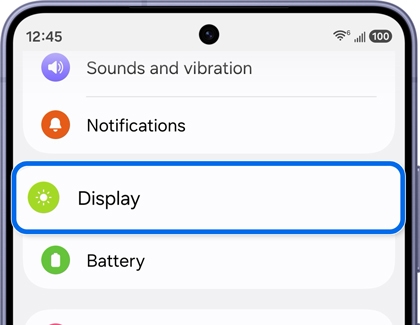
  1. Open Settings, then tap Display.
    Samsung Galaxy settings menu with the Display option outlined in blue.
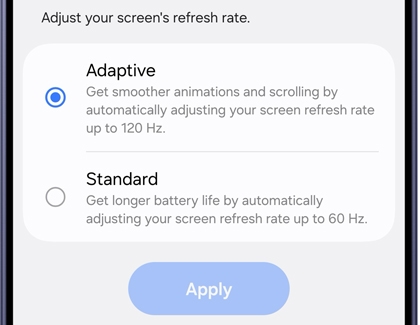
  2. Tap Motion smoothness, then select a different option:
    • Adaptive for dynamic refresh rate adjustments.
    • Standard for optimal battery life.
      Samsung Galaxy motion smoothness settings screen showing Adaptive and Standard refresh rate options.
Note
Some devices may not have this option available, depending on the model.

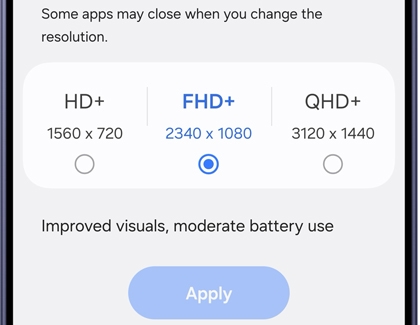
Adjust the Screen resolution

If your device supports a high resolution but the app you're using doesn't, it can cause flickering or glitches. Apps need to match the screen resolution to work properly. Try lowering the resolution to see if it helps.

  1. Open Settings, then tap Display.
    Samsung Galaxy settings menu with the Display option outlined in blue.
  2. Tap Screen resolution, and then select a different option.
    Samsung Galaxy screen resolution settings showing HD plus, FHD plus, and QHD plus options.
Having display problems that aren't just flickering? Like dim screens, weird colors, or other issues? Click here to view a support guide with simple steps to troubleshoot and fix them!
Read less

Check your charger and charging cable

Screen flickering can be caused by a faulty charger or cable. Follow these steps to check your charger and cable for problems.
Note
Using incompatible accessories may damage the device or cause charging issues.

Use Samsung compatible chargers and cables

Even if chargers and cables look similar, charging quality and performance may vary.

  • For optimized charging performance and device safety, Samsung recommends using compatible Samsung chargers and charging cables designed for your Galaxy device.

Check the charger connection

Inconsistent power delivery may lead to display issues.

  • Disconnect the charger from the Galaxy device and reconnect the charging cable securely to the charging port.
Caution
Damage caused by user misuse or chargers outside the warranty period may require purchasing a new charger.

Check for charger or cable damage

A damaged charger or charging cable can cause screen flickering due to unstable power delivery. 

Read less

Check for flickering in Safe mode

Safe mode can be used to diagnose potential issues caused by some third-party applications.

Safe mode runs the device using only the core applications; therefore, it can be used to determine if a third-party application is causing the problem.


Enter Safe mode

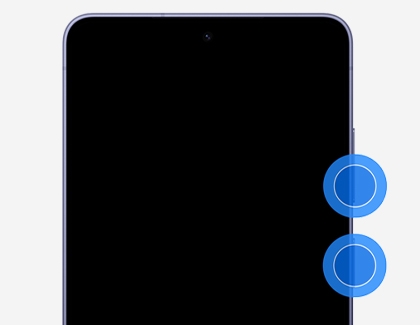
  1. Press and hold the Volume down button and the Side button until the Power off menu appears.

    Volume down button and the Side button highlighted.

  2. Touch and hold the Power off icon until the option for Safe mode appears.

    Power off icon selected from the Power off menu on a Galaxy device.
  3. Tap Safe mode.

    Safe mode selected from the Power off menu on a Galaxy device.

Troubleshoot apps in Safe mode

If the flickering stops when your device is in Safe Mode, this could mean that the issue is being caused by a bug with one of the apps you have installed.

To find out which app is causing the problem: 

  1. Uninstall the most recent app you downloaded before the problem started.
  2. Repeat until the flickering stops. You can always reinstall apps if it wasn't causing the issue.

If the flickering persists even in Safe Mode, it is likely a hardware issue rather than a software issue. If this is the case, please visit a Samsung walk-in service center or you can schedule a repair service online.

Exit Safe mode

  1. Press and hold the Volume down button and the Side button until the Power off menu appears.

    Volume down button and the Side button highlighted.

  2. Tap Power off to turn off the device.

    Power off icon selected from the Power off menu on a Galaxy device.
  3. Wait until the device completely turns off, and then press the Power button again to turn it on. 


Read less
Was this content helpful?
We're here for you

Contact Samsung Support

Contact us online through chat and get support from an expert on your computer, mobile device, or tablet. Support is also available on your mobile device through the Samsung Members App.