Change the Wi-Fi network properties for SmartThings devices

If you've changed your Wi-Fi network's name or password, then you'll need to update that information for your SmartThings hub and connected devices as well. For some devices, you can do this from within the SmartThings app. For others, you may have to reset the device and reconnect it to your SmartThings account.
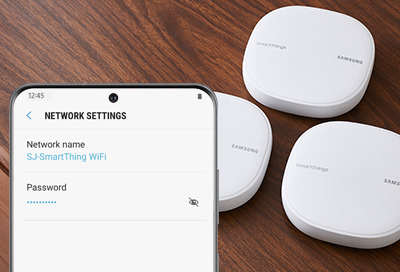
Galaxy phone showing Wi-Fi network settings for SmartThings beside SmartThings hubs

Change the Wi-Fi network properties for SmartThings devices

1

Navigate to the device you want to update.

Open the SmartThings app on your phone, tap the Devices tab in the bottom row, and then tap All devices. Find and tap the name of the device you want to update. 
2

Open the device settings.

Tap the three vertical dots in the upper right corner, and then tap Settings.
3

Change the Wi-Fi information.

You will have to be connected to the network in order to change the information. When connected, tap Wi-Fi, and then tap Change Wi-Fi network. Select the correct Wi-Fi network and enter the password.
Note
If you do not see the Settings > Wi-Fi option, then you will need to reset your device, and then reconnect it to your SmartThings account on the new network.
Was this content helpful?
We're here for you

Contact Samsung Support

Contact us online through chat and get support from an expert on your computer, mobile device or tablet. Support is also available on your mobile device through the Samsung Members App.
auto-contact_us-pc-2x auto-contact_us-pc-2x