
Pantalla 40 pulgadas F6000, Full HD, Smart TV (2025)


Gallery popup


Por favor escanea el código QR con tu Smartphone y pon la imagen del producto en la posición deseada.
{{upgradeResult.displayModelName}}
{{upgradeResult.discountText1}}
{{upgradeResult.description1}}
{{upgradeResult.description2}}
{{offerFinance.title}}
{{offerFinance.learnMoreCta.text}}{{offerFinance.description}}
{{galaxyForeverResult.displayModelName}}
{{galaxyForeverResult.discountText1}}
{{galaxyForeverResult.description1}}
{{galaxyForeverResult.description2}}
Elige tu marco
Marcos intercambiables se venden por separado
Elige el color de la cubierta para The Freestyle
Cubiertas intercambiables se venden por separado
-
{{item.name}}
Sin stock
Tipo moderno
-
{{item.name}}
Sin stock
Tipo biselado
-
{{item.name}}
Sin stock
Colores adicionales
-
{{item.name}}
Sin stock
Tipo de marco

- Tipo moderno
Los marcos intercabiables de The Frame se ajustan magnéticamente en su lugar. Ahora, puedes cambiar entre estilos en un instante.
Tipo de marco

- Tipo biselado
El nuevo marco de tipo biselado ofrece un elegante diseño con borde interior en ángulo de 45 grados.
{{tradeIn.title}}
{{tradeIn.learnMoreCta.text}}{{tradeIn.description}}
{{tradeInResult.displayModelName}}
{{tradeInResult.discountText1}}
{{tradeInResult.discountText2}}
{{tradeInResult.discountText3}}
{{tradeInResult.discountText4}}
{{tradeInResult.discountText5}}
{{tradeInResult.discountText6}}
{{tradeInResult.specialDiscountText}}
{{tradeInResult.description}}
{{tradeInResult.contentText}}
EliminarDealer stock quantity
You can check the stock quantity for each region
Please select city
{{assuredBuyBack.title}}
{{newAssuredBuyBack.title}}
{{newAssuredBuyBack.learnMoreCta.text}}{{newAssuredBuyBack.description}}
Please select Samsung Assured Buyback or no coverage
{{care.title}}
{{care.learnMoreCta.text}}{{care.description}}
Selecciona Samsung Care+ o No para continuar
-
-
{{item.specialText}}
{{warrantyResult.displayModelName}}
{{warrantyResult.discountText1}}
{{warrantyResult.description1}}
{{warrantyVdResult.title}}
{{warrantyVdResult.priceDisplay}}
{{delivery.headline}}
{{delivery.errorMessage}}
{{deliveryResult.priorityText}}
{{deliveryResult.mainText}}
{{deliveryResult.subText}}
Standard installation charges may apply.Click here for more details.
{{deliveryResult.decText}}
{{item.disclaimer}}
{{tariffOptionResult.displayModelName}}
{{tariffOptionResult.discountText1}}
{{tariffOptionResult.description1}}
{{tariffOptionResult.description2}}
{{tariffOptionResult.description}}
{{tariffOptionResult.price}}
{{tariffOptionResult.disclaimer}}
{{embedAddon.title}}
{{embedAddon.description}}
-
{{item.name}}
{{item.modelCode}}
{{item.description}}
{{item.finalPrice}}
{{item.originalPrice}}{{item.savePrice}} Sin stock
-
{{item.name}}
{{item.modelCode}}
{{item.description}}
- {{item.dotList1}}
- {{item.dotList2}}
- {{item.dotList3}}
{{item.finalPrice}}
{{item.originalPrice}}{{item.savePrice}} Sin stock
{{message.item.tcCTAText}}
{{message.item.periodText}}
Aspectos destacados

HDR
Mayor contraste con oscuridad intensa y luz brillante

Samsung Knox Security
Tu privacidad. Protegida.

OTS Lite
Sonido virtual inmersivo que acompaña a la acción
Funciones
Tu elección inteligente y segura TV Full HD


Características principales


Calidad de imagen


Mejor Contraste con Zonas Oscuras mas intensas y con Zonas de Luz mas Brillantes
HDREl High Dynamic Range aumenta la relación entre las zonas más claras y las más oscuras de una escena, para que puedas disfrutar de un enorme espectro de colores y de todos los detalles visuales tanto en las escenas luminosas como en las oscuras.


Claridad dos veces superior a la de una pantalla HD normal
Resolución Full HDTus películas y programas de TV favoritos son ahora más reales. La resolución Full HD ofrece el doble de resolución que las pantallas de alta definición, lo que la hace mucho más nítida y realista.


Colores optimizados para una imagen vivi
PurColor
PurColor expresa el contenido que ves en colores reales. Permite que tu pantalla exprese una amplia gama de colores para un rendimiento de imagen optimo que se traduce en una experiencia visual inmersiva.


Sensacion mejorada de Profundidad y Colo
Contrast Enhancer
Contrast Enhancer ajusta el contraste, dando como resultado una sensacion de mayor profundidad y una calidad de imagen excepcional.
Experiencia


Tu privacidad. Protegida.
Samsung Knox SecurityTu privacidad está segura en las pantallas Samsung. Tus datos confidenciales, como contraseñas y números PIN, están protegidas por múltiples capas de Software y Hardware. Los dispositivos IoT conectados se supervisan y las aplicaciones y sitios maliciosos se bloquean automáticamente.


Escala tu entretenimiento con Samsung Tizen OS
Samsung Tizen OSAprovecha al máximo tu pantalla con las aplicaciones y servicios de Samsung Tizen OS. Disfruta de canales de TV en directo gratuitos y miles de películas con Samsung TV Plus. Incluso puedes gestionar tus actividades diarias con Daily+.


Samsung la marca global No.1 desde hace 19 años
Por 19 años consecutivos la marca Samsung ha sido reconocida como la marca global número uno en pantallas.


Lo mejor de la televisión. Sin Costo adicional.
Samsung TV Plus
Sumérgete en una amplia colección de programas, películas y otros contenidos en Samsung TV Plus. Se instala gratis en tu pantalla, sin necesidad de pago, suscripción ni configuración.
*Los canales pueden variar según y están sujetos a cambios sin previo aviso.* Los dispositivos Samsung compatibles pueden variar.* Requiere cuenta Samsung.* La UI está sujeta a cambios sin previo aviso.* Pueden aparecer anuncios en Samsung TV Plus.* Disponible de forma gratuita en pantallas Samsung Smart TV lanzadas desde 2016.

Accede a varios canales gratuitos, incluidos los canales premium de Samsung TV Plus
Contenido gratuito sin fin
Accede a varios canales gratuitos, incluidos los canales premium de Samsung TV Plus. Disfruta de noticias, deportes, películas, entretenimiento, música, programas infantiles y mucho más. Con nuevos contenidos añadidos continuamente, siempre hay más por explorar.
* El número de canales puede variar
Sonido


Tus oidos siguen el sonido; tus ojos siguen la acción
OTS LiteExperimenta un sonido 3D de gran realismo con altavoces integrados que te ubican en el centro de la acción


Disfruta un sonido personalizado según tu contenido
Adaptive Sound
Adaptive Sound incorpora Inteligencia Artificial Escenica de audio, que ajusta y optimiza el sonido en tiempo real segun el analisis de cada escena y el tipo de contenido.


Pantalla y Barra de sonido orquestados en perfecta armonía
Q-Symphony
La tecnología Q-Symphony sincroniza el audio de la pantalla y de la barra de sonido para que se reproduzcan simultáneamente, sin silenciar los altavoces de ninguno de los dos dispositivos, logrando un sonido más armonioso.


Diseño


Un diseño elegante para tu espacio
Diseño delgado y sin biseles
Este bonito y estilizado diseño se integra en tu decoración, elevando tu estilo sin apoderarse de él.


Comparar modelos
Compara las características más relevantes para ti.
-
Pantalla 40 pulgadas F6000, Full HD, Smart TV ...
-
Pantalla 40" QLED Q5FAAF Full HD Vision AI Sma...
-
UN40F6000FFXZXPantalla 40 pulgadas F6000, Full HD, Smart TV ...
-
QN40Q5FAAFXZXPantalla 40" QLED Q5FAAF Full HD Vision AI Sma...


Especificaciones clave
-
Tipo de producto
LED
-
Tipo de producto
QLED
-
![Screen size]()
Tamaño de la pantalla
40"
-
![Screen size]()
Tamaño de la pantalla
40"

-
Resolución
FHD (1,920 x 1,080)
-
Resolución
1920 x 1080
-
![Picture Engine]()
Motor de imágenes
Hiperreal
-
![Picture Engine]()
Motor de imágenes
Hiperreal

-
Diseño
Mirada delgada
-
Diseño
Aspecto delgado
-
Object Tracking Sound
OTS Lite
-
Object Tracking Sound
OTS Lite
Especificaciones
-
Resolución
FHD (1,920 x 1,080)
-
HDMI
2
-
USB
1 x USB-A
-
LED
-
Tamaño de la pantalla
40"
-
Frecuencia de refresco
60Hz
-
Resolución
FHD (1,920 x 1,080)
-
Motor de imágenes
Hiperreal
-
HDR (High Dynamic Range)
HDR
-
HDR10+
Apoyo
-
Contraste
Mega contraste
-
Micro Dimming
Micro Dimming Pro
-
Contrast Enhancer
Sí
-
Object Tracking Sound
OTS Lite
-
Q-Symphony
Sí
-
Potencia de salida (RMS)
20W
-
Tipo de altavoces
2CH
-
Adaptive Sound
Sonido adaptativo
-
Sistema operativo
Tizen™ Smart TV
-
Bixby
Sí (voz lista)
-
Works with AI Speaker
Alexa
-
Samsung TV Plus
Sí
-
Navegador web
Si
-
SmartThings Hub / Matter Hub / IoT-Sensor Functionality / Quick Remote
Solo control remoto rápido
-
Multi Device Experience
Móvil a TV, Duplicación de sonido, TV inalámbrica activada
-
Apple AirPlay
Sí
-
Gaming Hub
Sí (KR, US, CA, BR, GB, FR, DE, IT, ES, MX, AU)
-
Transmisión digital
ATSC
-
Sintonizador analógico
Sí
-
Wi-Fi
Sí (Wi-Fi 5)
-
Bluetooth
Sí
-
HDMI
2
-
HDMI Audio Return Channel
eARC
-
Anynet+ (HDMI-CEC)
Si
-
USB
1 x USB-A
-
Ethernet (LAN)
1
-
Entrada RF (antena / cable)
1/1(Uso común para terrestres)/0
-
Diseño
Mirada delgada
-
Tipo de bisel
3 Sin bisel
-
Color frontal
NEGRO
-
Tipo de base
PIES BAJOS
-
Color de base
NEGRO
-
POP integrado
No
-
EPG
Si
-
IP Control
Si
-
Idiomas
Inglés, español, francés
-
V-Chip
Si
-
Accesibilidad - Guía de voz
Checo (República Checa), Danés (Dinamarca), Neerlandés (Países Bajos), Inglés (EE. UU.), Finés (Finlandia), Francés (Canadá), Alemán (Alemania), Griego (Grecia), Húngaro (Hungría), Italiano (Italia), Coreano (Corea), Noruego (Noruega), Polaco (Polonia), Portugués (Portugal), Rumano (Rumania), Eslovaco (Eslovaquia), Español (México), Sueco (Suecia).
-
Low Vision Support
Descripción de audio, Menú y texto con zoom, Alto contraste, SeeColors, Escala de grises, Desactivación automática de imagen
-
Hearing Impaired Support
Subtítulos, audio de múltiples salidas, posición de subtítulos, zoom en lenguaje de señas, subtítulos separados
-
Motor Impaired Support
Repetición de botón lento, aplicación de control remoto para todos
-
Alimentación
110-127V~ 50/60Hz
-
Apagado automático
Si
-
Paquete (A x Al x P)
988 x 587 x 118 mm
-
Equipo con base (A x Al x P)
906.3 x 546.0 x 157.6 mm
-
Equipo sin base (A x Al x P)
906.3 x 519.3 x 74.8 mm
-
Base (básica) [A x P]
646.7 x 157.6 mm
-
VESA Spec
200 x 200 mm
-
Modelo de control remoto
TM1240A
-
Soporte para montura de pared
Si
-
Manual de usuario
Si
-
Cable de alimentación
Si
Reseñas
Pantalla 40 pulgadas F6000, Full HD, Smart TV (2025)
- Los clientes elogian el brillo, contraste y claridad excepcionales de la imagen.
- Muchos destacan la interfaz intuitiva y la configuración sencilla del televisor.
- Varios aprueban la calidad de sonido como muy buena y satisfactoria.
- Algunos reportan complejidad en el control remoto e interfaz lenta.
- La mayoría considera que la calidad visual compensa los inconvenientes menores.
Reseñas con imágenes y videos
Filtros
El orden por relevancia coloca las mejores reseñas en la parte superior. Consideramos los votos importantes, la reseña más reciente, imágenes y otras características que los lectores buscan en sus reseñas.
Filtros
1,125 Reseñas
2026-11-15
Chiquinquirá, Boyacá


2026-09-02
Sandpoint

2026-09-17


Costumer Sevice
Muchas gracias por tu atención. Tus comentarios son muy importantes para nosotros. ¡Aprovecha al máximo tu nuevo equipo Samsung! Consulta tips de uso para tus productos o contáctanos para conocer más sobre tus nuevos productos en [https://www.samsung.com/mx/support/]
2026-06-22
Dallas/Ft. Worth area

2026-05-20
NJ

2026-09-05
Portland

2026-03-23
USA

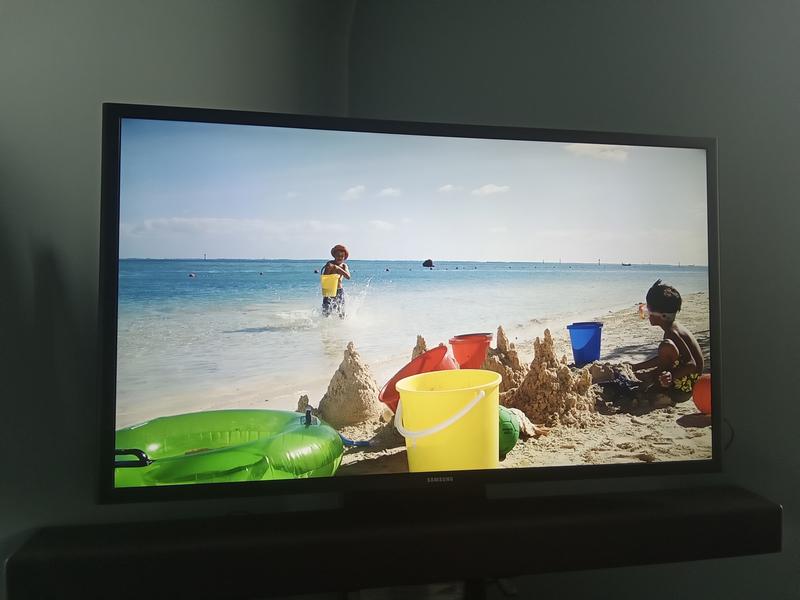
2026-05-03
Tucson,Az


2026-10-21
Denver

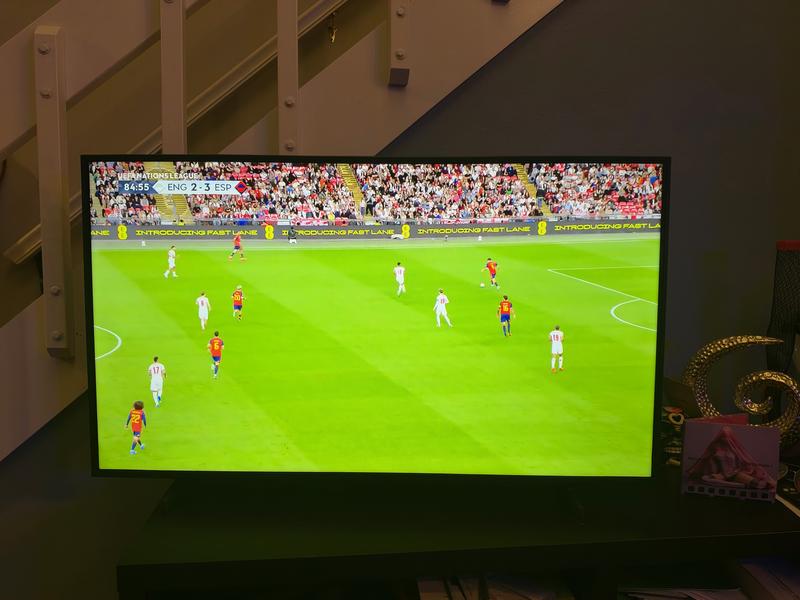
2026-07-05
Phoenix, AZ


Samsung Advisor
Hi JWhite, Thank you for sharing your experience. Buffering during streaming is typically related to internet speed or signal strength. This can happen when your connection isn’t able to deliver data quickly enough for smooth playback. We recommend the following steps to help improve streaming performance: 1. Use a 5GHz Wi-Fi connection, if available 2. Try a wired LAN connection for more stability 3. Reposition your router to minimize obstacles between it and the TV 4. Make sure your TV is running the latest firmware (Settings > Support > Software Update) 5. Run Device Care to optimize performance: Home > left directional key > Settings > Support > Device Care > Start Device Care If buffering continues, you may want to contact your internet service provider to check your current speed or explore upgrade options. If we can assist further, please call us at 1-800-SAMSUNG, available daily from 8AM - 12AM EST. You can also visit the Samsung website and click on ‘Support’ for: • Live Chat • Manuals, Software, & Warranty Info ~ Samsung Advisor
2026-06-08
Montería


2025-10-09
Seattle WA

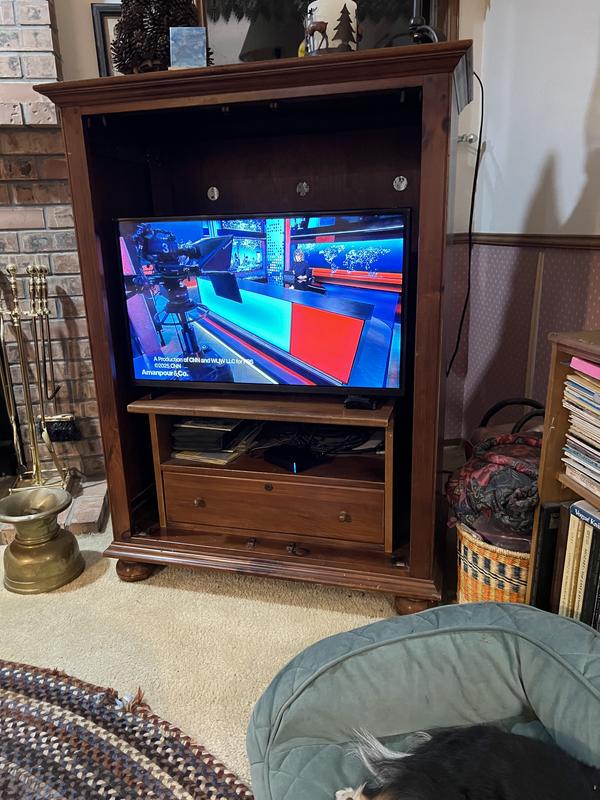
2026-06-27
Sidney, Maine


2026-10-07
Beverly, NJ

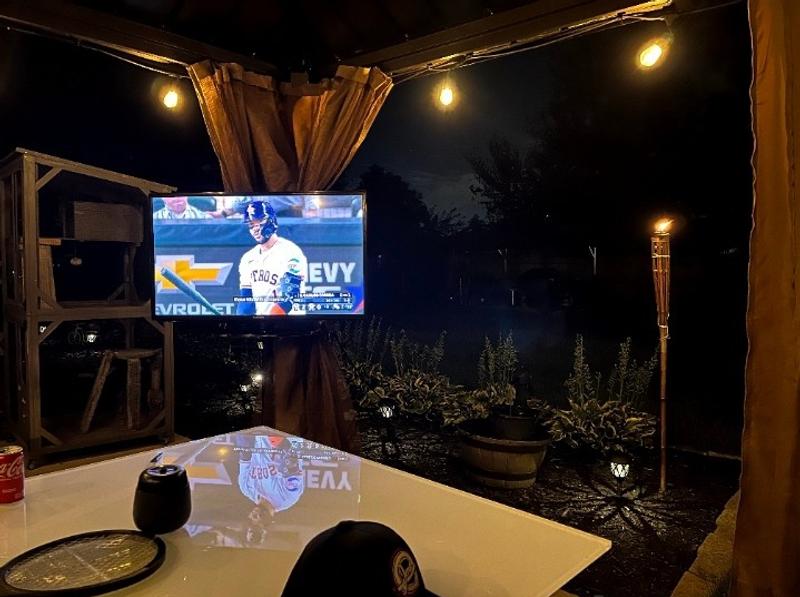
2026-02-01

Samsung Advisor
Hi SteveO, We appreciate your feedback regarding response time. For optimal performance, please ensure your F6000F TV is running the latest firmware. You can check this by going to: Home > left directional key > Settings > Support > Software Update To further optimize performance, try running Device Care, which checks memory, clears unused cached data, and closes background apps: Home > left directional key > Settings > Support > Device Care > Start Device Care If issues continue, please reach Samsung Support at 1-800-SAMSUNG, available 8AM – 12AM EST, 7 days a week. LiveChat is also available via the ‘Support’ link on our website. ~ Samsung Advisor
2026-09-05
Arizona

2026-11-17
Franklin, Indiana
2026-11-09
Jersey City, NJ


2025-12-30
North Carolina

Samsung Advisor
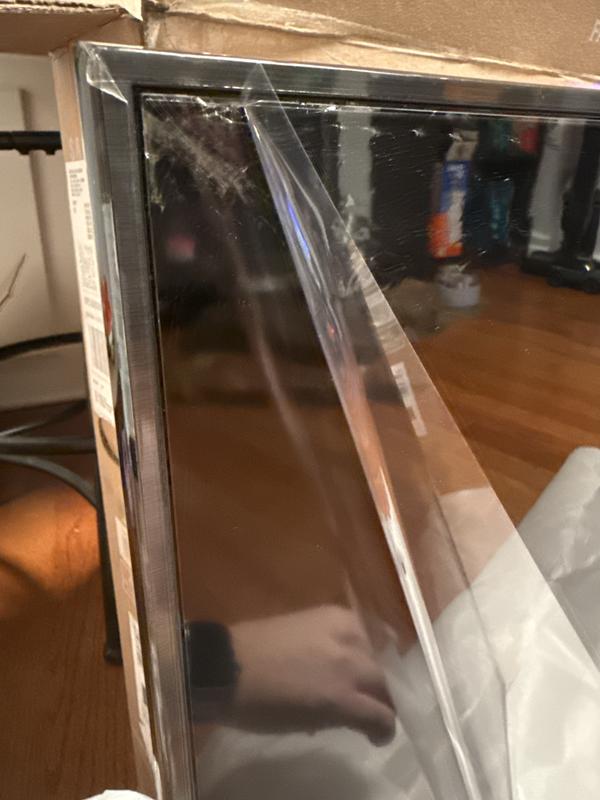
Hi BoyDad, We're truly sorry to hear this and understand how frustrating it can be to notice damage or a defect after your TV has been delivered or installed. If the delivery or installation has already been signed for, please know that any issues must be reported within 5 days of delivery - or within 2 days of installation for purchases made on Samsung.com - to remain eligible for return under our policy. The return window begins once delivery and/or installation is complete. If your device is found to be defective, it may still qualify for service under the Standard Limited Warranty.You can read more about our return policy here: https://order-help.us.samsung.com/articles/returns-refunds/what-is-samsungs-return-policy/669e3173cd7d5a05a5318406 Our Product Support team is here to help with troubleshooting, repair, and warranty options. You can reach them directly at: https://www.samsung.com/us/support/contact/ If you need anything else, we’re always here for you. Please call us at 1-800-SAMSUNG (8AM – 12AM EST, 7 days a week), or visit the ‘Support’ link on our website to connect with a LiveChat agent. ~Samsung Advisor
2026-07-21
Midlothian, IL


2026-06-05


2026-02-14
Massachusetts

2026-11-05
Tampa, Florida


2026-07-27


2026-11-16
Ca
2026-07-05
NJ
2026-11-05
PORT O CONNOR Texas


Samsung Advisor
Hi Howdy1959, Thank you for sharing your experience with us and for your patience during the repair process. If you need to schedule your warranty appointment, please contact us at 1-800-SAMSUNG (8AM – 9PM EST Mon – Fri, 8AM – 6PM Sat), or reach us via text anytime. You can also visit ‘Support’ on our website for: Or visit the Samsung website and click on the ‘Support’ link for: • LiveChat with an agent • Manuals, Software, and Warranty Info • Creating a Service ticket ~ Samsung Advisor
2026-06-01
Indianapolis, IN.


2026-07-02


2026-06-20
Colorado


2026-05-11
Central Valley California


2026-07-07
New York Ny


2026-06-05
Philadelphia, PA


Samsung Advisor
Hi Jose, Thank you for sharing your experience. Samsung remotes are designed to offer convenient control, but we understand if you’d prefer to use a universal remote. Many third-party remotes work well with Samsung TVs, though setup steps may vary by brand and model. To get started, we recommend checking the manufacturer’s instructions for programming codes and pairing methods. If you run into any trouble or have compatibility questions, Samsung Support is happy to help. You can reach us at 1-800-SAMSUNG (8AM – 9PM EST Mon – Fri, 8AM – 6PM Sat – Sun). LiveChat agents are also available at the ‘Support’ link on our website. ~ Samsung Advisor
2025-11-03
Samsung Advisor
Hi, Thank you for reaching out to us. The Xfinity app is available for download on the F6000F. If you are experiencing issues with the app, please try the below: 1. Update firmware – Home > left directional key > Settings > Support > Software Update > Update Now 2. Delete and reinstall the app 3. Run Device Care – Home > left directional key > Settings > Support > Device Care > Start Device Care Still need help? Call Samsung Support at 1-800-SAMSUNG, 8AM – 12AM EST, 7 days a week. LiveChat is also available under the ‘Support’ link on our website. ~ Samsung Advisor
2026-08-05
WV USA
Samsung Advisor
Hi Disappointed, Thank you for your feedback regarding your F6000F TV’s response time. To help ensure optimal performance, please try the following steps: 1. Check for firmware updates – An outdated version can affect overall performance: Home > Settings > Support > Software Update > Update Now 2. Run Device Care – This tool clears unused cached memory and closes background apps: Home > Settings > Support > Device Care > Start Device Care 3. Cold boot your TV – With the TV on, press and hold the Power button on your remote for about 5 seconds until the TV turns off and back on. This refreshes the system. 4. Power cycle the TV and any connected external devices – Unplug them from the power outlet, wait 30 seconds, then plug them back in. These steps often resolve issues with lag, freezing, or slow app performance. If the issue continues, please contact Samsung Support at 1-800-SAMSUNG (8AM – 9PM EST Mon – Fri, 8AM – 6PM Sat – Sun). LiveChat agents are also available through the ‘Support’ link on our website. ~ Samsung Advisor
2026-11-16
2026-11-16
Bonne Terre Missouri
2026-08-20
Vero beach florida
Samsung Specialist
We appreciate you taking the time to let us know about your experience. So that we can better troubleshoot this issue and provide steps towards a solution, please contact Samsung Support at 1-800-SAMSUNG (8AM – 9PM EST Mon – Fri, 8AM – 6PM Sat – Sun), or visit our website for LiveChat. ~ Samsung Specialist
2026-04-20
2025-06-25
2026-07-05
Samsung Advisor
Hi Shaggy Dog, We appreciate your feedback. For optimal performance, we recommend ensuring your TV is running the latest Firmware. Go to Settings> Support> Software update. If you need additional support, Samsung is here to help. Please call us at 1-800-SAMSUNG (8AM – 9PM EST Mon – Fri, 8AM – 6 PM Sat – Sun), or reach us via text 24/7. You can also visit ‘Support’ on our website for: • Live Chat • Manuals, Software, & Warranty Info ~ Samsung Advisor
2025-03-22
United States

2026-09-09
Golden, Co
Samsung Solutions
Hello Just a simple man, Thanks for sharing your review of Samsung’s F6000F TV. We value your feedback regarding F6000F and will share it with our teams. Should you need further assistance or have questions, please contact Samsung Customer Support at 1-800-SAMSUNG (8AM – 9PM EST Mon – Fri, 8AM – 6PM Sat – Sun). You can also visit the Samsung website and click on ‘Support’ for: • Live Chat • Manuals, Software, & Warranty Info ~ Samsung Solutions
2026-07-20
Samsung Advisor
Hi Katberry, Thank you for your feedback on the lip sync issues you're experiencing with your Samsung xxx TV. This may be related to the content source, but if you're noticing the audio delay across all sources or channels, especially when using an external speaker setup (soundbar, receiver, etc.), there are a few settings that may help: 1. Adjust Digital Audio Delay. You can manually increase the audio delay to better match the video: Settings > All Settings > Sound > Expert Settings > Digital Output Audio Delay 2. Enable Audio Pass-Through. Samsung TVs include an audio pass-through option, which sends the audio signal directly to your connected soundbar or receiver without additional processing by the TV. This can reduce delay when using external audio devices: Settings > All Settings > Sound > Expert Settings > Digital Audio Output Format > Pass-Through 3. Check for Firmware Updates. Ensure your TV is running the latest software, which may include performance improvements related to sound or sync: Home > left directional key > Settings > Support > Software Update > Update Now If the issue continues after these steps, please contact Samsung Support for additional troubleshooting or assistance. We’re here to help at 1-800-SAMSUNG (8AM – 9PM EST Mon – Fri, 8AM – 6PM Sat – Sun). You can also connect with a LiveChat agent via the ‘Support’ link on our website. ~ Samsung Advisor
2026-08-05
Fort Worth


Samsung Solutions
Hello gister63, We appreciate your feedback regarding response time. For optimal performance, please ensure your TV is running the latest firmware. You can check this by going to: Home > top directional key > Settings > Support > Software Update To further optimize performance, try running Device Care, which checks memory, clears unused cached data, and closes background apps: Home > top directional key > Settings > Support > Device Care > Start Device Care If issues continue, please reach Samsung Support at 1-800-SAMSUNG (8AM – 9PM EST Mon – Fri, 8AM – 6PM Sat – Sun). LiveChat is also available via the ‘Support’ link on our website. ~ Samsung Solutions
2025-07-30

Samsung Advisor
Hi scwort, Thank you for your feedback regarding your F6000F TV’s response time. To help ensure optimal performance, please make sure your TV is running the latest firmware version: Home > left directional key > Settings > Support > Software Update. To further improve performance, you can also run the built-in Device Care tool. This checks memory status, clears unused cached memory, and closes background apps that could be slowing your TV down: Home > left directional key > Settings > Support > Device Care > Start Device Care While your TV may currently default to Samsung TV Plus when powered on, you can customize what your TV does at startup by adjusting the Start Screen Options. To do this, navigate to: Settings > All Settings > Advanced Features > Start Screen Option and choose from the following: 1. Start with Smart Hub Home – Automatically launches Smart Hub when the TV is turned on. You can enable or disable this option based on your preference. 2. Autorun Multi View Casting – If you cast YouTube content from your mobile device, the TV will automatically display the content using Multi View. 3. Autorun Multi View Mirroring – When you screen mirror your mobile device, Multi View will automatically open to show your device’s screen. If you need help adjusting these settings or have any other questions, please contact Samsung Support at 1-800-SAMSUNG, 8AM – 12AM EST, 7 days a week. LiveChat agents are also available by clicking on the ‘Support’ link on our website. ~ Samsung Advisor
2026-06-20
Ohio


2026-11-16
Reno, NV
Samsung Advisor
Hi John, We appreciate your feedback regarding response time. For optimal performance, please ensure your TV is running the latest firmware. You can check this by going to: Home > left directional key > Settings > Support > Software Update To further optimize performance, try running Device Care, which checks memory, clears unused cached data, and closes background apps: Home > left directional key > Settings > Support > Device Care > Start Device Care If issues continue, please reach Samsung Support at 1-800-SAMSUNG (8AM – 9PM EST Mon – Fri, 8AM – 6PM Sat). LiveChat is also available via the ‘Support’ link on our website. ~ Samsung Advisor
2025-05-14

2026-07-20
2026-01-20
USA

2026-11-06
Middletown, Ohio


2026-07-05
Connecticut
2026-07-06
Albuquerque, NM


2026-11-16
Ellsinore MO
2025-05-09

2026-09-06
Southeast US

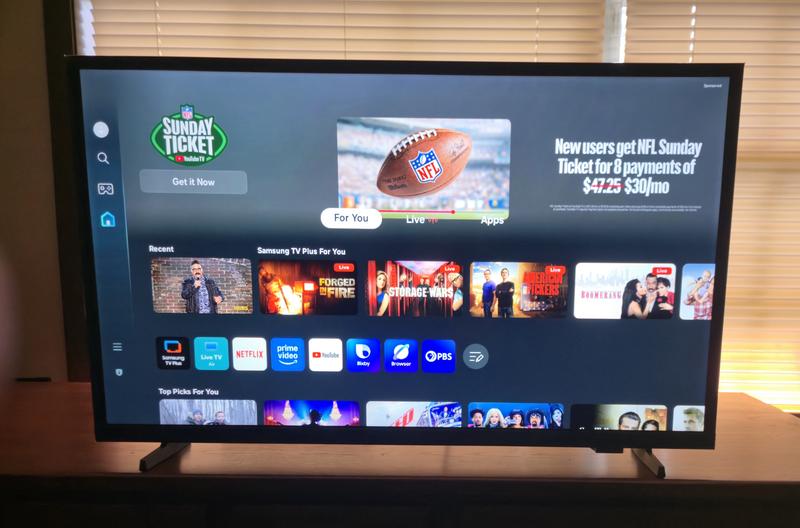
2026-06-22
Amarillo, Texas


2026-09-21
Plano
2026-02-23
Upstate, NY


2026-02-17
Brentwood New York

2026-09-08
Hunlock Creek, Pa


2026-10-15
Iowa
2026-07-05
Chicago, IL


Samsung Specialist
Thank you for your review. If there’s anything we can assist with, please don’t hesitate to call us at 1-800-SAMSUNG (8AM – 9PM EST Mon – Fri, 8AM – 6PM Sat – Sun), or reach us via text anytime. You can also visit ‘Support’ on our website for: • Live Chat • Manuals, Software, & Warranty Info ~ Samsung Specialist
2026-09-05
TN

Samsung Advisor
Hi SamsungOwner, Thank you for your feedback. Please know your opinion is important to us and will be shared with our internal teams. If there’s anything we can assist with, please don’t hesitate to call us at 1-800-SAMSUNG (8AM – 9PM EST Mon – Fri, 8AM – 6PM Sat – Sun), or reach us via text anytime. You can also visit ‘Support’ on our website for: • Live Chat • Manuals, Software, & Warranty Info ~ Samsung Advisor
2026-07-05


Samsung Specialist
Thank you for your review. If there’s anything we can assist with, please don’t hesitate to call us at 1-800-SAMSUNG (8AM – 9PM EST Mon – Fri, 8AM – 6PM Sat – Sun), or reach us via text anytime. You can also visit ‘Support’ on our website for: • Live Chat • Manuals, Software, & Warranty Info ~ Samsung Specialist
2026-08-05
Bakersfield, Ca


2026-07-20
Campbell, CA


2026-08-22
McAllen, TX
Samsung Advisor
Hi, We appreciate your feedback regarding your F6000F TV’s performance. If you're experiencing freezing or lag in general response time, please try the following steps: 1. Check for firmware updates – Keeping your TV up to date can resolve many performance issues: Home > left directional key > Settings > Support > Software Update > Update Now 2. Run Device Care – This tool checks system memory, frees up cached data, and closes background apps that could be slowing things down: Home > left directional key > Settings > Support > Device Care > Start Device Care 3. Cold boot your TV – With the TV powered on, press and hold the Power button on your remote for 5+ seconds until the TV restarts. This helps refresh the system. If you're still noticing performance snags after these steps, please contact Samsung Support at 1-800-SAMSUNG (8AM – 9PM EST Mon – Fri, 8AM – 6PM Sat – Sun). You can also connect with a LiveChat agent via the ‘Support’ link on our website. ~ Samsung Advisor
2026-10-29
2026-06-20
Cincinnati, OH


2026-06-13


2026-07-21
Samsung Advisor
Hi Tess, Thank you for purchasing Samsung’s F6000F TV and for sharing your feedback regarding low volume. To start, we recommend making sure your TV is running the latest firmware, as updates can include improvements to sound performance: Home > left directional key > Settings > Support > Software Update If volume levels still seem too low, you can improve sound performance by adjusting a few key settings: Sound Mode: Navigate to: Settings > All Settings > Sound > Sound Mode • Standard: Balanced for everyday viewing • Optimized: Enhances effects and creates a more spacious sound • Amplify: Boosts mid and high tones, especially helpful if dialogue is difficult to hear Auto Volume: This feature helps maintain consistent volume levels across content and input sources. Turn it on under: Settings > All Settings > Sound > Expert Settings > Auto Volume = On You can also explore Expert Settings to fine-tune sound output with adjustments for Balance, Equalizer, and more. For personalized support with these settings or selecting a soundbar to complement your setup, contact Samsung Support at 1-800-SAMSUNG (8AM – 9PM EST Mon – Fri, 8AM – 6PM Sat – Sun) or use LiveChat via the ‘Support’ link on our website. ~Samsung Advisor
2026-03-23
Swanton, Vermont


2026-08-20
pontotoc Mississippi
2026-09-07
Roseburg

2026-07-07
CA


2026-04-02
Samsung Advisor
Hi jjjunkinstein, We appreciate your feedback regarding response time. For optimal performance, please ensure your F6000F TV is running the latest firmware. You can check this by going to: Home > left directional key > Settings > Support > Software Update To further optimize performance, try running Device Care, which checks memory, clears unused cached data, and closes background apps: Home > left directional key > Settings > Support > Device Care > Start Device Care If issues continue, please reach Samsung Support at 1-800-SAMSUNG, available 8AM – 9PM EST Mon – Fri, 8AM – 6PM Sat – Sun. LiveChat is also available via the ‘Support’ link on our website. ~ Samsung Advisor
2025-12-05

2025-11-05

2026-08-06
Pensacola


2026-06-07
North Carolina


2026-06-01
Windsor illinois


2026-06-05
Indiana


2026-07-27
Winfield Ks USA


2026-06-20
South Dakota


2026-05-20
Weedsport,NY


2026-02-28
Boulder Colorado


2026-03-23
Fort Worth, Texas

2026-07-20
Louisville, KY.


2026-10-12

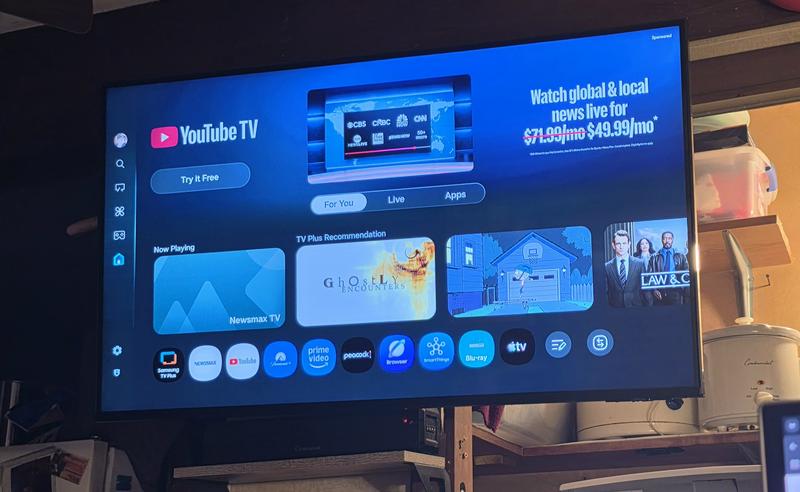
2026-08-20
2026-06-24
Calabash, NC


2026-10-28
Rockwall Texas

2026-07-21
San Mateo, CA


2025-10-13


Samsung Advisor
Hi SusieQ, Thank you for your feedback. If your remote isn’t responding, here are a few quick steps to help determine if it’s working correctly: 1. Check the batteries: Remove the back cover of your remote and replace the batteries with a fresh set, ensuring they are inserted in the correct direction. 2. Test for infrared signal: Point the front of the remote at your smartphone camera. While holding down any button, you should see a flashing light through the camera screen. (For iPhone users, the front-facing camera works best.) If you see the light, your remote is working and may need to be re-paired with your TV. 3. Point the remote correctly: Try pointing the remote directly at the TV from about 5-6 feet away. This can help ensure a clearer signal between the remote and the TV. If you still need assistance, please contact Samsung Support at 1-800-SAMSUNG, 8AM – 12AM EST, 7 days a week, or visit the ‘Support’ link on our website to start a LiveChat session. ~ Samsung Advisor
2026-11-05
LaPlace Louisiana


Samsung Advisor
Hi Charmaine, Thank you for your feedback on the sound quality of your Samsung F6000F TV. First, ensure your TV is running the latest firmware: Home > Settings > Support > Software Update To improve your sound, try different Sound Modes (Standard, Optimized, Amplify), or fine-tune your setup in Expert Settings under: Settings > All Settings > Sound Samsung Q- and S-Series Soundbars with Q-Symphony can also pair with your TV for enhanced audio. For further help adjusting your sound settings or finding the right soundbar for your space, feel free to reach Samsung Support at 1-800-SAMSUNG (8AM – 9PM EST Mon – Fri, 8AM – 6PM Sat) or visit the Support link on our website. ~ Samsung Advisor
2026-09-21
Honolulu, Hawaii USA


2026-09-20
CA


2025-08-22

Estas reseñas son gestionadas por Bazaarvoice y cumplen la Política de autenticidad de Bazaarvoice, que está respaldada por análisis humano y tecnología contra el fraude.
Más información en
Manual del usuario y descargas
Soluciones y consejos
- Cómo resetear un televisor Samsung con un control remoto
- Cómo resolver problemas sin sonido al conectar un televisor Samsung y una barra de sonido mediante HDMI
- Cómo solucionar el problema de encendido en tu Samsung TV
- ¿Qué hacer si mi televisor Samsung se enciende solo?
- Cómo solucionar el problema de la Samsung TV que se apaga sola
Soporte de producto
Encuentra respuestas a las preguntas que tienes sobre el producto.
Chat en vivo
Ve cómo funcionan los productos y recibe recomendaciones de los modelos que se adaptan a tus necesidades.
* Todas las imágenes mostradas son con fines ilustrativos. Las características y especificaciones del equipo están sujetas a cambios sin previo aviso.


