How to update your Galaxy phone or tablet
Perform a software update (FOTA)
If a system update is available, you should install it to keep your phone or tablet running smoothly. However, please be aware that during the update process, your device cannot be used and files will be inaccessible. You also will not be able to make calls, even to emergency services. Additionally, there may be some differences to the device's interface when the update completes.
- Using two fingers, swipe down from the top right corner of the screen, and then tap the Settings icon.
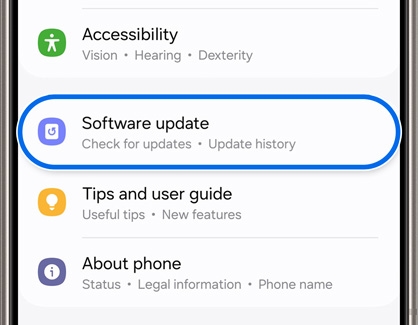
- Swipe to and then tap Software update or System updates. It will vary between models.
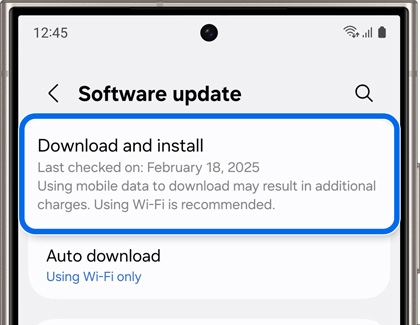
- Tap Download and install, Check for system updates, or Check for software updates, depending on your carrier. If an update is available, it should begin downloading automatically, although you may need to tap Download now on some devices.
- When the download is complete, follow the on-screen instructions to install the update.
You can also tap the switch to enable or disable Auto download over Wi-Fi. When this option is turned on, your phone or tablet will automatically update when it's connected to a Wi-Fi network. If this option is turned off, you will need to update your device manually.
If you'd like to see the software version currently on your device, open Settings, tap About phone or About tablet, and then tap Software information.
Learn more about what's included in the software update
Ever wonder what features, enhancements, or changes are included in the software update? You can easily learn what's new in the latest software update in your device's settings. However, the exact modifications may vary depending on your device model, country, and service provider.
Check the Software settings:
- Using two fingers, swipe down from the top right corner of the screen, and then tap the Settings icon.
- Swipe to and then tap Software update or System updates. It will vary between models.
- From the software update menu, tap the following, depending on your model:
- Tap Last update, and then tap All changes or tap the document link below "Learn more at."
- Tap System Update history, tap the drop-down arrow next to the latest applied date, and then tap Learn More.
- View the software update info specific to your device model.
Check the carrier's website:
- Visit your carrier's website, and then navigate to the Support page.
- Search for "device software update history" or "device software release note."
- Find and view the software update info specific to your device model.
Software update via Smart Switch on your Windows PC or Mac

Not only is Smart Switch great for transferring data, it’s also an easy way to update your device’s software. When you open Smart Switch on your Mac or Windows PC, you’ll see an option to update to a new software version if one is available.
- Using the USB cable that came included in the box, connect your Galaxy device to a computer that has Smart Switch installed. You may need a USB adapter with some PCs.
- Open Smart Switch on the computer and allow it to detect the device. If an update is available, you will be able to select Update. Then, follow the on-screen prompts to download and install the update.
- To check the current software version, select More options (the three vertical dots), and then select Device information.
Software Update Failure
Recovering from a software update failure
Recovering on another computer
- Before performing the factory data reset, remember to make backup copies of all important data stored in the device. Samsung is not responsible for the loss of data stored in the device.
- The recovery code can be found only on the computer where the software update has failed.
- On the computer where the software update has failed, launch Smart Switch.
- Select the More Options menu (three vertical dots).
- Select Emergency Software Recovery and Reset.
- On the devices list, select the device that failed to update the software and check the recovery code.
- On another computer, launch Smart Switch.
- Select Emergency Software Recovery and Reset, and then select Emergency code recovery.
- Enter the recovery code and select OK.
- Follow the on-screen instructions to put your device into recovery mode and complete the emergency recovery.


