Note
Standalone DeX is only available on the Galaxy Tab S4, Tab S6, Tab S7 series, Tab S8 series, Tab S9 series, Tab A9+, Tab S10 series, Tab S11 series, Tab A11+, and Z TriFold.
Whether you're using standalone DeX mode directly on your device's screen or connecting your tablet or phone to a display via wired or wireless methods, DeX adapts to your workflow seamlessly. Here's a closer look at how to access and utilize the different DeX modes:
Start the standalone DeX mode from the Quick panel
Access a desktop-like interface directly on your Galaxy Tablet or Z TriFold without needing an external display.
- Just swipe down from the top right corner of the screen using two fingers to open the Quick settings panel.
- Tap the DeX icon. If you see 'Wireless DeX' instead of 'DeX,' touch and hold the icon to open the DeX menu, then tap Quick panel button, and then tap Switch to desktop workspace.
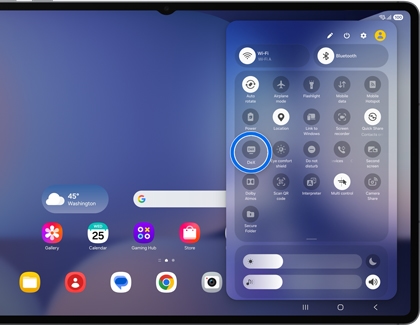
- The DeX interface will load, enabling you to open apps in pop-up windows.
You can effortlessly operate Standalone DeX mode on the Home screen using your fingers, S Pen, or a keyboard and mouse, just as you would with your device's standard interface.
Note
Starting standalone DeX mode from the Home screen is only available on Galaxy Tabs and Z TriFold running Android 16 with One UI 8.0 or higher.
Start the standalone DeX mode from the Home screen
Transition smoothly to the updated standalone DeX mode on your tablet by launching apps in pop-up view.
- Launch any app on the Home screen, and then swipe down on the header bar (a horizontal line) in the top center of the app window to switch the app to pop-up view.
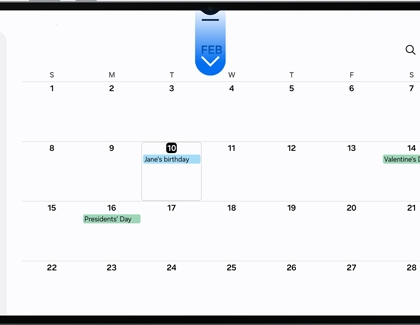
- You can open multiple apps and move or resize pop-up windows.
You can seamlessly operate Standalone DeX mode like interacting with your device's standard screen, utilizing your fingers, S Pen, or keyboard and mouse.
Start wireless DeX mode with a display
Connect your phone or tablet wirelessly to a compatible TV or smart monitor for a cable-free experience.
- Navigate to and open Settings on your phone or tablet, then tap Connected devices.
- Tap Samsung DeX, and then tap Connect wirelessly. If prompted, review and allow the permissions.
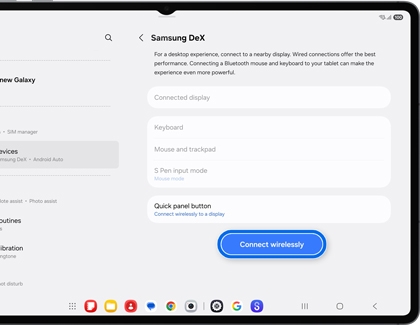
- Select your TV or smart monitor from the list, and then tap Start now.
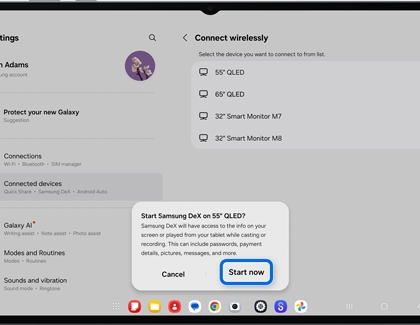
- Your TV or smart monitor will prompt you to select Allow before connecting.
- Tap Start on your phone or tablet to allow the necessary permissions. If another Samsung DeX pop-up appears, tap OK.
You can navigate DeX using the Touchpad icon (it looks like a small box) in the lower corner of the screen, an S Pen, a USB or Bluetooth mouse and keyboard, or a Keyboard cover.
Note: Basic touchpad operations are supported, but gestures like two-finger pinching for zooming are not.
Start wired DeX mode with a display
Transform your phone or tablet into a desktop workspace by connecting it to a display via a DeX or HDMI cable.
- Plug the USB-C end of the DeX cable or HDMI cable into your tablet.
- Then, connect the other end of the cable to the HDMI port on your TV or monitor.
- Unlock your phone or tablet if prompted. If it's your first time using DeX, a pop-up message will appear on the Home screen. Tap Start to enable Full Desktop mode.
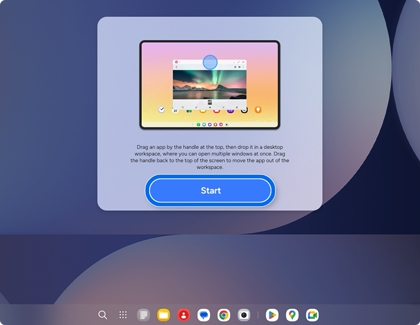
Note: If the pop-up doesn't appear, swipe down with two fingers to open the Quick Settings panel, and then tap the DeX icon.
- If another Samsung DeX pop-up appears, tap OK.
You can control DeX using the Touchpad icon (resembling a small box) located in the lower corner of the screen, an S Pen, a USB or Bluetooth mouse and keyboard, or a Keyboard cover.
Note: You can perform basic operations using the touchpad, but some gestures, such as pinching with two fingers to zoom in, won’t work with the Touchpad.