How to Use Secret mode in Samsung Browser

Secret mode in the Samsung Browser (Samsung Internet) protects your privacy by not saving browsing history, cookies, or search records. This guide explains how to access, customize, and use Secret mode, along with troubleshooting steps if it's disabled.
A Galaxy S26 Ultra on a desk showing an article about Galaxy XR in the Samsung Internet browser.

How to Use Secret mode in Samsung Browser

Note
Secret mode in the Samsung Browser app is restricted for Samsung accounts registered to child accounts (age restrictions vary by country).

How to access Secret mode settings

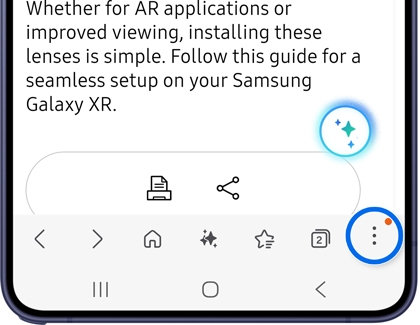
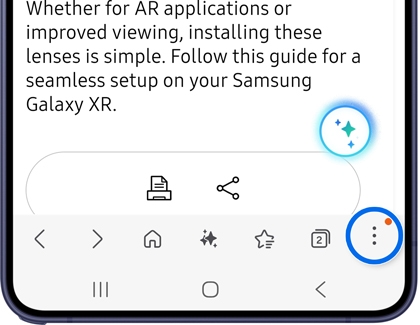
  1. Open the Samsung Browser app, and then tap the Tools icon (three vertical dots) from the bottom menu.
    The Samsung Internet browser toolbar with the three-dot menu icon highlighted in a blue circle.
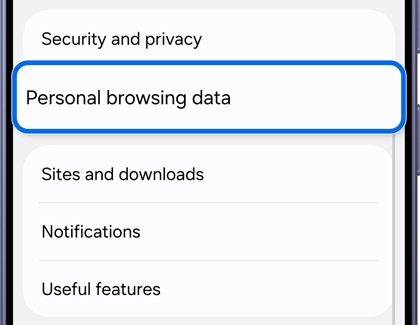
  2. Tap Settings, and then tap Personal browsing data.
    Samsung Internet settings with the Personal browsing data option highlighted in a blue box.
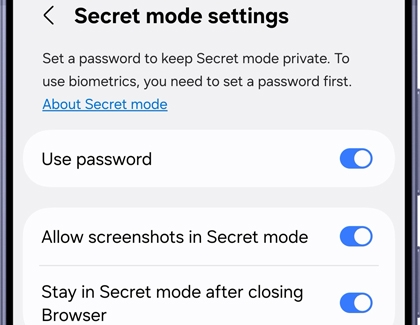
  3. Tap  Secret mode settings, then customize the following options:
    The Secret mode settings screen showing toggles for Use password and Allow screenshots turned on.
  • Use password: Create a password to protect your Secret mode data.
  • Allow screenshots in Secret mode: Enable screenshots while in Secret mode.
  • Stay in Secret mode after closing the browser: Automatically open tabs in Secret mode.
  • Smart anti-tracking: Adjust protection levels from web trackers and enable automatic CAPTCHA verification.
  • Reset Secret mode: Erase data and restore default settings.
Read more
Read less

How to use Secret mode

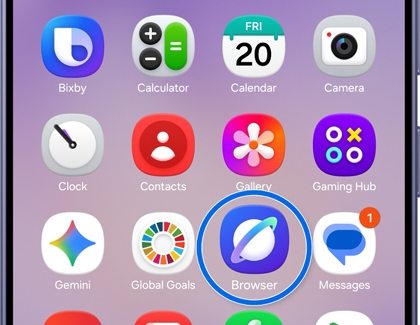
  1. Open the Samsung Browser app.
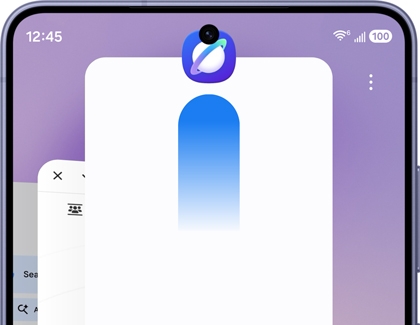
    A Galaxy S26 Ultra home screen with the Samsung Internet Browser icon highlighted in a blue circle.
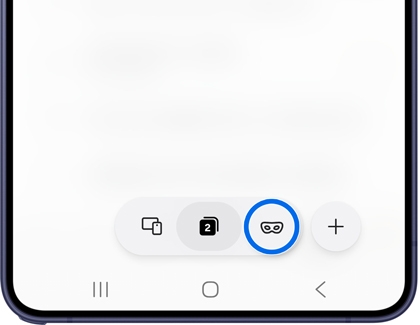
  2. Tap the All tab icon (rectangle with a number inside), then tap the Secret mode icon (face mask).
    The browser's tab manager with the Secret mode mask icon highlighted in a blue circle.
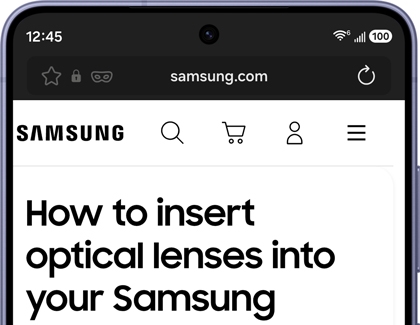
  3. The browser will switch to Secret mode, indicated by a face mask icon in the address bar.
    A Galaxy S26 Ultra in Secret mode showing the dark-themed address bar while browsing a Samsung page.
    Note: Secret mode will terminate when you close the Browser app.

Your activity and data may still be visible to websites, your internet service provider, apps, and phone manufacturer.

Read more
Read less

How to exit Secret mode

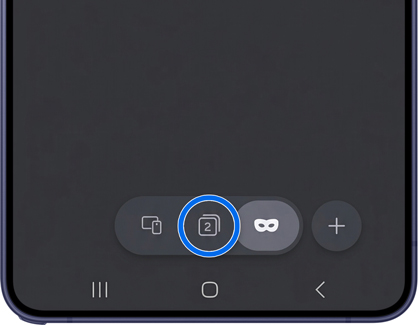
  • Access a new browser tab: Tap the Tab icon in the browser, and then select the All tab icon (rectangle with a number inside).
    The browser's tab manager with the All tab icon highlighted in a blue circle to switch out of Secret mode.
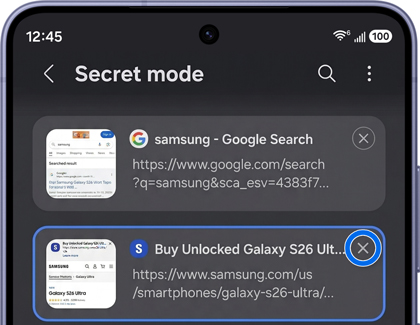
  • Close the browser tab: Tap the Tab icon in the browser, and tap the Close icon (X in the top right corner).
    The Secret mode tab list with an X icon highlighted in a blue circle to close a private tab.
  • Close the Samsung Browser app: Tap the Recents button, and then swipe up on the Samsung Browser app.
    A Galaxy S26 Ultra screen showing the Samsung Internet browser in the recent apps view.
Read more
Read less

Secret mode is disabled

If the Secret mode icon is disabled (grayed out) in the Samsung Browser app, ensure your Samsung account is not a child account (age restrictions vary by country).

If you confirm your account is not a child account and the issue persists, please contact us through the Samsung Browser app:

  1. Open the Samsung Browser app and then tap the Tools icon (three vertical dots) from the bottom menu.
    A Galaxy S26 Ultra showing the Samsung Internet browser with the three dot menu icon highlighted in a blue circle.
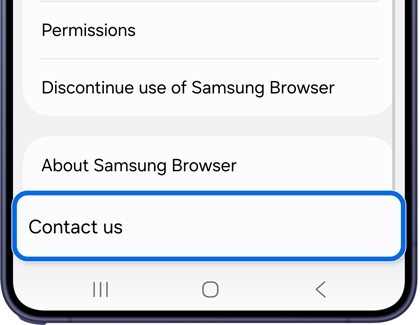
  2. Tap Settings, and then tap Contact us.
    A Galaxy S26 Ultra showing browser settings with the Contact us option highlighted in a blue box.
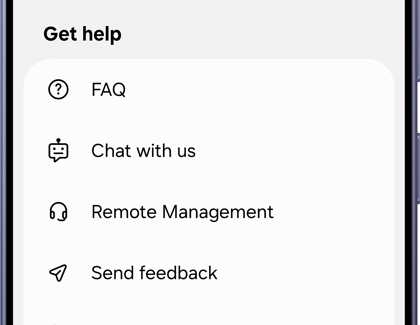
  3. Sign in to your Samsung account, fill out the required fields, provide feedback, and attach any files or screenshots.
    A Galaxy S26 Ultra showing the Get help menu with options for FAQ, Chat with us, Remote Management, and Send feedback.
  4. Tap Submit to send your report.
    A Galaxy S26 Ultra showing the Send feedback screen with the paper plane send icon highlighted in a blue circle.  

We'll investigate and assist you further.

Read more
Read less
Was this content helpful?
Table of contents
We're here for you

Contact Samsung Support

Contact us online through chat and get support from an expert on your computer, mobile device or tablet. Support is also available on your mobile device through the Samsung Members App.
auto-contact_us-pc-2x auto-contact_us-pc-2x

