How to use Gemini on your Galaxy phone or tablet

How to use Gemini on your Galaxy phone or tablet
Set Google as your default digital assistant app
To set Google as your default digital assistant app on your device, follow these steps:
- Navigate to and open Settings on your device.
- Tap Apps, then select Choose default apps.

- Tap Digital assistant app, then tap Digital assistant app again.
- Select Google as your preferred assistant app.

If you'd like to launch Google using the Side button, adjust the settings as follows:
- Navigate back to Settings, then tap Advanced features
- Tap Side button, and then tap Long Press.

- Select Digital assistant, then tap the Settings icon next to Digital assistant and choose Google.


Adjust the voice match for Hey Google
To optimize your 'Hey Google' voice settings for seamless interaction with Gemini or Google Assistant on your device, follow these steps:
- Navigate to and open Settings on your device.
- Tap Google services, and then tap on your name and email address displayed at the top of the menu.
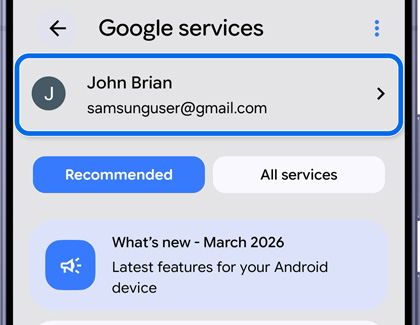
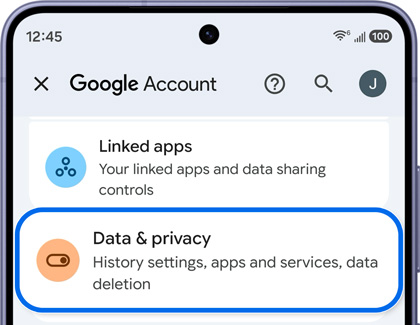
- Tap Manage your Google Account, and then tap Data & privacy.
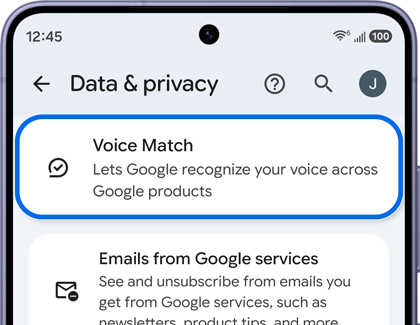
- Swipe to and tap Voice Match, and then tap Set up.
- Follow the on-screen instructions to complete the setup.
For more information about Voice Match, visit Google Help.
Try Seamless actions across apps
Gemini enhances your Galaxy experience by enabling seamless actions across multiple apps, creating a more convenient and streamlined workflow. Here's how to get started:
Press and hold the Side button to activate Gemini.
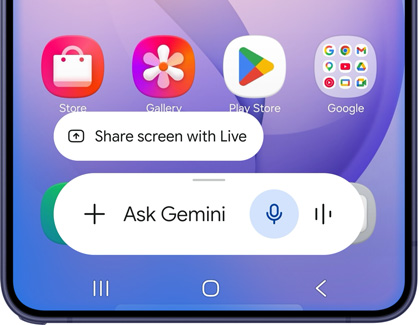
- Issue a Command: Use the keyboard or your voice to give a command, such as:
"Find a nearby Thai restaurant with outdoor seating and a casual dress code, and text the information to Mom."
"Look up the next ten Giants football games and add them to my calendar."
- Use Gemini While Watching Videos: If you want to make a quick note of a video's finer points, press and hold the Side button, then tap Ask about video.
- Issue a Video Command: For example, say, "Make a list of the locations mentioned in this video and save it as a note." Gemini will pull the relevant information and add it to a new note in Samsung Notes.
With Gemini, you can effortlessly integrate apps like Google Maps, Samsung Messages, YouTube, and Samsung Notes for a smarter, more connected experience.
Search and Messages
Try Search and Messages to find and send all in one go.
For example, looking for S26 Ultra features?
- Press and hold the Side button to activate Gemini.
- You can find input in two ways. You can either type your prompt or speak.
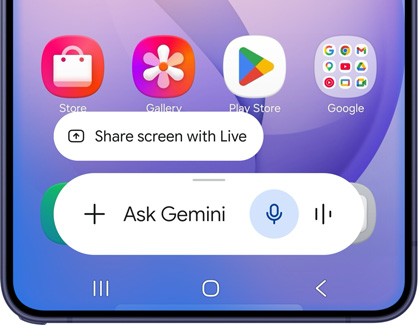
- Now, say your request.
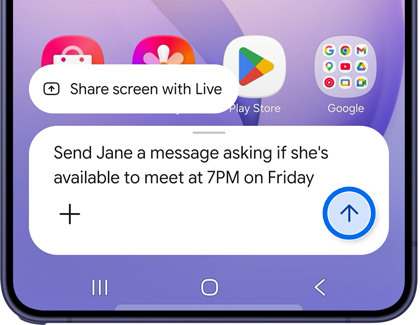
- It automatically finds the request you just asked based on your needs and creates a message for you to send.
- Tap Send, and it's done!
YouTube and Notes
Capture key points from a video—YouTube and Notes will organize them for you.
- While you are watching a clip, press the Side button.
- Tap on Ask about this video.
- Say your request.
- Gemini extracts relevant information from the video and saves it into Notes.
Note: If the Closed caption [CC] symbol appears in a YouTube video, you can transcribe the video and save the transcription directly in the Samsung Notes app.
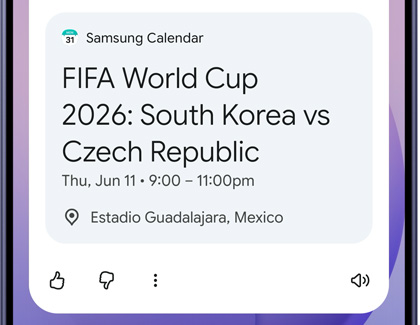
Search and Calendar
Save schedules effortlessly with Search and Calendar.
- Press and hold the Side button to activate Gemini.
- Tap mic icon and say your request.
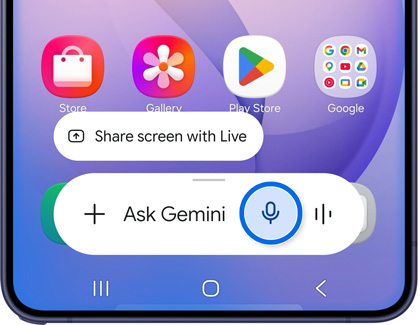
- It helps you to find the requested information.
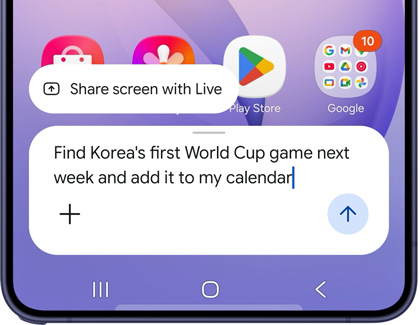
- The requested information has been saved successfully to your Calendar.
Use Gemini Live
Use screen or camera sharing to allow Gemini to see what’s on your device and provide instant, contextual support.
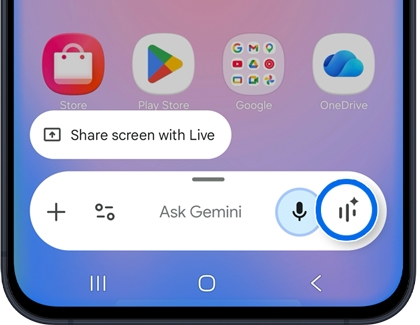
- Press and hold the Side button to activate Gemini, and then tap the Live icon (the three vertical lines with a star).
- Next, review the Go Live with Gemini information. Swipe to and tap OK.
- Begin conversing with Gemini about a topic of your choice on the Live with Gemini screen. Gemini will answer you with information, resources, and tips.
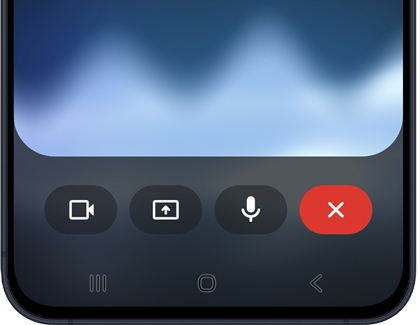
The following options are available on the Live with Gemini screen:
Video: Turn on your device’s camera and ask questions in real time while showing what you see.
Share screen: Display your current screen and receive assistance based on what is shown.
Microphone: Mute or unmute your conversation.
Keyboard: Use the on-screen keyboard for typing.
Close: Exit Gemini Live.
- Gemini will still be available even if you navigate away from the Go Live with Gemini screen. Tap Listening… in the left corner of the screen to open a “Live with Gemini” bar on the Home screen. Tap the Live icon to continue chatting.
- To exit Live with Gemini, tap the Close icon on the bar.

