Customize the Cover screen on your Samsung Galaxy Z Flip8
Your Samsung Galaxy Z Flip8 Cover screen (also called FlexWindow) lets you stay connected and complete everyday tasks without opening your phone. This guide shows you how to navigate the Cover screen, personalize its appearance, access notifications and widgets, and use its built-in features to get more done at a glance.

Customize the Cover screen on your Samsung Galaxy Z Flip8
Note
Want to learn what you can do from the Cover screen? See our guide on using the Cover screen on your Samsung Galaxy Z Flip8.
Navigate your Cover screen
Your Samsung Galaxy Z Flip8 lets you do much more than check the time without opening your phone. The Cover screen, also known as the FlexWindow, gives you quick access to notifications, widgets, apps, Samsung Wallet, and frequently used settings. Once you know the basic swipe gestures, you can complete many everyday tasks without unfolding your phone.
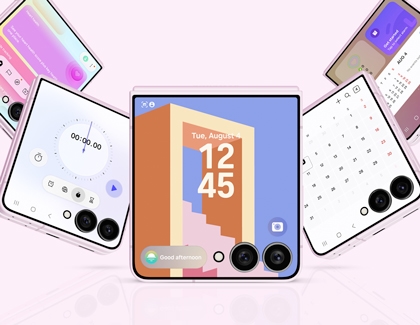
Use the following swipe gestures to navigate your Cover screen and access its different features:
- Swipe down to open the Quick settings panel, where you can quickly adjust features like Wi-Fi, Bluetooth, brightness, and more.
- Swipe right to view your notifications.
- Swipe left to browse your widgets and supported apps.
- Swipe up to open Samsung Wallet (after it's been set up).
Note
Learning the basic Cover screen gestures is the first step to getting the most from your Samsung Galaxy Z Flip8. Once you're familiar with navigating the Cover screen, you can personalize it by changing its appearance, choosing which widgets to display, and deciding what information is available at a glance.
Read less
Customize your Cover screen
Your Galaxy Z Flip8 Cover screen lets you do much more than check the time without opening your phone. In the sections below, you'll learn how to customize your wallpaper or clock, choose an app shortcut, show the battery icon, access notifications, use widgets, and quickly adjust common settings.
Change your Cover screen wallpaper
- Double tap the Cover screen while your phone is closed. If you use a screen lock, unlock the Cover screen when prompted.
- Touch and hold the Cover screen to edit your wallpaper.
- Swipe through the available wallpapers to preview each style, then tap the one you want to apply.
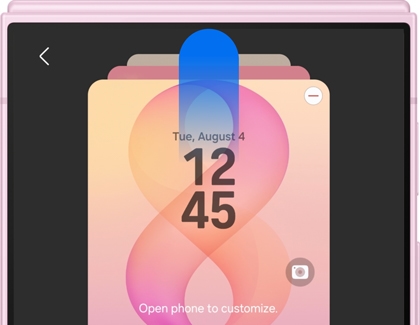
- To access additional wallpaper customization options, swipe to the last wallpaper screen, which invites you to open your phone to see more options, then open your phone.
Customize the Cover screen clock
- Double tap the Cover screen while your phone is closed. If you use a screen lock, unlock the Cover screen when prompted.
- Touch and hold the Cover screen to edit the clock.
- Once the editing options appear, open your phone.
- Tap the clock.
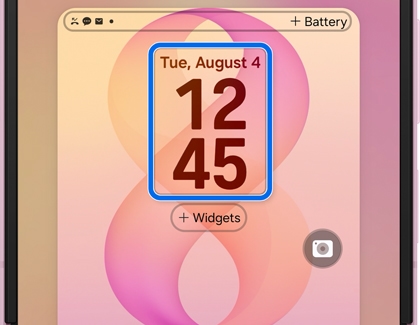
- Customize the clock by choosing from the available styles, fonts, colors, and displayed details.
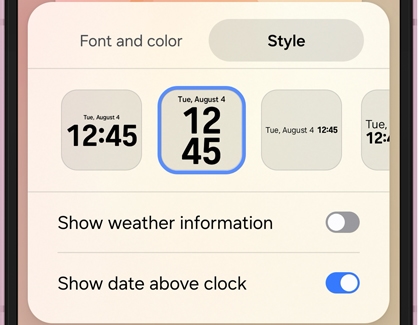
- When you're finished, tap Done.
Choose your Cover screen app shortcut
- Double tap the Cover screen while your phone is closed. If you use a screen lock, unlock the Cover screen when prompted.
- Touch and hold the Cover screen to edit the app shortcut.
- Once the editing options appear, open your phone.
- Tap the app shortcut.
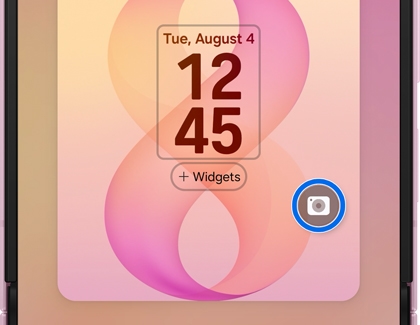
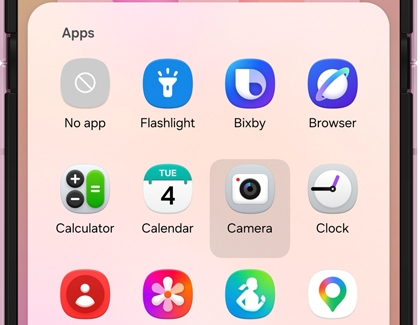
- Under Apps in the pop-up window, select Camera, Flashlight, or No app.
- When you're finished, tap Done.
Show the battery icon on the Cover screen
- Double tap the Cover screen while your phone is closed. If you use a screen lock, unlock the Cover screen when prompted.
- Touch and hold the Cover screen to customize it.
- Once the editing options appear, open your phone.
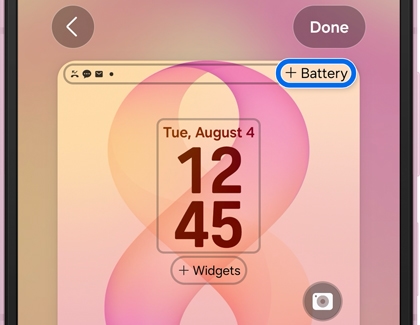
- Tap +Battery in the top right corner of the screen.
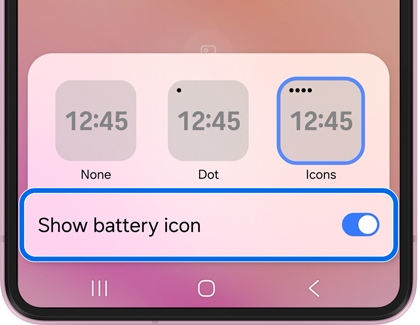
- Tap the switch next to Show battery icon to show or hide the battery icon.
- When you're finished, tap Done.
Access notifications from the Cover screen
- Double tap the Cover screen while your phone is closed. If you use a screen lock, unlock the Cover screen when prompted.
- Swipe right to view your notifications.
- Tap a notification to open it. You may be prompted to unfold your phone to continue viewing the notification on the main screen.
- To clear a notification, swipe right on it. You can also tap Clear to remove all notifications.
Use Cover screen widgets
- Double tap the Cover screen while your phone is closed. If you use a screen lock, unlock the Cover screen when prompted.
- Swipe left to access your widgets.
- Touch and hold the screen, then tap Edit below the widgets to customize them. Open your phone when prompted.
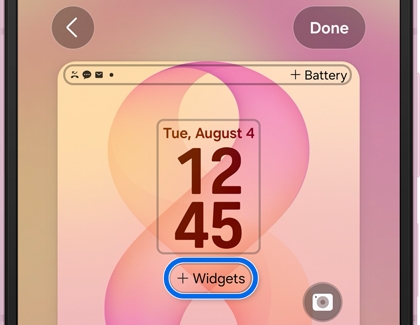
- Tap the widget(s) you want to add at the bottom of the screen, then select your preferred display style.
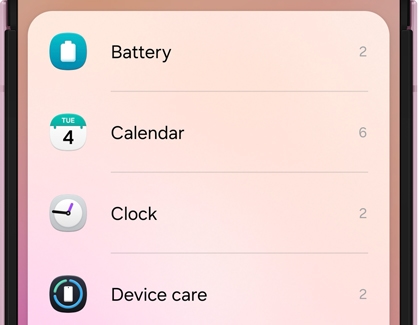
- To remove a widget, tap the red minus icon next to it at the top of the screen.
Use Quick settings from the Cover screen
- Double tap the Cover screen while your phone is closed. If you use a screen lock, unlock the Cover screen when prompted.
- Swipe down from the top of the screen to open the Quick settings panel.
- The Quick settings panel lets you quickly access the following settings without opening your phone:
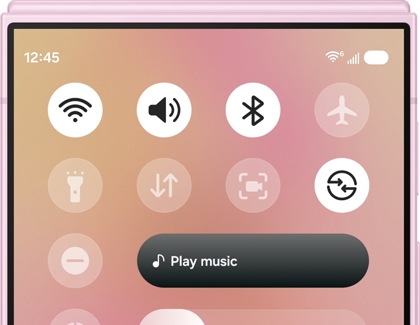
- Wi-Fi: Turn Wi-Fi on or off and connect to available Wi-Fi networks.
- Volume: Adjust the volume.
- Bluetooth: Turn Bluetooth on or off.
- Airplane mode: Turn Airplane mode on or off.
- Flashlight: Turn the flashlight on or off.
- Mobile data: Turn mobile data on or off.
- Screen recorder: Start a screen recording.
- Modes: Select a mode, such as Sleep.
- Brightness: Adjust the screen brightness using the slider.
Note
The Quick settings icons available on the Cover screen (also called FlexWindow) cannot be customized.
Read less
Recommended Articles
We're here for you
Contact Samsung Support
Contact us online through chat and get support from an expert on your computer, mobile device, or tablet. Support is also available on your mobile device through the Samsung Members App.

