Use the Cover screen on your Samsung Galaxy Z Flip8

Use the Cover screen on your Samsung Galaxy Z Flip8
Navigate your Cover screen
Your Samsung Galaxy Z Flip8 lets you do much more than check the time without opening your phone. The Cover screen, also known as the FlexWindow, gives you quick access to notifications, widgets, apps, Samsung Wallet, and frequently used settings. Once you know the basic swipe gestures, you can complete many everyday tasks without unfolding your phone.
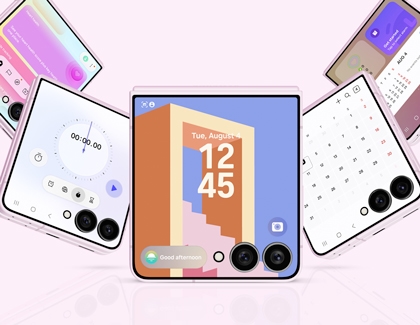
Use the following swipe gestures to navigate your Cover screen and access its different features:
- Swipe down to open the Quick settings panel, where you can quickly adjust features like Wi-Fi, Bluetooth, brightness, and more.
- Swipe right to view your notifications.
- Swipe left to browse your widgets and supported apps.
- Swipe up to open Samsung Wallet (after it's been set up).
Access your favorite apps from the Cover screen
The Favorite apps widget on your Cover screen displays a row of your favorite apps, making it easy to open commonly used apps without unfolding your phone. Only compatible apps can be added to the widget for quick access.
- Double tap the Cover screen while your phone is closed. If you use a screen lock, unlock the Cover screen when prompted.
- Swipe left to access your widgets.
- Touch and hold the screen, then tap Edit below the widgets to customize them. Open your phone when prompted.
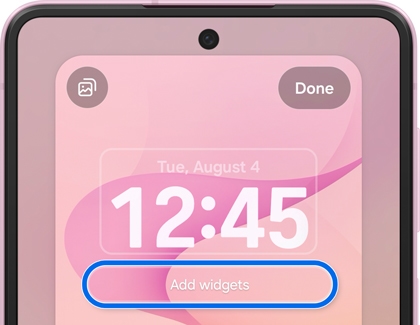
- Tap Apps to choose which compatible apps could appear on your Cover screen.
- Several Apps widgets are available, each displaying a different number of apps. Select the one that best fits your needs.
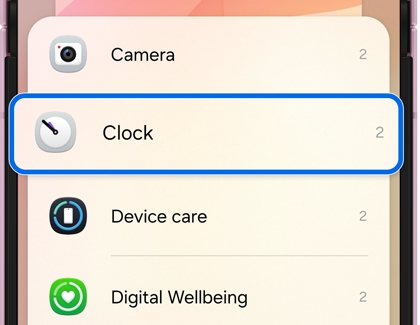
- Once you've added it, tap the Apps widget in the preview at the top of the screen.
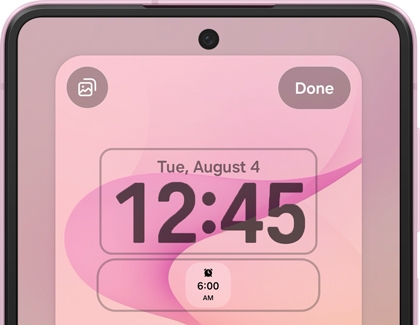
- Tap Select apps.
- Select the compatible apps you want to display on your Cover screen from the list.
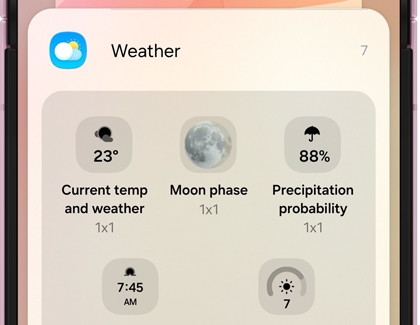
- Tap Done, and then tap Save on the next screen.
- When using the Cover screen, swipe left to browse your widgets, and then tap an app in the Apps widget to open it without unfolding your phone.
View Now Brief on the Cover screen
Now Brief displays personalized updates throughout the day directly on your Cover screen. Depending on your activity, time of day, and available information, it can show useful cards such as weather, calendar events, reminders, health insights, or other timely updates, helping you stay informed without unfolding your phone.
- Double tap the Cover screen while your phone is closed. If you use a screen lock, unlock the Cover screen when prompted.
- Navigate to Now Brief, and then open it to view your personalized updates.
- Depending on the time of day, review your personalized morning, afternoon, or evening briefing.
- Tap the Settings icon (at the bottom of the screen) to open the Now Brief settings menu.
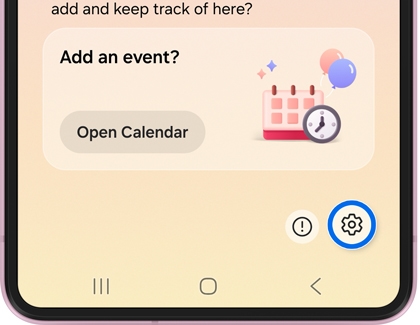
- To personalize your briefing, tap Content to include, and then select the categories you want to include.

