©2026 Samsung Electronics America, Inc. Samsung and Samsung Galaxy are trademarks of Samsung Electronics Co., Ltd. Other company names and marks are property of their respective owners. Samsung is not responsible for third-party apps and hardware. Devices and related software are not intended to diagnose, cure, mitigate, treat or prevent disease or other health conditions. Users should not interpret or take clinical action based on device output without consulting a qualified healthcare professional. Additional information at www.samsung.com.
Use the sleep apnea monitoring feature with a Galaxy Watch or Ring
Learn how to set up and use the Sleep Apnea monitoring feature with your Samsung Galaxy Watch or Ring. Through the Samsung Health Monitor app, this feature tracks blood oxygen drops and breathing disruptions over a two-night period to help identify signs of moderate to severe obstructive sleep apnea.

Use the sleep apnea monitoring feature with a Galaxy Watch or Ring
Caution
- Do not use the sleep apnea feature if you've already been diagnosed with sleep apnea, are younger than 18 years old, or have been diagnosed with any of these conditions:
- Movement-related conditions: Parkinson’s, tremor, periodic leg movement during sleep (PLMS)
- Cardiac conditions: congestive heart failure (CHF), atrial fibrillation
- Lung conditions: chronic obstructive pulmonary disease (COPD), chronic bronchitis, emphysema, pulmonary fibrosis
- Do not change the dose or schedule of any medications based on results from this feature. Always talk to your doctor first.
- The Sleep apnea feature is only a pre-diagnosis tool. It isn’t meant to replace diagnosis or treatment by a qualified healthcare professional. If you aren’t feeling well, contact your doctor, even if the watch or ring doesn't detect signs of sleep apnea.
Note
- Your Galaxy watch or ring can’t catch every case of sleep apnea. The device only checks for signs of moderate to severe sleep apnea.
- Your Galaxy watch or ring is not approved by a regulatory body as a pulse oximeter.
- Your results may be inaccurate if you use this feature while pregnant, or while having temporary symptoms of impaired breathing from flu, allergies, asthma, or any other condition.
Getting Started
Before setup, ensure your Galaxy wearable and phone meet the compatibility requirements:
- Supported Wearables: Galaxy Ring or Galaxy Watch7 running Wear OS 7.0 or later.
Note: This software update will be pushed out to compatible devices during November 2026. Make sure to keep your device software up to date. - Supported Phone: Galaxy phone running Android 12 or later.
Setting up the sleep apnea feature for the first time
- Open the Galaxy Wearable app on your phone to confirm your watch or ring is connected.
- Open the Samsung Health Monitor app on your phone or watch. If prompted, download or update it from the Galaxy Store.
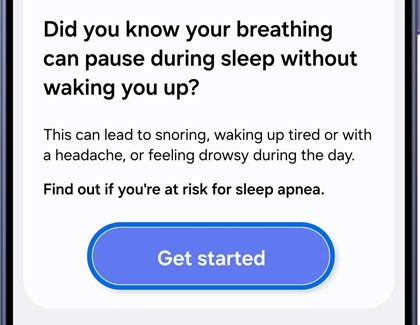
- Select the Sleep apnea tab, then tap Get started to start the prerequisite questionnaire.
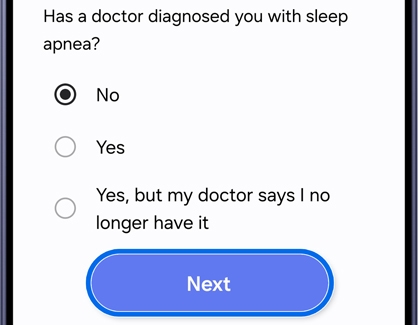
- Answer the health questions and tap Next to complete the evaluation.
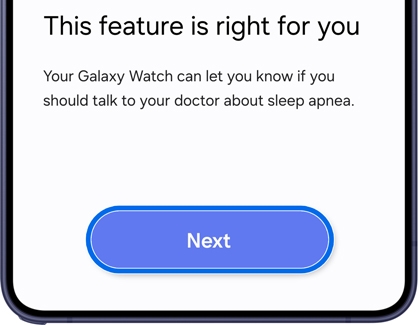
- If the sleep apnea feature is determined to be appropriate for you, tap Next to start the setup process.
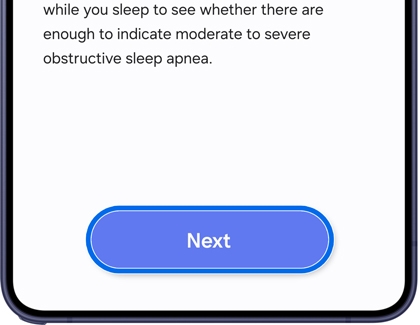
- Tap Next to read through the overview screens.
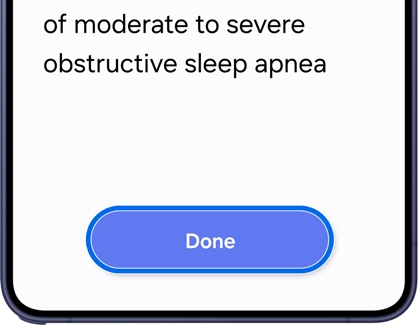
- Tap Done to connect your wearable device.
Note: If you have more than one wearable device connected, you may be asked to select which one.
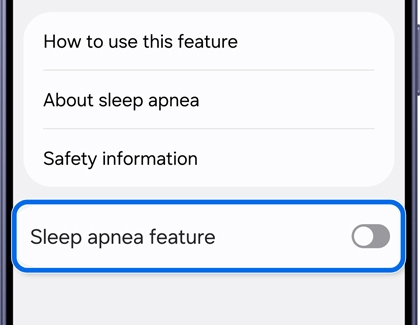
- Toggle On the Sleep apnea feature switch.
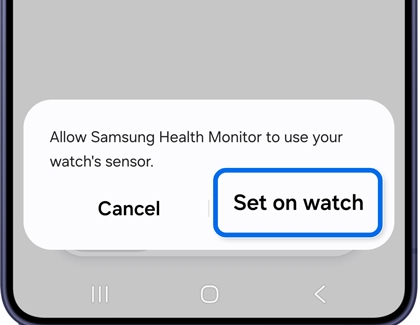
- Select Set on watch to allow permission to use your watch sensor. The permission screen will be shown on the watch.
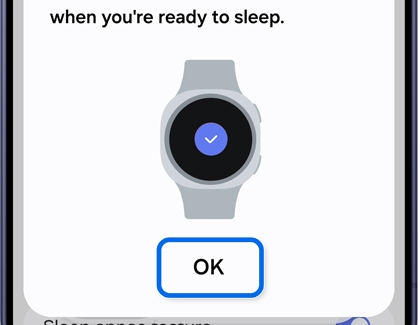
- Tap OK to complete setup.
Note
If your watch software is not compatible with this version of Sleep Apnea monitoring, you can try using the previous version. For more information, check out this guide.
Read less
How to wear your watch or ring during sleep
Proper fit and position are required for the sensors to track breathing disruptions and blood oxygen changes accurately.
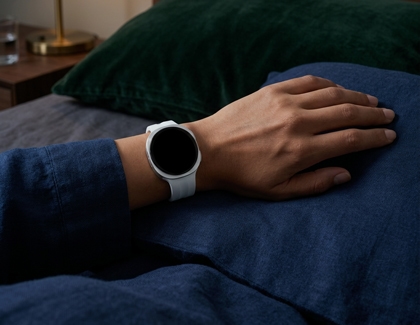
How to wear your watch during sleep
- Place the watch on top of your wrist, positioning it 1 to 2 inches above your wrist bone toward your elbow. The higher you wear it in that range, the more accurate your readings will be.
- Fasten the strap so it fits snugly against your skin without cutting off circulation. The watch should not slide around on your wrist when you move your arm.
- Ensure the sensor on the back of the watch is clean and free of moisture or debris, and maintains contact with your skin.
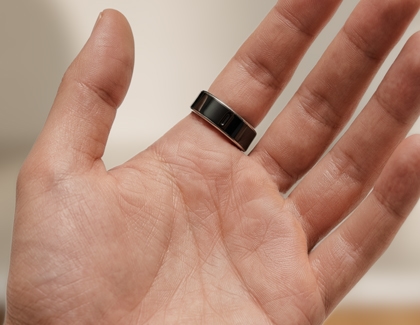
How to wear your ring during sleep
- Make sure your ring's fit isn't too tight or loose, and the orientation indicator on its surface is facing your palm. The sensors behind the indicator should maintain contact with your skin.
- If you're having trouble getting a measurement, try moving your ring to a thicker part of your finger.
Read less
Receiving a result
The evaluation requires tracking your sleep for 2 nights. After two successful nights of measuring at least 5 hours of sleep each night, your device will evaluate whether it detected signs of moderate to severe sleep apnea.
- Wear your watch or ring to sleep for 2 successful nights (minimum 5 hours of sleep each night).
- After the second night, open the Samsung Health Monitor app on your phone.
- Tap Sleep apnea to review your evaluation.
If signs of moderate-to-severe sleep apnea are detected
Your wearable detected a pattern of breathing disruptions that may indicate moderate-to-severe sleep apnea.
- Consult a medical professional: Share your results with a doctor or sleep specialist for a comprehensive clinical evaluation and diagnosis.
- Do not alter medication: Continue taking all prescribed medications as directed. Never adjust your dosage or schedule without speaking to your physician first.
If signs of moderate-to-severe sleep apnea are not detected
Your wearable did not detect enough breathing disruptions during the tracking period to suggest moderate-to-severe sleep apnea.
- Keep limitations in mind: A negative result does not guarantee the complete absence of sleep apnea, as wearables cannot detect every case.
- Listen to your body: If you continue to experience symptoms such as excessive daytime tiredness, loud snoring, or gasping during sleep, consult your healthcare provider regardless of your watch or ring results.
Note
- Galaxy Ring stores only a few days' worth of data, so make sure to sync your ring and phone as regularly as possible.
- The Sleep apnea feature automatically turns off once a result is provided, or after 10 days, whichever comes first. It is designed for periodic on-demand screening rather than continuous nightly tracking.
Read less
Troubleshooting
If you run into issues using or getting results from the Sleep apnea feature, check the following solutions and optimization tips:
Can't activate Sleep apnea feature on phone
Verify that the Sleep apnea feature is approved for use in your country. Ensure you have an active cellular connection when activating the Samsung Health Monitor app.
Can't find connected Galaxy Watch or Ring in available devices
Check that your wearable device is compatible on the Samsung Health page of the Samsung website.
If supported, update to the latest software and app versions: Open Galaxy Wearable on your phone > Tap Watch settings or Ring settings > Tap Software update > Tap Download and install.
Ensure your wearable remains connected during the update.
Don't see sleep apnea result in the phone app
Ensure your watch or ring is actively paired via Bluetooth using the Galaxy Wearable app. If the result still does not appear, swipe down from the top of the main Samsung Health Monitor screen on your phone to manually sync the data.
Not enough available watch storage
You need at least 10 MB of available storage on your watch to process sleep apnea detection.
Clear storage by deleting unused apps or media content from your watch: Go to Settings > Storage to free up space.
Not getting enough data for a result
This usually occurs if you were not asleep for at least 5 hours, moved excessively during sleep (causing the device to detect wakefulness), placed the watch too close to your wrist bone, or experienced signal obstruction due to low peripheral blood flow or skin pigmentation.
Optimization tips for missing data
- Clean the sensors on your watch or ring, and ensure your skin is clean and dry before sleeping.
- Position your watch 1 to 2 inches above your wrist bone—wearing it higher improves accuracy. Ensure a snug fit where sensors maintain continuous skin contact.
- Align your ring's orientation indicator toward your palm, ensuring it is neither too loose nor too tight. If readings fail, move the ring to a thicker part of your finger.
- Reposition the watch or ring to avoid dense body hair, tattoos, or scars that may block optical sensor signals.
Read less
How to delete sleep apnea data from your device
Note
Clearing the data will reset the app to factory default settings. Any personal settings or data saved on the app will be removed.
The Samsung Health Monitor Sleep Apnea feature stores your data only on your devices. You can manage or clear your app data directly from your phone or watch settings.
Delete data from your phone
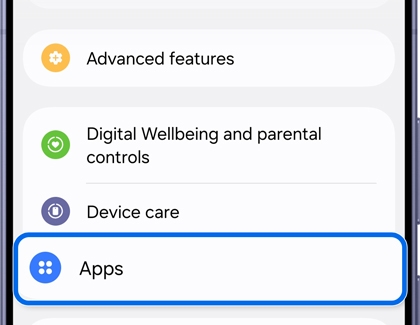
- Open Settings, then swipe down and tap Apps.
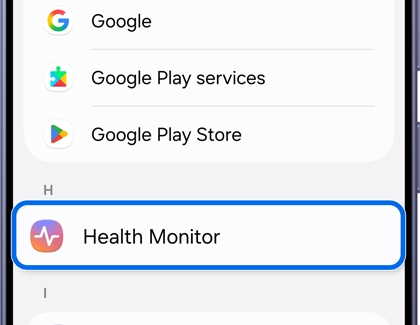
- Select or search for Health Monitor.
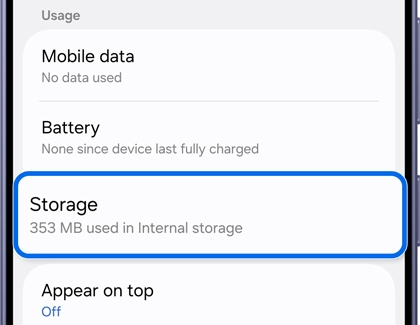
- Tap Storage.
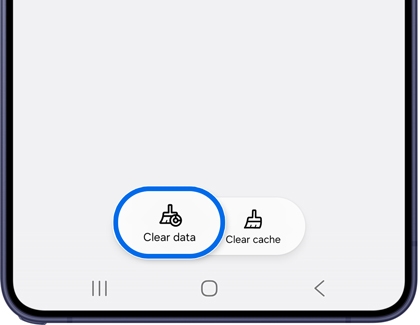
- Tap Clear data, then select Delete.
This will completely reset the app to its original settings. The app storage size will show as reset and opening Samsung Health Monitor will bring up the initial setup screen.
- Tap Delete to confirm.
Delete data from your watch
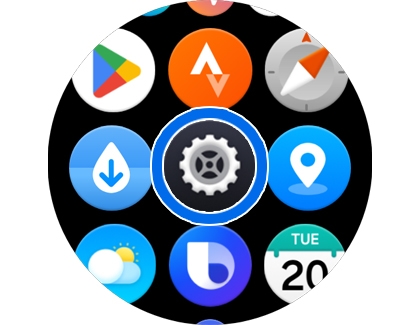
- On your watch, swipe down to access your Quick panel menu or swipe up to your app menu and open Settings.
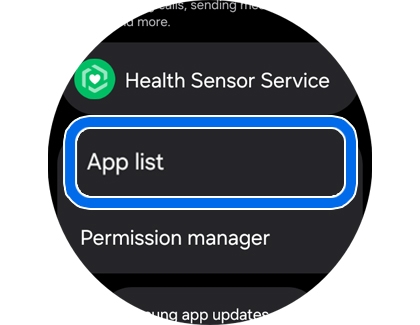
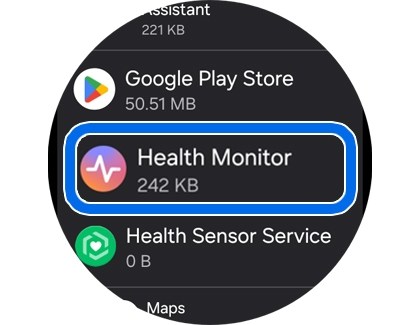
- Tap Apps, then tap App List.
- Select the Health Monitor app.
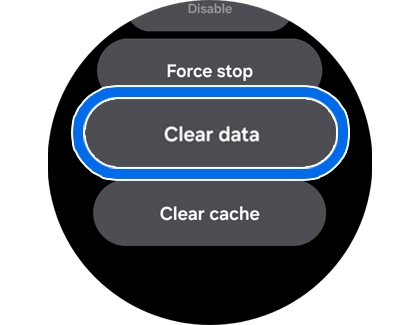
- Scroll down and tap Clear data.
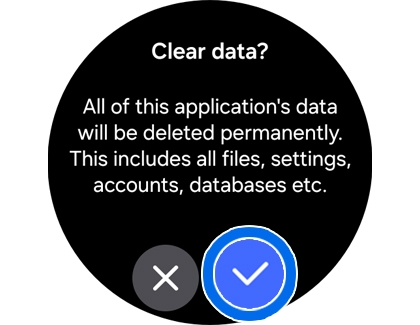
- Tap the check mark to confirm.
Read less
Recommended Articles
We're here for you
Contact Samsung Support
Contact us online through chat and get support from an expert on your computer, mobile device, or tablet. Support is also available on your mobile device through the Samsung Members App.

