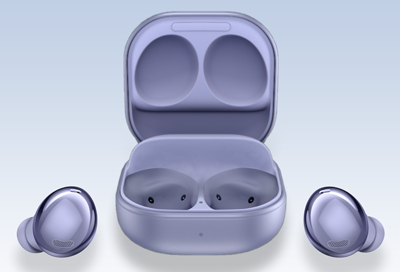
Samsung earbuds don't connect or won't stay connected

If your phone cannot connect to your Galaxy Bud series earbuds (like the Galaxy Buds2 Pro) or Gear IconX earbuds, getting them to connect again will only take a couple of steps. Performing a restart on the earbuds, resetting the Bluetooth connection, or updating the Galaxy Wearable app will normally fix the issue.

Samsung earbuds don't connect or won't stay connected

Checkpoint

Prepare your earbuds to connect

Note
As a charging precaution, do not charge the earbuds using a power source like a computer. Doing so can cause the earbuds to charge slower. If your earbuds are connected but you are experiencing audio dropouts or other quality issues, check out our guide.
1
Make sure there's no interference.
Move the earbuds and connected device away from Wi-Fi routers or running microwaves. Make sure there's an uninterrupted path for the signal between earbuds and the connected device.
2
Restart the earbuds.
Put the buds back in the case and close the lid. Wait for the light on the case to go out, about 7 seconds, and then try to connect the earbuds again.
3
Charge the earbuds for at least 30 minutes.
  • Place the earbuds into the charging case and close the lid. Make sure the charging contacts are clean and free of debris.
  • Connect the USB cable to the USB charging port on the back of the charging case.
  • Connect the other end of the USB cable to a Samsung-approved charger adapter (sold separately), and plug it directly into a power outlet. The charging indicator will light up when the case gets power.

You can visit our website to find a replacement USB cable and charging adapter for your earbuds. 

Did this resolve your issue?
If this didn’t resolve your issue, please click on “No” for more help.
Yes No
We’re happy to hear that your problem has been resolved.

Unpair and repair the earbuds

1
Restart the earbuds.
Insert the earbuds into the case and close the lid until the LED light goes out. If the indicator light flashes red or orange, charge the earbuds and case.
2
Sync the earbuds.
Remove the earbuds from the charging case for a moment and then reinsert them. Next, touch and hold both earbuds’ touchpads for seven seconds or more while they are in the case. The earbud battery indicator light will flash green and return to its initial color. The earbuds will be coupled, and then you can try wearing them again.
3
Place the buds in your ears.
Remove both earbuds from the case and place them into your ears. Be sure to adjust the earbuds and wear them properly to make sure they're detected. You will hear the earbuds make a beeping sound.
4
Unpair the earbuds.
If the earbuds are still not pairing, you can try unpairing them from your phone. To do this, navigate to Settings on your phone. Tap Connections, and then tap Bluetooth. Locate your earbuds in the list, and then tap the gear icon next to them. Tap Unpair at the bottom of the screen. 
5
Reconnect your earbuds.
Now that the buds have been unpaired and the Galaxy Wearable app has been reset, connect your Galaxy Buds normally.
Did this resolve your issue?
If this didn’t resolve your issue, please click on “No” for more help.
Yes No
We’re happy to hear that your problem has been resolved.

Update the software on your devices

1
Restart the device that is connected to your earbuds.
Restart the device the earbuds are connected to, such as a phone, tablet, TV, or computer by powering it off and back on again.
2
Check for software updates on your connected device.

The device you are trying to connect your earbuds to may require a software or firmware update. Check your device for updates.

3
Check for software updates using a connected phone, tablet, or PC.
Steps for updating your earbuds' software will change based upon the device you are using. Review our guide for specific instructions.
4
Request service.
If you're unable to connect one or both earbuds, service may be required. Please call us at 1-800-SAMSUNG to request service.
Did this resolve your issue?
If this didn’t resolve your issue, please click on “No” for more help.
Yes No
We’re happy to hear that your problem has been resolved.

Checkpoint

Was this content helpful?
We're here for you

Contact Samsung Support

Contact us online through chat and get support from an expert on your computer, mobile device or tablet. Support is also available on your mobile device through the Samsung Members App.
auto-contact_us-pc-2x auto-contact_us-pc-2x


