Wireless USB keyboard and mouse issues with DeX

If your wireless keyboard or mouse is not working properly in Samsung DeX mode, follow these steps to troubleshoot and resolve the issue.
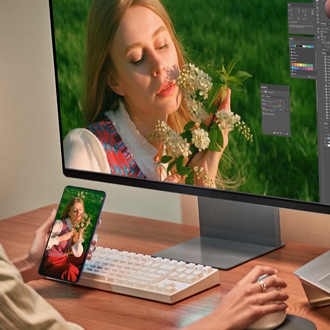
A white Samsung monitor showing DeX mode with a Galaxy S25, keyboard, and mouse on a wooden desk.

Wireless USB keyboard and mouse issues with DeX

1

Clean the keyboard or mouse.

First, inspect the keyboard or mouse for visible obstructions or debris. Carefully remove any foreign objects. Turn off and unplug the device. Then, use compressed air or a soft brush to gently clear debris from the keys or buttons. Gently wipe the keys or buttons with a slightly damp cloth, ensuring it's not wet.
2

Ensure the keyboard or mouse is turned on.

If the keyboard or mouse does not turn on, confirm that the batteries are installed correctly. It may be necessary to replace the batteries with new batteries.
3

Check the wireless USB receiver.

Unplug the wireless USB receiver and reconnect it to the USB port.

  • If using a DeX Pad or DeX Station, try a different USB port on the accessory.
  • If connected directly to the phone or tablet, ensure it's securely plugged into the USB port.
4

Test the keyboard or mouse on another device.

Check if the keyboard or mouse works on another device, like a laptop. If the device remains unresponsive, it may be defective. Contact the product manufacturer for additional support.


If the keyboard or mouse is still not working after testing it on another device:


  • Restart DeX: Disconnect the HDMI cable from the DeX Pad or DeX Station. Or, tap the DeX icon in the Quick panel.
  • Checking for updates: Open Settings, swipe to and tap Software update, and then tap Download and install. If no update appears, manually check by selecting Check for updates. Follow the on-screen instructions to download and install any available updates.
5

Adjust the keyboard's language settings.

In DeX mode, navigate to and open Settings, and then select Connected devices. Select Samsung DeX, then select Keyboard, and then select More settings. Select Samsung Keyboard settings- English (US), and then choose your preferred language.
6

Adjust the mouse settings.

In DeX mode, navigate to and open Settings, and then select Connected devices. Select Samsung DeX, then select Mouse and trackpad, and then select More settings.

  • Use the slider to adjust your pointer speed.
  • Select Primary mouse button to change the main button to either Left or Right.

You can also select additional options from this screen, such as Wheel scrolling speedEnhance pointer precision, and Pointer size and color.

Was this content helpful?
We're here for you

Contact Samsung Support

Contact us online through chat and get support from an expert on your computer, mobile device or tablet. Support is also available on your mobile device through the Samsung Members App.
auto-contact_us-pc-2x auto-contact_us-pc-2x