Alexa log-in screen keeps appearing in the SmartThings app

If you're experiencing issues with Alexa login in the SmartThings app for your Samsung Soundbar or Wi-Fi Speaker, this guide provides a solution. The problem is caused by a communication error between the SmartThings app and the Alexa server. Follow these steps to resolve the issue and ensure the Alexa functions work smoothly.
A Galaxy S26 Ultra showing the SmartThings app favorites screen near a black soundbar on a cabinet.

Alexa log-in screen keeps appearing in the SmartThings app

1

Deregister in the Amazon Alexa app.

Open the Amazon Alexa app on your phone or tablet. Tap the Devices icon (the light bulb), and then select your Samsung Soundbar or Wi-Fi Speaker from the list. Swipe to the bottom of the menu, and then tap Deregister. Tap DEREGISTER again to confirm removal.
A Galaxy S26 Ultra showing the Alexa app settings with the Deregister button highlighted in blue.
2

Log in to Alexa in SmartThings.

Open the SmartThings app on your phone or tablet, and then select your desired location from the Location drop-down. Tap the Add icon (plus sign), then tap Add device. Tap Add on the Samsung devices card, and select Soundbar or Speaker. SmartThings will scan for nearby devices. Once your audio device appears, select it and follow the on-screen instructions. Ensure the soundbar or speaker is powered on and within close range of your phone or tablet. After pairing, the Alexa log-in screen will appear. Tap Sign in, then tap GET STARTED. Review the permissions and tap Allow. Choose your preferred language for Alexa, tap Next, and then tap Done to establish the connection.
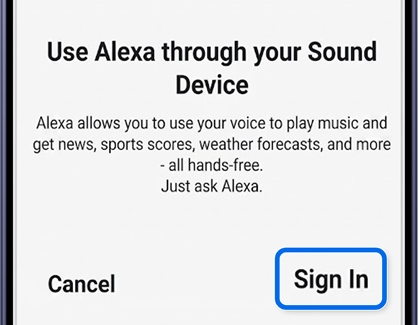
A Galaxy S26 Ultra screen showing the Use Alexa through your Sound Device prompt with Sign In highlighted.

If the Alexa log-in screen doesn't appear, tap the Services tab in the SmartThings app when viewing your soundbar or speaker. Tap Alexa Settings to proceed with the log-in process.

3

Check for app updates.

Ensure the SmartThings app is up to date for optimal performance. Open the Galaxy Store on your device, and then search for SmartThings in the search bar. If an update is available, tap the Update icon next to the app. Wait for the update to complete, then open the app to ensure it's working properly.
A Galaxy S26 Ultra showing the Updates menu with the update icon for SmartThings highlighted in blue.
Note
If no update is currently available, please continue to check back later for the latest version.
Was this content helpful?
We're here for you

Contact Samsung Support

Contact us online through chat and get support from an expert on your computer, mobile device, or tablet. Support is also available on your mobile device through the Samsung Members App.