Spotify Lossless content is not working on Samsung Soundbar

If you're unable to access Spotify Lossless content on your Samsung Soundbar, this is likely because your model was released before 2024 and does not support this feature. Spotify Lossless, introduced in 2025, is only compatible with soundbars released in 2024 and later, provided they are updated to the latest firmware. This article outlines which models support Spotify Lossless and how to ensure your soundbar is up to date.
A black Samsung subwoofer with blue digital sound waves in the background.

Spotify Lossless content is not working on Samsung Soundbar

Verify compatiblity

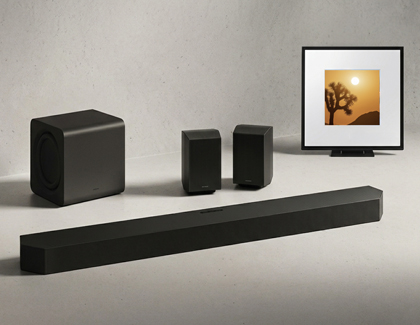
A black Samsung soundbar, subwoofer, and two rear speakers on a floor near a framed picture.

Supported models (2024-2025):

  • HW-LS60
  • HW-S***D
  • HW-QD
  • HW-QF

Unsupported models (2022 - 2023):

  • HW-S***B
  • HW-QB
  • HW-QC
     

For supported models (2024 and later), ensure your soundbar is running the latest firmware.

Read more
Read less

Update the firmware via SmartThings

Note
Use this method if you are unable to update the software via USB.
  1. Make sure your Soundbar or Music Frame is connected to the Wi-Fi network using SmartThings.
    Note: If your Soundbar or Music Frame isn't connected to SmartThings, you will need to add it first.
  2. Unplug the Soundbar, the subwoofer, and the rear speakers or Music Frame for 30 seconds, and then plug them back in.
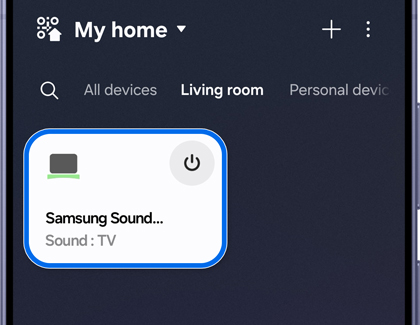
  3. Open the SmartThings app on your phone and select the Soundbar or Music Frame to access the control menu.
    A Galaxy S26 Ultra showing the SmartThings app with the Samsung Soundbar card highlighted in blue.
  4. Tap the More options (three vertical dots) icon in the top right corner of the screen.
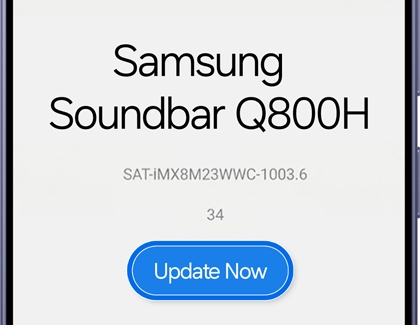
  5. Navigate to Information, then Firmware Update, and select Update Now or Update device.
    A Galaxy S26 Ultra screen for the Samsung Soundbar Q800H with the Update Now button highlighted in blue.
Read more
Read less

Update the firmware via USB

Important
DO NOT turn off the power or remove the USB during the update.
  1. To update the soundbar’s firmware, visit the Samsung Download Center. You can either select your product type and then search for your soundbar, or select ENTER MODEL NUMBER to access the support page for your specific soundbar model.
  2. On the Support page, locate the firmware file for your soundbar under DOWNLOADS. If you find multiple firmware versions, install the newest version available. Select DOWNLOAD next to the firmware version to download the compressed file.
  3. When the file has finished downloading, locate it, then unzip the file.
  4. Navigate through the folders until you access the files required for the update. Copy or move the files to the USB drive (make sure the capacity is large enough for the files). When the files are copied over to the USB, make sure they are not placed in a folder. Placing them in a folder will make it harder for the soundbar to find the files.
  5. Connect the USB with the update files to the USB port of the soundbar while it is powered off.
    A Samsung USB drive inserted into the USB service port on the back of a Samsung soundbar.
  6. Turn on your Soundbar or Music Frame using the remote or press the Power button.
    Note: When your Soundbar is powered on, press the Source button to switch to the USB mode.
  7. The update will begin, and your Soundbar's display will show "UPDATE." Or, your Music Frame's LED indicator will glow white, moving left to right and right to left.
  8. When the update finishes, the Soundbar or Music Frame will restart, and the last source used will appear on the display, and then it will go off. 


If your model is supported and updated, Spotify Lossless should now work seamlessly.

Read more
Read less

Contact Samsung Support

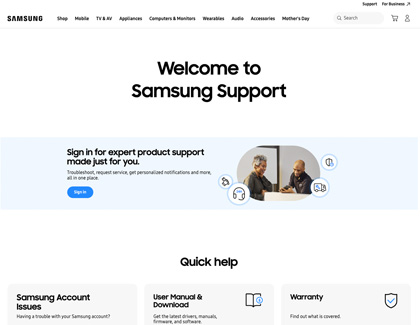
The Samsung Support website home page showing a Sign In banner and Quick help sections.

For further assistance, visit Samsung.com or contact Samsung Customer Support.

Read more
Read less
Was this content helpful?
We're here for you

Contact Samsung Support

Contact us online through chat and get support from an expert on your computer, mobile device, or tablet. Support is also available on your mobile device through the Samsung Members App.

