Samsung Galaxy device appears to keep restarting
If your Samsung Galaxy device restarts automatically, automated maintenance features such as Auto optimization, Auto restart, or security-focused Inactivity restart may be responsible. Recent software updates or third-party apps can also trigger unexpected reboots. Follow the steps below to check your restart settings, understand how automated maintenance works, and resolve unexpected restarts on your device.
Samsung Galaxy device appears to keep restarting
Note
- Emergency security updates may restart the device automatically even when automatic software download settings are turned off, depending on your country or region.
- Menu names, settings, and screen layouts may vary depending on the model and software version.
Understand automatic restart causes
Galaxy devices may restart automatically due to automated system maintenance features like Auto optimization, Auto restart, and Inactivity restart.
Auto optimization cleans up background memory and triggers a reboot when system resources are constrained to keep the device running smoothly.
Auto restart automatically reboots the device during idle periods – either on a user-defined schedule or when high memory usage requires it.
Additionally, One UI 8.0 introduced Inactivity restart, which automatically reboots a locked, unused device after 72 hours as a security enhancement, switching its status from After First Unlock (AFU) to Before First Unlock (BFU) to keep user data encrypted.
Auto optimization cleans up background memory and triggers a reboot when system resources are constrained to keep the device running smoothly.
Auto restart automatically reboots the device during idle periods – either on a user-defined schedule or when high memory usage requires it.
Additionally, One UI 8.0 introduced Inactivity restart, which automatically reboots a locked, unused device after 72 hours as a security enhancement, switching its status from After First Unlock (AFU) to Before First Unlock (BFU) to keep user data encrypted.
Read more
Read less
Difference between Inactivity restart and Auto restart
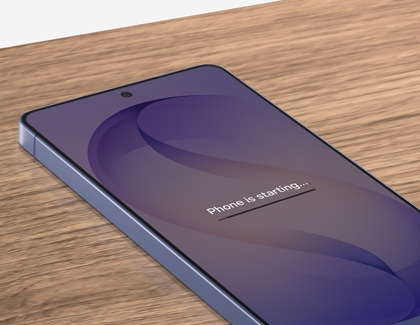
- Inactivity restart: Enhances security by restarting the phone after 72 hours of inactivity while locked. Enabled by default and focuses on data encryption.
- Auto restart: Automatically reboots the phone at a predetermined time to maintain performance and stability. Set by the user and does not restart if the phone is in use or the battery is below 30%. To adjust this feature, go to Settings > Device care > Auto optimization.
Read more
Read less
Adjust Auto optimization and Auto restart settings
You can enable Auto optimization to automatically improve device performance by clearing unused apps, freeing memory, and restarting the device when necessary.
If you do not want the device to restart automatically, turn off these features.
- Open Settings, then tap Device care.
- Tap Optimize now to clean up the background memory.

- Tap Auto optimization.

- Tap Auto restart.
- Enable Restart when needed.
Your device will restart automatically when memory usage increases or if it has not been restarted for a period of time. You must unlock your device to check messages and notifications normally after it restarts.

- Enable Restart on schedule. Your device will restart automatically on your selected date and time.

Read more
Read less
Disable the Inactivity restart feature
If you prefer not to have your device restart automatically, follow these steps:
- Navigate to and open Settings.
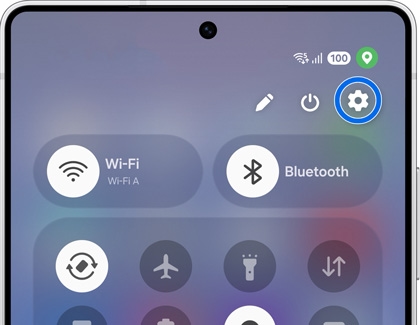
- Tap Security and privacy.
- Tap More security settings.
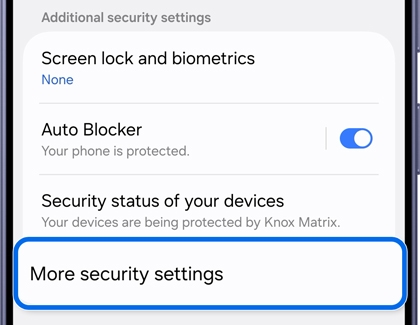
- Turn off Inactivity restart.
Read more
Read less
Remove suspicious third-party apps
If your Galaxy device continues restarting unexpectedly after Auto restart settings have been disabled, a third-party app may be causing the issue.
- Open Settings, then tap Apps.
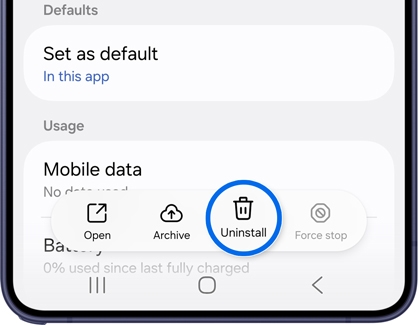
- Select the app you want to remove.
- Tap Uninstall.
Read more
Read less
Troubleshoot other related issues with the Galaxy device powering off or rebooting
If you are experiencing other issues with your device, such as unexpectedly powering off or rebooting, refer to our other support guides to troubleshoot your specific issue.
- Samsung phone or tablet unexpectedly powers off
- Samsung phone or tablet will not start or is stuck in a boot loop
- Samsung phone or tablet stuck on Samsung logo screen
For additional troubleshooting resources, visit Samsung Support.
Read more
Read less
Recommended Articles
Screen flashes green on Galaxy A57 5G
If your Galaxy A57 5G screen briefly flashes green when you turn it on, updating your device to the latest software version can quickly resolve the issue.
Dark or colored spots in photos on Samsung phone or tablet
If the photos you took on your Galaxy phone are marred by random dark, black, pink, or other colored spots, there may be a problem with the Camera app. This is most often caused by a software issue rather than a fault with the actual screen or camera.
Microphone issues with Galaxy phone or tablet
There are a few things that can cause issues with the microphone on your phone or tablet. For example, an external device such as headphones may be preventing the microphone from working. Other times, you may hear a crackling noise, or sounds may be unclear in your recordings if the microphone is having problems.
We're here for you
Contact Samsung Support
Contact us online through chat and get support from an expert on your computer, mobile device, or tablet. Support is also available on your mobile device through the Samsung Members App.