Welcome to the
! Please enjoy our special offers for you

Screen flashes green on Galaxy A57 5G

If the screen briefly flashes green when turning on your Galaxy A57 5G phone, ensure your device is updated to the latest version to resolve the issue. Follow this guide to keep your device up to date.

Screen flashes green on Galaxy A57 5G

Checkpoint

Update your Galaxy phone or tablet
Note
The phone or tablet will show the last date that it checked for updates. To download an update, you must be connected to the internet.
1

Download updates manually.

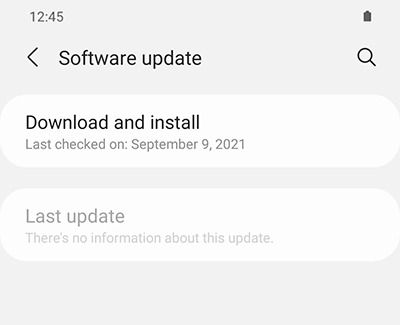
On your device, navigate to and open Settings. Swipe to and tap Software update or System updates. It will vary between models. Tap Download and install or Check for software updates. If an update is available, it will begin downloading, though you may need to tap Download now on some devices. When the download is complete, follow the on-screen instructions to install the update.

Software update screen with Download and install option displayed


You can also check for updates using Smart Switch.

2

Make sure your device has enough space.

  • Make sure the phone or tablet is connected to the internet and charged to at least 50% before installing a software update.
  • Some carriers require a Wi-Fi network connection and will not allow you to update using mobile data.
  • If an error occurs during a software update and your phone or tablet keeps restarting, learn how to get out of a boot loop.
  • If your phone or tablet doesn't have enough storage space, you can clean up your storage with Device care. You can also back up extra files using Smart Switch or your Samsung or Google account.
Did this resolve your issue?
If this didn’t resolve your issue, please click on “No” for more help.
Yes No
We’re happy to hear that your problem has been resolved.
Restart your phone or tablet
1

Open the Power menu.

First, open the Power menu:

Power off icon highighted in the Quick panel on a Galaxy phone

  • On devices with a regular Power button, press and hold the Power button until the Power menu is displayed.
  • On devices without a dedicated Power button, swipe down with two fingers from the top of the screen to open the Quick settings panel. Tap the Power icon at the top of the screen.
2

Restart your device.

Next, tap Restart, and then tap Restart again. Your device will shut down and automatically reboot.
 
Restart icon highighted on a Galaxy phone
Did this resolve your issue?
If this didn’t resolve your issue, please click on “No” for more help.
Yes No
We’re happy to hear that your problem has been resolved.
Was this content helpful?
We're here for you

Contact Samsung Support

Contact us online through chat and get support from an expert on your computer, mobile device, or tablet. Support is also available on your mobile device through the Samsung Members App.
Fast, easy checkout with Shop Samsung App
Easy sign-in, Samsung Pay, notifications, and more!
Or continue shopping on Samsung.com
×
The Shop Samsung app
Free standard shipping, exclusive offers and financing options.
GET
×
The Shop Samsung app
Free standard shipping, exclusive offers and financing options.
GET
×

You Are About To Be Redirected To Investor Relations Information for U.S.

Thank you for visiting Samsung U.S. Investor Relations. You will be redirected via a new browser window to the Samsung Global website for U.S. investor relations information.
CANCEL
CONTINUE
×

Redirect Notification

As of Nov. 1, 2017, the Samsung Electronics Co., Ltd. printer business and its related affiliates were transferred to HP Inc.

For more information, please visit HP's website: http://www.hp.com/go/samsung


Select CONTINUE to visit HP's website.

CANCEL
CONTINUE

