Update the firmware of your Samsung SSD

Firmware is a small yet crucial program stored within a device's memory, specifically on a semiconductor component such as a NAND chip. It contains essential code and commands that allow the device to operate. Manufacturers often release firmware updates to improve performance, reliability, and overall quality. For Samsung SSDs, firmware updates are available through the Samsung Magician software, which can be downloaded from the official Samsung website.
Note: This information applies to Samsung SSDs sold in Canada.
The Samsung Magician software is a comprehensive tool designed to help users manage their Samsung memory products, including internal SSDs, portable SSDs, memory cards, and USB flash drives. It provides a user-friendly interface for firmware updates and drive optimization to help ensure your drive operates at its best.
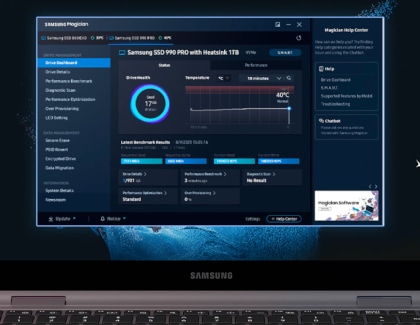
Depending on the specific Samsung memory model, the Magician software offers a variety of features, such as System Compatibility, Performance Benchmark, Performance Optimization, Over Provisioning, Secure Erase, and Data Security. Feature availability may vary by product type and model.
Note:
- You can download the latest version of Samsung Magician for Windows, macOS and Android from the official Samsung Magician page. For older Windows versions such as Windows 8.1 or earlier, a previous version of Magician may be required. Linux is not currently supported.
- Internal SSDs are not supported on macOS or Android.
- While some features may be available for OEM SSDs manufactured by Samsung and SSDs from other brands, the Magician software is specifically designed and optimized for Samsung-branded storage products.
Samsung periodically releases firmware updates to enhance SSD performance, compatibility, and overall user experience. It is recommended to update your firmware whenever a new version is available.
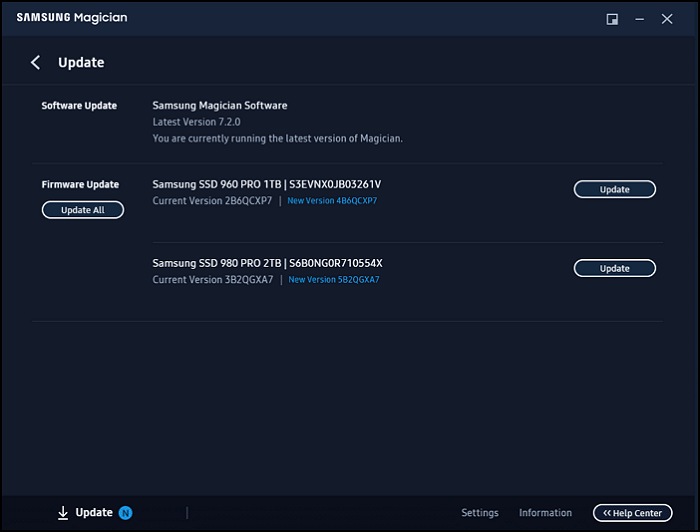
Step 1. Launch the Magician software and select Update in the lower-left corner of the interface.
Tip: If an update is available, an icon marked N (for New) appears next to Update.
Step 2. If new firmware is available for your Samsung SSD, a message stating "New Version (Version Number)" will appear next to the “Update” button. Click on Update to proceed.
Step 3. Follow the on-screen instructions to complete the firmware update process.

Caution:
- Do not turn off your computer during the firmware update process.
- A system reboot may be required to complete the firmware update.
This section describes an alternative firmware update method intended for users who are comfortable working with system-level tools and bootable media. While this process is supported by Samsung, it requires additional steps compared to using the Samsung Magician software.
General information
In some situations, the Samsung Magician software may not be available or may not support firmware updates for a specific SSD. This can occur if the operating system is not supported, if the SSD is not detected by the software, or if the firmware cannot be updated while the system is running.
In these cases, Samsung provides firmware updates as ISO files on its official website (under the Firmware section). These files are not device drivers and are not installed within the operating system. Instead, the ISO file is used to create a bootable USB drive or disc that allows the firmware update to run independently of Windows.

After creating a bootable media from the ISO file and restarting the computer, the firmware update process starts automatically and updates the SSD directly. This method ensures the firmware can be updated safely even when Samsung Magician cannot be used.
Creating bootable media for firmware updates
To use an ISO firmware file, the file must first be written to a bootable USB storage device. This process prepares the USB drive to start the system and launch the Samsung SSD Firmware Update Utility.
A USB creation utility capable of writing ISO images to removable media is required. Depending on the operating system, commonly used tools include utilities such as UNetbootin or other ISO-to-USB creation software that supports bootable media creation.
When preparing the USB drive, ensure that the correct ISO file is selected and that the USB device is chosen as the target destination. Creating bootable media may erase all existing data on the USB drive.

Once the bootable media is created, restart the computer and select the USB device as the boot source. The firmware update utility will launch automatically, detect supported Samsung SSDs, and guide you through the update process using on-screen instructions.
Important precautions
Before updating firmware using a bootable ISO file, Samsung recommends backing up all data stored on the SSD. During the update process, the SSD must remain connected and powered at all times. Interrupting the update may result in data loss or render the SSD unusable.

Thank you for your feedback!
Please answer all questions.
RC01_Static Content : Hide call number function