Find a lost Samsung device using SmartThings Find

If a Samsung device such as a Galaxy Watch, Galaxy Buds, SmartTag or S Pen is lost or misplaced, you can use SmartThings Find to help locate it. The service shows the device’s location on a map and provides tools that may help you find it, such as playing a sound, searching nearby, or receiving notifications when a device is left behind.
Note:
- Availability: The information provided applies to devices sold in Canada. Screens and settings may vary on mobile devices sold in other countries.
- Related guide: This article focuses on locating smaller Samsung devices such as Galaxy Watch, Galaxy Buds, or items with a SmartTag attached. If you are trying to locate a lost Galaxy phone or tablet, see our Find your lost Samsung Galaxy device guide for more detailed instructions.
- Safety notice: For your personal safety, do not attempt to retrieve a lost device yourself if it appears to be in an unfamiliar or private location. Instead, share the location information with local authorities and allow them to assist with retrieving the device if necessary.
SmartThings Find is a Samsung service that helps you locate your Samsung devices and tagged personal items if they are lost or misplaced. It allows you to see the device’s location on a map and provides tools that can help you find it more easily, such as making the device ring or searching for it nearby. You can use SmartThings Find to track devices like Galaxy phones, tablets, watches and earbuds, as well as personal belongings that have a SmartTag attached.

In many cases, the service can also update the device’s location when it is detected by nearby Galaxy devices. This can help you locate your device even if it is not currently connected to the internet.
Note: This article focuses on locating smaller Samsung devices such as Galaxy Watch, Galaxy Buds, or items with a SmartTag attached. If you are trying to locate a lost Galaxy phone or tablet, see our Find your lost Samsung Galaxy device guide for more detailed instructions.
You can use the SmartThings Find app to view the location of your Samsung devices on a map and use tools that may help you find them.
To get started: Open the SmartThings app. Tap the Life tab, then select the Find card. From there, choose the device you want to track.

- Ring: Makes the device play a ringtone to help you locate it. This option is available for supported devices such as Galaxy phones, tablets, watches, Buds and SmartTags.
- Blink: Activates the device’s notification LED light. This option is available for supported devices such as the S Pen.
Note: Depending on the device you select, you may see Ring or Blink as the available option.
- Search nearby: Sends a short-range signal to help locate the device when it is nearby.
- Refresh: Updates the device’s location to check whether it has moved.
- More: Provides additional device information and options, including notifications when the device is found, battery information, adding people who can help find the device, sharing the device’s location and navigating to the device.
Note:
- The device’s location appears below the device name and is marked with a pin on the map.
- The icons shown for each device may vary depending on the device type.
Offline finding allows your Samsung device to be detected by nearby Galaxy devices, even when it is not connected to the internet. This feature helps update the device’s location by the SmartThings Find app so it can be found more easily. Although Offline finding is turned on by default, it is a good idea to check that the setting remains enabled.


Step 1. Open the SmartThings app on your phone and tap the Life tab. Then, tap the Find card to open SmartThings Find.


Step 2. Tap More options (the three vertical dots).
Step 3. Tap Settings.
Step 4. Tap Allow devices to be found.


Step 5. Tap the Offline finding switch to turn the feature on.
The Notify when left behind feature helps prevent you from forgetting your Samsung devices, such as earbuds or a watch. When the feature is turned on, you receive a notification if a connected device moves out of range of your connected mobile device.
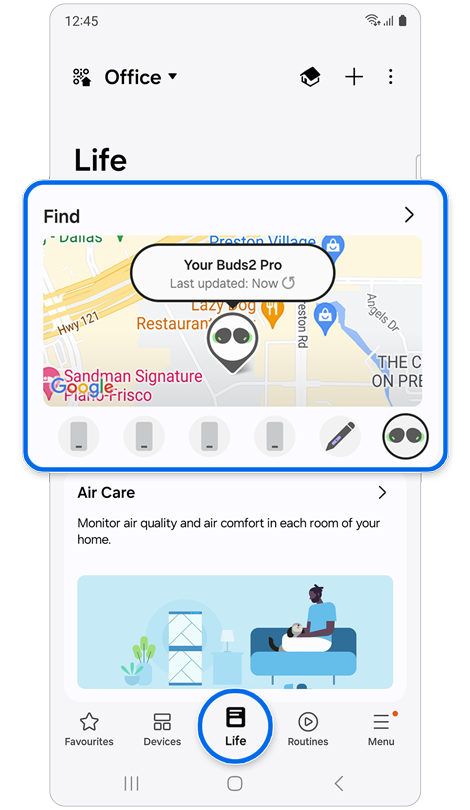
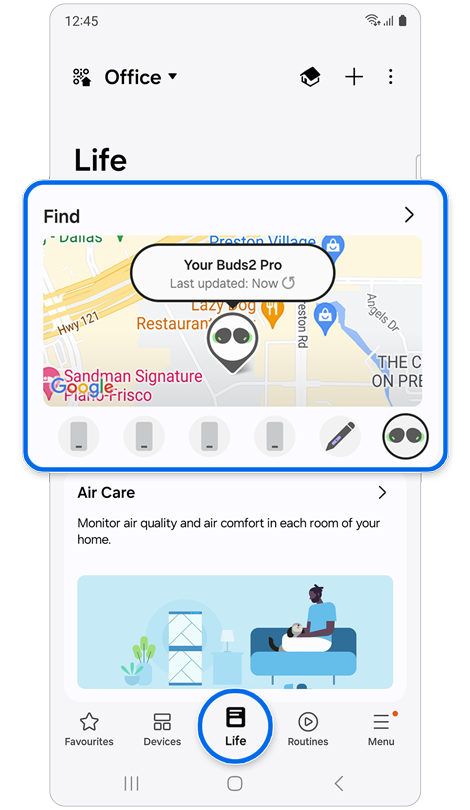
Step 1. Open the SmartThings app. Tap the Life tab, then select the Find card.
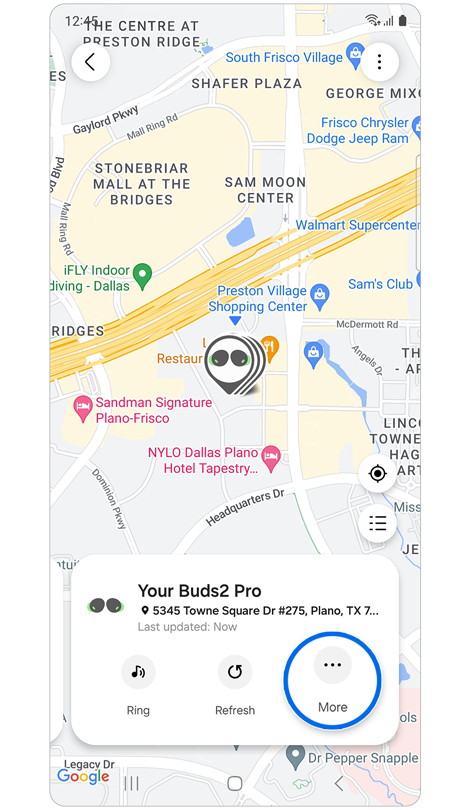
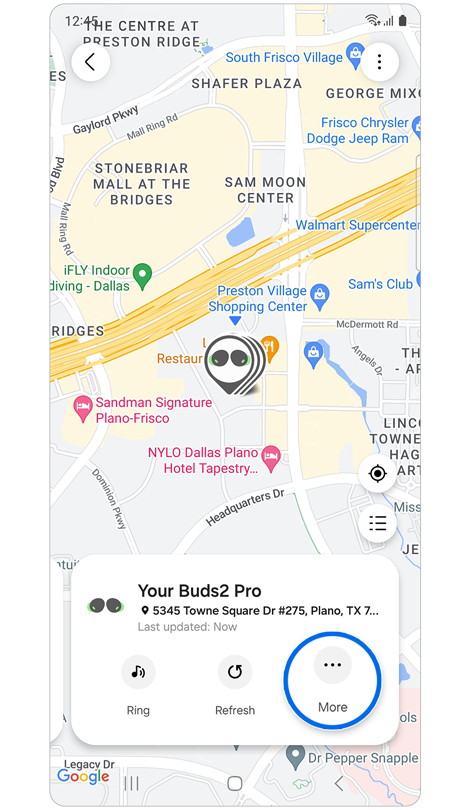
Step 2. Swipe left to the card of the device for which you want to enable notifications, then tap More.
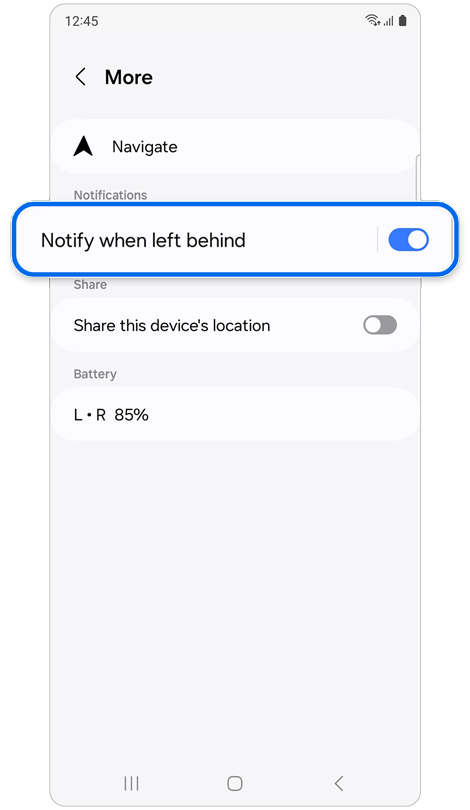
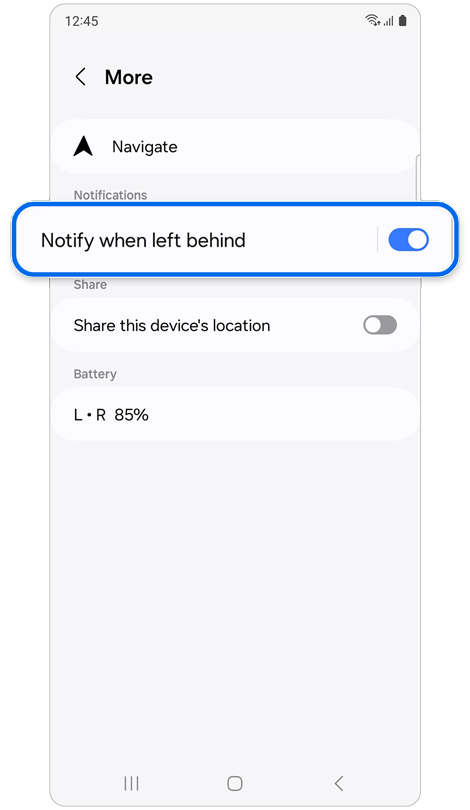
Step 3. Turn on the Notify when left behind switch.
Note:
- Supported devices: Galaxy Watch, Galaxy Buds, S Pen Pro and Galaxy SmartTag.
- If you set a safe place, such as your home, you will not receive notifications when you move away from your device.
- Location services must be turned on on your phone or tablet for this feature to work.
The Galaxy SmartTag helps you keep track of your belongings using the SmartThings app. After connecting your SmartTag to your phone, you can locate items such as your keys, wallet or bag using Bluetooth technology.
Important: Before starting the setup process, activate your Galaxy SmartTag by pressing the button on the device. This will power on the SmartTag and play a notification sound, indicating that it is ready to pair with your phone.


Step 1. Open the SmartThings app on your phone.


Step 2. When the pop-up window appears, tap Add now.


Step 3. Select the checkbox, then tap Agree.


Step 4. Follow the on-screen instructions. You may be asked to press the button on the SmartTag.


Step 5. Wait while your Galaxy SmartTag is being registered.


Step 6. If required, update your device information, then tap Done.
Once you have registered SmartTag in SmartThings, you can use the app to view its location on a map and access tools to help track it.
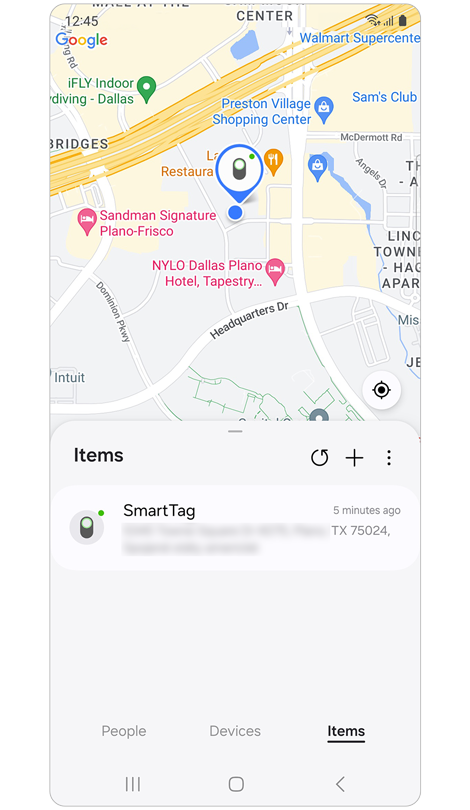
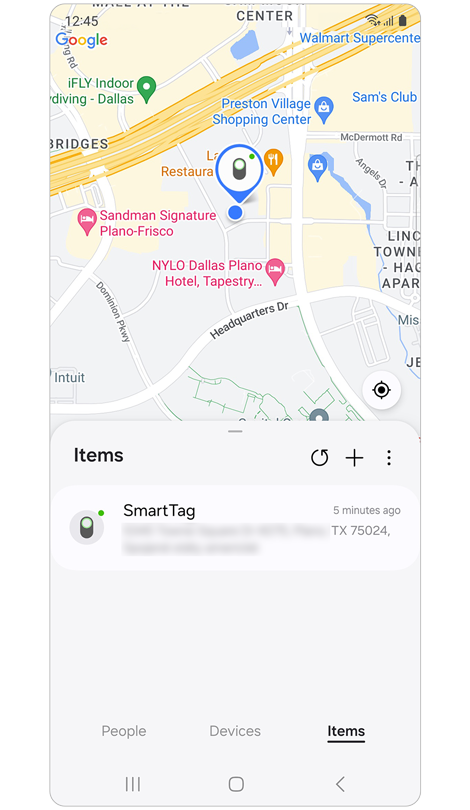
Step 1. Open the SmartThings app. Tap the Life tab, then select the Find card. The item’s location appears on the map and its address is shown below the device name.
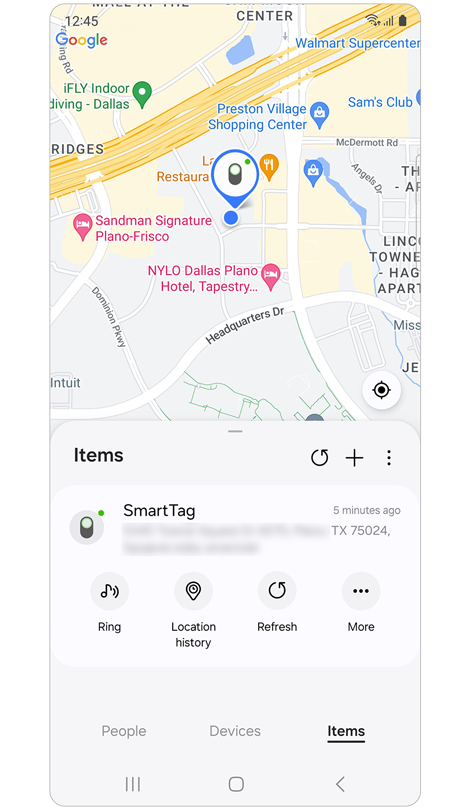
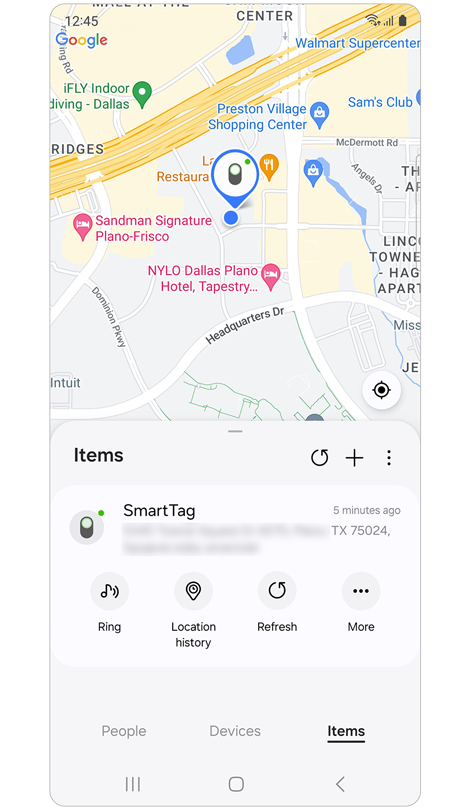
Step 2. Select the SmartTag to view additional options. You can ring the SmartTag, view its location history, refresh its location, or open more options.
Note: Your SmartTag’s location may update when it comes within Bluetooth range of nearby Galaxy devices participating in the SmartThings Find network. When this happens, the updated location appears on the map.
You can use your phone’s camera to help locate a nearby SmartTag+. This feature can be useful in places where it may be difficult to hear the SmartTag’s sound.
Warning: The Find using camera feature uses ultra-wideband (UWB) technology to help guide you to a nearby SmartTag+. To use this feature, your phone must support UWB. Because of this requirement, the feature works only with SmartTag+.


Step 1. Open the SmartThings app on your phone.


Step 2. Tap the Life tab at the bottom of the screen.


Step 3. Select the Find card, then tap the SmartTag you want to locate.


Step 4. Tap the More icon, then tap Search nearby.


Step 5. Tap Find using camera.


Step 6. Follow the on-screen instructions. The camera view will guide you toward the location of your SmartTag.
Note: For best results, your phone and SmartTag+ should be within about 15 meters (49 feet) of each other in an open area. Obstacles such as walls, metal objects, or enclosed spaces may weaken the signal and affect detection.
If your S Pen Pro is connected to your Galaxy phone, you can use SmartThings Find to see its last known location on a map. This can help you find the pen if it is lost or misplaced.


Step 1. Open the SmartThings app on your phone. Tap the Life tab, then select the Find card.


Step 2. Swipe left if necessary, then tap the S Pen Pro card. Tap Refresh to update the S Pen Pro’s location on the map.


Step 3. Tap More, then tap Navigate to view directions to the S Pen Pro’s location.
If your Galaxy Buds are lost or misplaced, you can use SmartThings Find to help locate them. The service lets you view their location on a map, play a sound on the earbuds, and receive notifications when their location is updated.

Note: You can also locate your Galaxy Buds using Samsung Find. This service works similarly to SmartThings Find and is available through the Samsung Find app or on the Samsung Find website.
If your Galaxy Watch is lost or misplaced, you can use SmartThings Find to help locate it.

Note: You can also locate your Galaxy Watch using Samsung Find. This service works similarly to SmartThings Find and is available through the Samsung Find app or on the Samsung Find website.
If you sold or gave away a device but it still appears in SmartThings Find, you can remove it from the service so it no longer shows in your device list.


Step 1. Open the SmartThings app and tap the Life tab at the bottom of the screen.
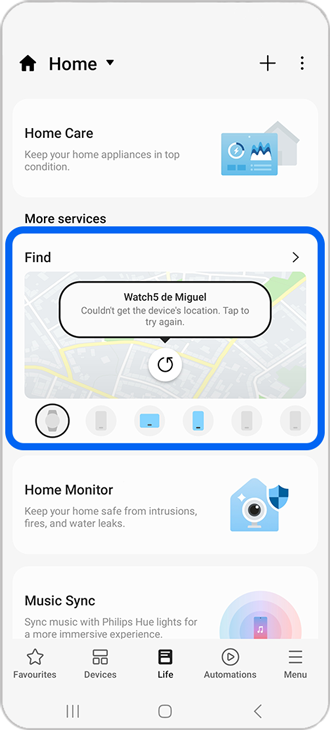
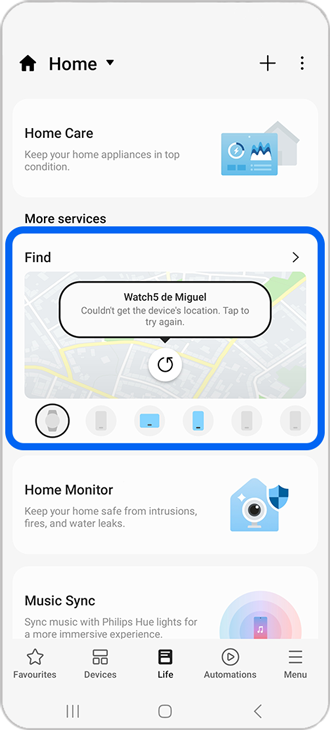
Step 2. Tap the Find card to open SmartThings Find.


Step 3. Tap the My devices icon.


Step 4. Tap the More options icon (the three vertical dots).


Step 5. Tap Remove devices.


Step 6. Select the checkbox next to the device you want to remove.


Step 7. Tap Remove at the bottom of the screen.


Step 8. Tap Remove again to confirm.
Note: Removing a device from SmartThings Find only removes it from the list of devices you can track. It does not delete the device from the Samsung account of the person currently using it.

Thank you for your feedback!
Please answer all questions.
RC01_Static Content : Hide call number function