Identify and understand the icons displayed in the top right corner of your Samsung Galaxy

Icons displayed on your Samsung Galaxy provide information about your device's status, active features and system notifications. While some icons are easy to recognize, others may be less familiar and leave you wondering what they mean. This guide explains the status bar icons, system notification icons and Quick settings panel icons that may appear in the top right corner of your Samsung Galaxy. Use the sections below to identify an icon and learn what it means.
Note:
- The status bar may be hidden while using some apps. To view it, swipe down from the top of the screen.
- Some icons may only be visible when you open the Notification panel or Quick settings panel.
- The icons shown on your Samsung Galaxy may vary depending on your model, software version, mobile carrier and active features.
Network icons in the status bar
The status bar is located in the top-right corner of your Samsung Galaxy screen. It displays information about your device, including network connectivity, battery status and active features.
The network icons shown below indicate the status of your mobile network connection and related services:
No signal


Signal level


Roaming


GPRS network


EDGE network


3G network


HSDPA network


HSPA+ network


4G network


LTE network


5G network


5G available


Connected to Wi-Fi


Connected to Wi-Fi with no internet access


Bluetooth active


|
Icon |
Description |
|---|---|
|
No signal |
Your Samsung Galaxy is not connected to a mobile network. Calls, text messages and mobile data may be unavailable. |
|
Signal level |
Shows the strength of the mobile network signal available to your Samsung Galaxy. |
|
Roaming |
Your Samsung Galaxy is connected to a mobile network outside your carrier's coverage area. Additional charges may apply depending on your mobile plan. Contact your carrier if you are unsure about roaming fees. |
|
GPRS network |
Your Samsung Galaxy is connected to a GPRS mobile data network. GPRS provides basic mobile data connectivity and may offer slower internet speeds than newer network technologies. |
|
EDGE network |
Your Samsung Galaxy is connected to an EDGE mobile data network. EDGE provides basic mobile data connectivity and may offer slower internet speeds than newer network technologies. |
|
3G network |
Your Samsung Galaxy is connected to a 3G mobile data network. 3G provides mobile data connectivity and may offer slower internet speeds than newer network technologies. |
|
HSDPA network |
Your Samsung Galaxy is connected to an HSDPA mobile data network. HSDPA is an enhanced version of 3G technology that can provide faster mobile data speeds than a standard 3G connection. |
|
HSPA+ network |
Your Samsung Galaxy is connected to an HSPA+ mobile data network. HSPA+ is an enhanced version of HSPA technology that can provide faster mobile data speeds than HSDPA or standard 3G connections. |
|
4G network |
Your Samsung Galaxy is connected to a 4G mobile data network. 4G can provide faster mobile data speeds and improved performance compared to older network technologies such as 3G and HSPA+. |
|
LTE network |
Your Samsung Galaxy is connected to an LTE mobile data network. LTE is a 4G technology that can provide fast mobile data speeds and improved performance compared to older network technologies. |
|
5G network |
Your Samsung Galaxy is connected to a 5G mobile data network. 5G can provide faster mobile data speeds, lower latency and improved performance compared to previous network technologies. |
|
5G available |
Your Samsung Galaxy is connected to an LTE network in an area where 5G service is available. Your device may connect to the 5G network when needed and if supported by your mobile carrier and plan. |
|
Connected to Wi-Fi |
Your Samsung Galaxy is connected to a Wi-Fi network and can access the internet through that connection. Using Wi-Fi can help reduce mobile data usage. |
|
Connected to Wi-Fi with no internet access |
Your Samsung Galaxy is connected to a Wi-Fi network, but the network cannot access the internet. Check your router, modem or internet service if the issue persists. |
|
Bluetooth active |
Bluetooth is enabled on your Samsung Galaxy and can connect to compatible devices such as earbuds, watches, speakers or vehicles. |
System notifications in the status bar
The status bar is located in the top-right corner of your Samsung Galaxy screen. It displays information about your device, including network connectivity, battery status, active features and notifications.
The system notification icons shown below provide information about the status of your Samsung Galaxy, including battery charging, software updates and other device-related events:
Attention required


Battery level


Battery charging


Power saving mode active


Data saver active


Do not disturb active


VPN service connected


Mobile Hotspot active


Light performance profile active


Casting active


Screenshot captured


Battery charging (One UI 7)


Power saving mode active (One UI 7)


Pending notification (One UI 7)


Light performance profile active (One UI 7)


|
Icon |
Description |
|---|---|
|
Attention required |
Your Samsung Galaxy requires your attention due to a warning, issue or action that may need to be completed. Open the Notification panel to view more information. |
|
Battery level |
Shows the current battery charge level of your Samsung Galaxy. A lower battery level indicates that your device may need to be charged soon. |
|
Battery charging |
Your Samsung Galaxy is currently charging. The battery level will increase while the device remains connected to a compatible charger or power source. |
|
Power saving mode active |
Power saving mode is enabled on your Samsung Galaxy. This feature helps extend battery life by reducing certain background activities and device performance. |
|
Data saver active |
Data saver is enabled on your Samsung Galaxy. This feature helps reduce mobile data usage by limiting background data for some apps. |
|
Do not disturb active |
Do not disturb is enabled on your Samsung Galaxy. Calls, notifications and alerts may be silenced based on your settings. |
|
VPN service connected |
Your Samsung Galaxy is connected to a Virtual Private Network (VPN). A VPN can help improve privacy and security by encrypting your internet traffic and masking your IP address from websites and online services. |
|
Mobile Hotspot active |
Mobile Hotspot is enabled on your Samsung Galaxy and may be sharing its mobile data connection with other devices. This can increase mobile data usage and battery consumption. |
|
Light performance profile active |
The Light performance profile is enabled on your Samsung Galaxy. This mode prioritizes battery efficiency over maximum performance to help extend battery life during everyday use. |
|
Casting active |
Your Samsung Galaxy is currently casting content to another device, such as a TV or monitor. Depending on the app and feature being used, this may include screen mirroring, videos, music or other media. |
|
Screenshot captured |
A screenshot has been captured on your Samsung Galaxy. Open the Notification panel to view, edit or share the screenshot. |
|
Battery charging (One UI 7) |
Your Samsung Galaxy is currently charging. On devices running One UI 7 or later, the battery icon may display the current battery percentage while charging. |
|
Power saving mode active (One UI 7) |
Power saving mode is enabled on your Samsung Galaxy. On devices running One UI 7 or later, the battery icon may display the current battery percentage while Power saving mode is active. |
|
Pending notification (One UI 7) |
A notification is available on your Samsung Galaxy. On devices running One UI 7 or later, a dot may be displayed in the status bar instead of a notification icon. The dot disappears when you open the notification panel. |
|
Light performance profile active (One UI 7) |
The Light performance profile is enabled on your Samsung Galaxy. This mode prioritizes battery efficiency over maximum performance to help extend battery life during everyday use. |
Other icons that may appear in the status bar
The status bar is located in the top-right corner of your Samsung Galaxy screen. It displays information about your device, including network connectivity, battery status, active features and notifications.
The icons shown below indicate the status of certain features and settings on your Samsung Galaxy. They can also alert you to events such as missed calls, new messages and upcoming alarms:
Location active


Call in progress


Missed call


Text message received


Alarm set


Silent mode active


Vibration mode


Flight mode active


S Pen connected


S Pen disconnected


|
Icon |
Description |
|---|---|
|
Location active |
Location services are enabled on your Samsung Galaxy. Apps and features that have permission to access your location may use this information to provide location-based services. |
|
Call in progress |
A phone call is currently in progress on your Samsung Galaxy. This icon remains visible while the call is active. |
|
Missed call |
You have one or more missed calls on your Samsung Galaxy. Open the Phone app or Notification panel to view additional details and return the call if needed. |
|
Text message received |
A new text message has been received on your Samsung Galaxy. Open the Messages app or Notification panel to read the message and reply if needed. |
|
Alarm set |
An alarm is set on your Samsung Galaxy. The alarm will sound at the scheduled time unless it is turned off or deleted. |
|
Silent mode active |
Silent mode is enabled on your Samsung Galaxy. Calls, notifications and other alerts will be muted unless configured otherwise in your settings. |
|
Vibration mode |
Vibration mode is enabled on your Samsung Galaxy. Calls and notifications will vibrate instead of playing a ringtone or notification sound. |
|
Flight mode active |
Flight mode is enabled on your Samsung Galaxy. Mobile network connections are turned off and you will not be able to make or receive calls, send text messages or use mobile data unless specific wireless connections are manually re-enabled. |
|
S Pen connected |
The S Pen is connected to your Samsung Galaxy and available for use. This icon only appears on compatible Samsung Galaxy models that support the S Pen. |
|
S Pen disconnected |
The S Pen is disconnected from your Samsung Galaxy. Some S Pen features, such as Air actions, may be unavailable until the S Pen reconnects. This icon only appears on compatible Samsung Galaxy models with S Pen support. |
Access the Notification and Quick settings panels
Your Samsung Galaxy’s Notification and Quick settings panels have been redesigned starting with One UI 7. New swipe gestures make it easier to access and switch between the two panels.
New way to access Notifications and Quick settings
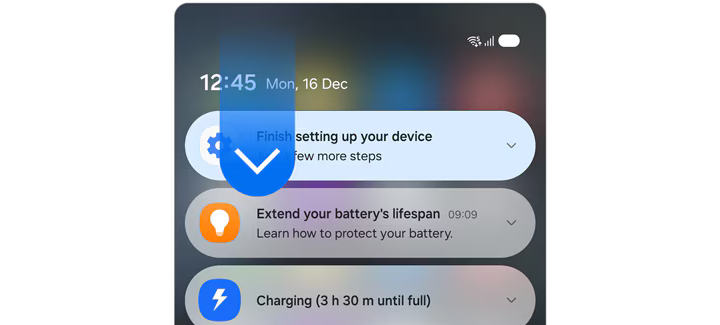
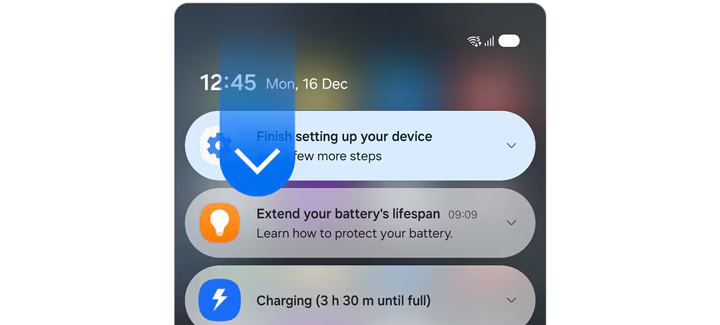
Access the Notification panel
Swipe down from the top left of the screen to open the Notification panel.
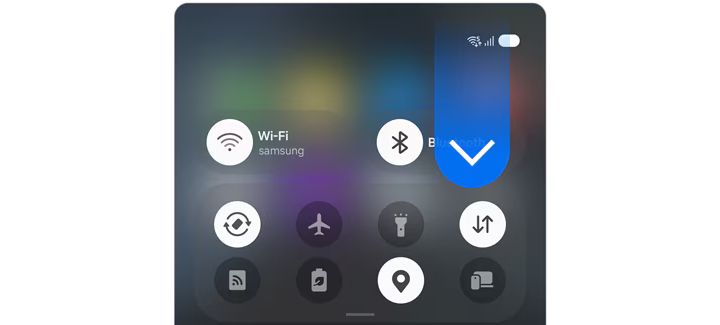
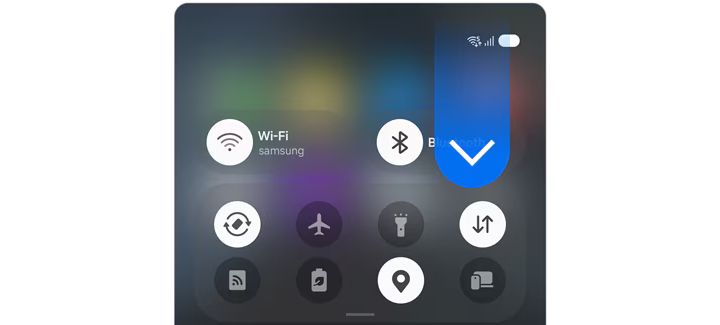
Access the Quick settings panel
Swipe down from the top right of the screen to open the Quick settings panel.
Pro tip: Once the Notification or Quick settings panel is open, you can swipe left or right to switch between them.
Switch back to the combined Notification and Quick settings panel
If you prefer the classic layout from before One UI 7, you can combine the Notification and Quick settings panels into a single view. It only takes a few simple steps:


Step 1. Swipe down from the top right corner of the screen, then tap the Edit icon (it looks like a pencil).


Step 2. Tap Panel settings in the top left corner.


Step 3. Tap Notification and quick settings view.


Step 4. Tap Together to combine the Notification and Quick settings panels into a single view.
Note: On some Galaxy devices, the screen containing the Notification and quick settings view option may not appear. In that case, you’ll proceed directly to the next step.
Common icons in the Quick settings panel
The Quick settings panel provides quick access to commonly used features and settings on your Samsung Galaxy. To open it, swipe down from the top right of the screen or follow the steps in the previous section.
The icons shown below are some of the most common icons that may appear in the Quick settings panel. Depending on the feature, selecting an icon may turn it on, turn it off or provide additional options.


Wi-Fi


Bluetooth


Auto rotate


Flight mode


Flashlight


Mobile data


Mobile Hotspot


Power saving mode


Location


Secure folder


Link to Windows


Screen recorder


Quick share


Do not disturb


Scan QR code


Modes


Wi-Fi Calling


NFC


Sync


Call & text on other devices


S Pen air actions


Music Share


Multi control


Microphone access


Sound
|
Icon |
Description |
|---|---|
|
Wi-Fi |
Wi-Fi allows your Samsung Galaxy to connect to wireless networks for internet access. |
|
Bluetooth |
Bluetooth allows your Samsung Galaxy to connect wirelessly to compatible devices such as earbuds, speakers, watches and vehicles. |
|
Auto rotate |
Auto rotate automatically changes the screen orientation between portrait and landscape mode when you rotate your Samsung Galaxy. Tap the icon to lock the current screen orientation. |
|
Flight mode |
Flight mode turns off mobile network connections on your Samsung Galaxy. Tap the icon to turn Flight mode on or off. |
|
Flashlight |
Flashlight uses your Samsung Galaxy camera's LED light as a torch. Tap the icon to turn the flashlight on or off. |
|
Mobile data |
Mobile data allows your Samsung Galaxy to access the internet using your mobile carrier's network when a Wi-Fi connection is unavailable. Tap the icon to turn mobile data on or off. |
|
Mobile Hotspot |
Mobile Hotspot allows your Samsung Galaxy to share its mobile data connection with other devices. Tap the icon to turn Mobile Hotspot on or off. |
|
Power saving mode |
Power saving mode helps extend battery life by reducing certain background activities and device performance. Tap the icon to turn Power saving mode on or off. |
|
Location |
Location allows apps and features on your Samsung Galaxy to access your device's location. Tap the icon to turn Location on or off. |
|
Secure folder |
Secure Folder helps protect your private apps and files in a separate, secured space on your Samsung Galaxy. Tap the icon to lock or unlock Secure Folder. |
|
Link to Windows |
Link to Windows connects your Samsung Galaxy to a Windows PC, allowing you to access features such as notifications, messages, photos and file sharing. |
|
Screen recorder |
Screen recorder lets you record what is displayed on your Samsung Galaxy screen as a video. Tap the icon to start a screen recording. |
|
Quick share |
Quick Share lets you quickly send and receive files between compatible Galaxy, Android and Windows devices nearby. Tap the icon to launch Quick Share. |
|
Do not disturb |
Do not disturb silences calls, notifications and alerts based on your settings. Tap the icon to turn Do not disturb on or off. |
|
Scan QR code |
Scan QR code opens the camera to scan QR codes for websites, apps, Wi-Fi networks and other supported content. Tap the icon to start scanning. |
|
Modes |
Modes lets you automatically adjust your Samsung Galaxy settings based on your current activity or routine, such as sleeping, driving or working. Tap the icon to turn Modes on or off or select a different mode. |
|
Wi-Fi Calling |
Wi-Fi Calling lets you make and receive calls over a Wi-Fi network when a mobile network connection is weak or unavailable. Tap the icon to turn Wi-Fi Calling on or off. |
|
NFC |
NFC (Near Field Communication) lets your Samsung Galaxy exchange information with nearby compatible devices by bringing them close together. Tap the icon to turn NFC on or off. |
|
Sync |
Sync keeps your Samsung Galaxy data up to date by automatically synchronizing information such as contacts, calendars and email with your accounts. Tap the icon to turn Auto sync on or off. |
|
Call & text on other devices |
Call & text on other devices lets you make and receive calls and text messages on other compatible Samsung Galaxy devices using the same Samsung account. Tap the icon to turn this feature on or off. |
|
S Pen air actions |
S Pen air actions let you control compatible apps and features from a distance using gestures with your S Pen. Tap the icon to turn Air actions on or off. |
|
Music Share |
Music Share lets other compatible devices play audio through a Bluetooth speaker or headphones already connected to your Samsung Galaxy. Tap the icon to turn Music Share on or off. |
|
Multi control |
Multi control lets you use a keyboard and mouse connected to one compatible Samsung Galaxy device to control another nearby Samsung Galaxy device. Tap the icon to turn Multi control on or off. |
|
Microphone access |
Microphone access allows apps on your Samsung Galaxy to use the microphone when permission has been granted. Tap the icon to allow or block microphone access for all apps. |
|
Sound |
Sound mode allows your Samsung Galaxy to play ringtones, notifications and other system sounds. Tap the icon to switch between Sound, Vibrate and Mute modes. |
Note:
- This guide covers the most common icons you may encounter on your Samsung Galaxy. Some icons may vary depending on your model, software version, mobile carrier and enabled features, and their appearance may change over time with software updates.
- Notification icons from apps are not included because they are specific to the apps installed on your Samsung Galaxy. Since thousands of apps are available, the notification icons you see will vary from one device to another.

Thank you for your feedback!
Please answer all questions.
RC01_Static Content : Hide call number function