Manage and organize files saved on your Samsung Galaxy device

Files saved on your Samsung Galaxy device, such as downloads and documents, are stored in different locations. Knowing where to look and how to organize them can help you free up space and keep your device easier to use. This guide will show you how to locate downloaded files, move or delete items, transfer files to a computer and organize your folders.
Note: The information provided applies to devices sold in Canada. Screens and settings may vary on mobile devices sold in other countries.
If a website offers a file you want to save, such as a document or image, you can download it using the Samsung Internet app or another web browser. Once the download is complete, the file will be saved on your device and can be found in the My Files app.
The example below uses the Samsung Internet app to show how a download works. Depending on the website or browser you use, some options or messages may look different, but the overall process is similar.


Step 1. Tap the Internet app.


Step 2. Open the website that offers the file you want to save, then tap the file name or the download link.


Step 3. When a confirmation message appears, tap Download.


Step 4. Swipe downward from the top left corner of the screen to open the Notification panel.


Step 5. In the notification panel, you can view the download progress. When it is complete, tap the notification to open the file.
Note: Some websites may limit downloads due to their security settings. If a download does not start, check your internet connection and make sure you have enough available storage space. For your security, only download files from trusted websites.
Once a file has been downloaded, the easiest way to find it is through the My Files app. Downloads are stored in the Downloads category, and you can also use the Search feature if you know the file name.


Step 1. Tap the My Files app on your device to open it.


Step 2. Select Downloads.


Step 3. Tap the Search icon at the top of the screen.


Step 4. Type the file name in the search field. Matching results will appear as you type.


Step 5. Tap the file you want to open from the search results.
Note: Some files may only open in the app that downloaded them or in a specific media app due to copyright or content protection restrictions.
Duplicate files, such as multiple copies of the same photo or document, can take up unnecessary storage space. In the My Files app, you can identify duplicate files and delete the ones you no longer need to free up space.

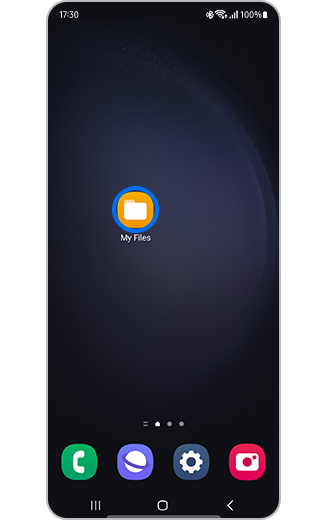
Step 1. Tap the My Files app on your device to open it.


Step 2. Tap Analyze storage.


Step 3. Tap Duplicate files.


Step 4. Select the duplicate files you want to remove, then tap Delete.
Note: A confirmation is required to permanently delete the selected files. The Duplicate files option will only display results if duplicate files are saved on your Samsung Galaxy device.
If you regularly save files for work, school, or personal use, creating folders can help you keep everything organized and easy to find. In the My Files app, you can create a new folder in Internal storage, which is where files are saved on your device.


Step 1. Tap the My Files app on your device to open it.


Step 2. Tap Internal storage.


Step 3. Tap the More options icon.


Step 4. Tap Create folder.


Step 5. Type a name for the folder, then tap Create.


Step 6. Make sure the new folder appears in Internal storage.
Note: After creating a folder, you can move or copy files into it to keep your storage organized.
After creating folders, or if you already have them, you can reorganize your storage at any time by moving a folder to a different location in the My Files app. This can help you group related folders together and keep your files easier to manage.


Step 1. Tap the My Files app on your device to open it.


Step 2. Tap Internal storage.


Step 3. Tap and hold the folder you want to move.


Step 4. Tap Move.


Step 5. Tap the folder where you want to move it.


Step 6. Tap Move here.


Step 7. Make sure the folder appears in its new location.
Note: Similar steps can be used to move individual files between folders.
If your device uses an SD card or if you connect external storage, you can move files from Internal storage to free up space or keep a backup. You can choose Copy to keep the original file on your device or Move to remove it after it is transferred.


Step 1. Insert your SD card or connect your external storage device, then tap the My Files app to open it.


Step 2. Locate the file or folder you want to copy or move.


Step 3. Tap and hold the item, then tap Copy or Move.


Step 4. Tap the destination folder or storage location, then tap Copy here or Move here.
Note: SD card support varies by model. If you do not see an SD card option in My Files, your device may not include an SD card slot.
To move larger groups of photos, videos or documents, you can connect your Samsung Galaxy to a PC using a USB cable and select the file transfer option. This allows you to manage your files using your computer’s File Explorer.

Step 1. Connect your Samsung Galaxy device to the PC using a compatible USB cable that supports data transfer.


Step 2. Swipe downward from the top left corner of the screen to open the Notification panel, then tap the USB for file transfer notification.


Step 3. Select Transferring files / Android Auto as the USB setting.
Step 4. On your PC, open File Explorer and select your Samsung Galaxy device to view, copy or move files.
Note: If your Samsung Galaxy does not appear on your PC or you cannot access your files, see the next section for help.
If your Samsung Galaxy device is not recognized by your computer, first check whether a permission message appears on your phone. You must tap Allow to grant access to your mobile device data. You can also try the troubleshooting tips below before attempting the transfer again.
Allow access to device data
Step 1. Connect your Samsung Galaxy device to the PC using a compatible USB cable that supports data transfer.

Step 2. When the “Allow access to phone data?” message appears, tap Allow.
Troubleshooting tips
- Confirm that you are using a USB cable that supports data transfer. Some cables are designed for charging only.
- Make sure your device is unlocked. If needed, temporarily remove your screen lock (such as a password, PIN, pattern or fingerprint) during the transfer.
- Check the USB options on your Samsung Galaxy and select Transferring files.
- Try a different USB port on your computer. Avoid using unpowered USB hubs if possible.
- Restart both your Samsung Galaxy and your computer, then reconnect them.
- On Windows, install or update the Samsung USB drivers if your device is not recognized.
- On a Mac, you may need to install Android File Transfer to access your files.
If you are running low on storage, deleting files you no longer need can help free up space quickly. When you delete items in the My Files app, they may go to Trash, where they remain for a limited time (30 days) before being permanently removed.


Step 1. Tap the My Files app on your device to open it.


Step 2. Find the file or folder you want to delete.


Step 3. Tap and hold the item, then tap Delete.


Step 4. Tap Move to Trash to confirm.
Note: The Trash feature may not be available on all models. If it is available, items are permanently deleted after 30 days.

Thank you for your feedback!
Please answer all questions.
RC01_Static Content : Hide call number function