Steps to solve connection issues on your Samsung TV
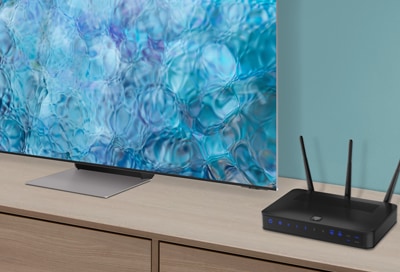
There are a handful of ways you can improve the internet connection on your Samsung TV, whether you have lost connection completely or are having trouble maintaining it. Your favorite sports team or soap opera can be back on the screen in no time at all!
Note: If this is your first time connecting your TV to the internet, please start with the “Reconnect to the Internet” step below. Before starting the steps below, check if there are any obstructions between the TV and the router, and then check the distance between the TV and router. If your TV is connected to Wi-Fi, it may take some time reconnecting to Wi-Fi after powering it on. Wait for 30 seconds, and then see if it reconnects to the internet.
When setting up your Samsung TV for internet access, you have two primary options: a wired Ethernet connection or a wireless WiFi setup. While both methods will get your TV online, we generally recommend considering a wired connection if possible. Ethernet cables provide a stable, fast, and secure internet experience, which can enhance your viewing by reducing buffering and interruptions, ideal for streaming your favorite shows and movies in high definition. However, the choice between wired and wireless connectivity ultimately depends on your specific setup and preferences.
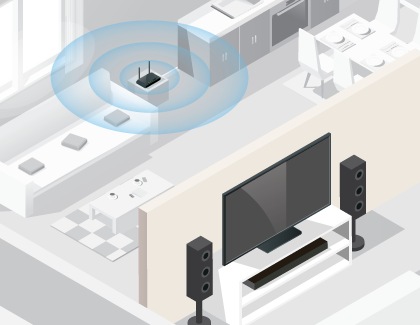
Below, we'll explore the benefits of each to help you make the best decision for your home entertainment system:
- Speed and Stability: Ethernet connections typically provide faster and more consistent internet speeds. This is particularly advantageous for streaming high-definition video content without buffering or interruptions.
- Reduced Interference: Wireless networks can be susceptible to interference from other wireless devices, walls, and even microwaves. An Ethernet cable connection avoids these issues, providing a more stable connection.
- Security: Wired connections are generally more secure than wireless connections, as they are less vulnerable to certain types of wireless security threats.
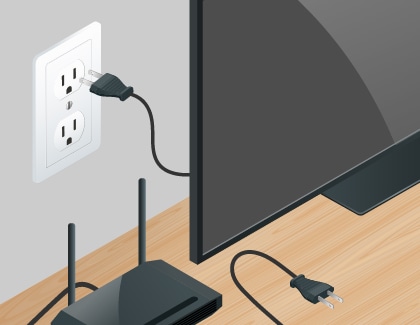
Sometimes, unplugging both your TV and router and then plugging them back in will solve connection issues.
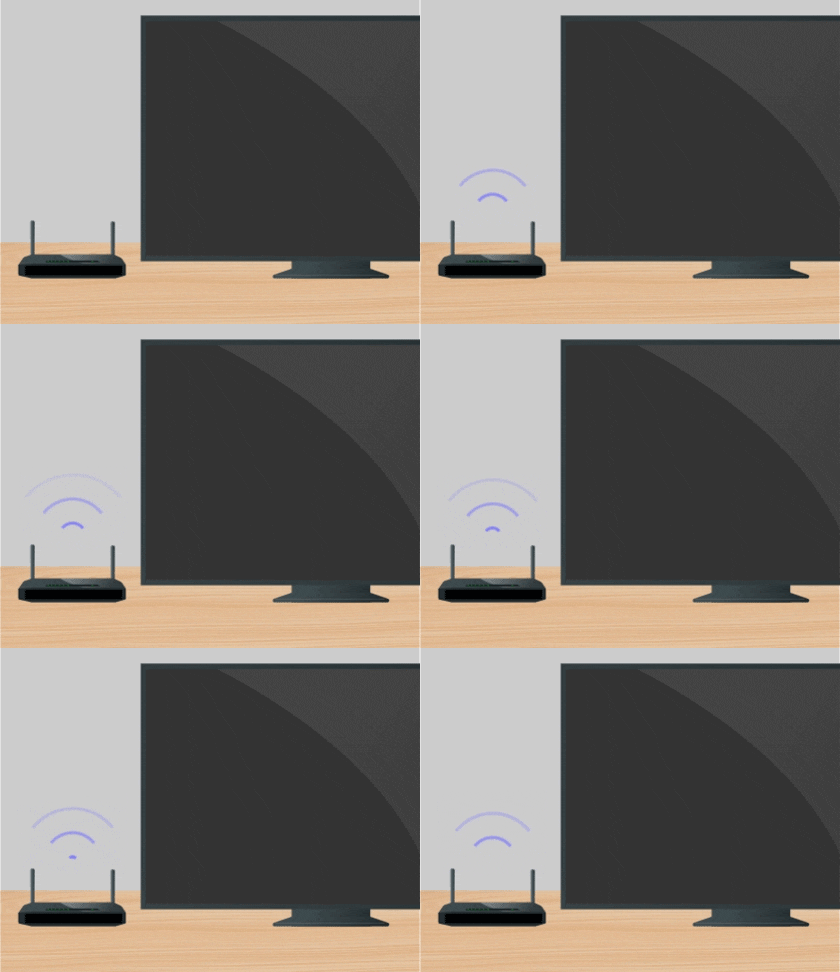
Now that you have performed a soft reset on your router, you should check if your router is connected to the internet. You can do this by going to the other devices in your home that are also connected to your router. If those devices are not connected to the internet, then the issue is most likely with your router and not your TV. In this case, you will need to contact your Internet Service Provider (ISP).
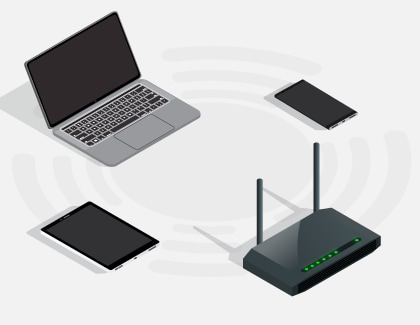
However, if your other devices are not having connection issues, then your problem is most likely with your TV. Please proceed to the next step.
Now that you have verified that the router is connected to the internet, you will need to check the connection between your router and TV. Please review the points below:
- Is your router connected to the TV using an ethernet cable? If not, we strongly recommend using an ethernet cable connection on your TV. This will ensure your TV maintains a consistent connection to the internet.
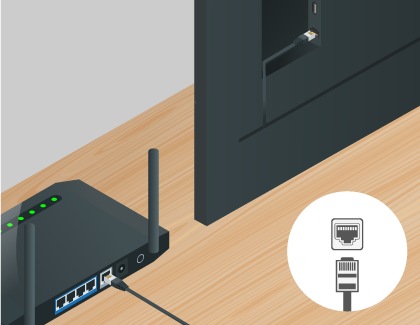
- If you are already connected using an ethernet cable, make sure that the ethernet cable is working and is not damaged. You can test the cable by connecting it to other devices, such as a laptop, to make sure that your ethernet cable is not damaged.
- If connecting to your TV using an ethernet cable is not possible, please move your router as close to the TV as possible. There should not be any obstructions between your TV and router, such as walls, other electronic devices, etc.
If the problem persists, please proceed to the next step.
Checking the network status is straightforward; simply follow these steps to verify your TV’s connectivity:
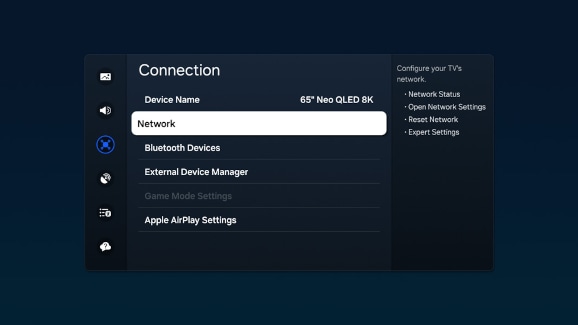
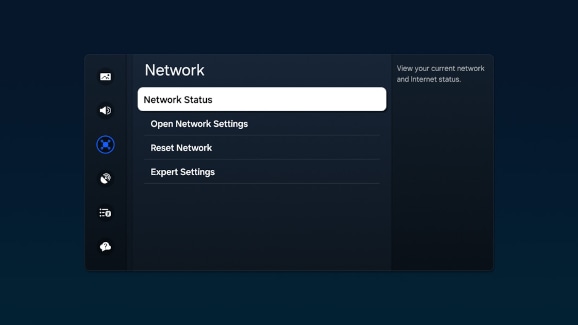
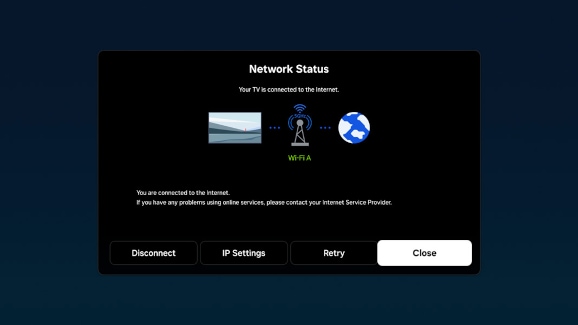
- Disconnect: Disconnect your TV from the current network to stop all internet activity.
- IP Settings: Access and modify IP and DNS settings to troubleshoot connectivity issues or configure advanced network preferences.
- Retry: Attempt to reconnect to the network if the initial connection fails or if the connection has been lost.
- Close: Exit the Network Status menu and return to the previous screen.
Troubleshoot through network status
On the Network Status screen, you can view the connection status of your TV, router, and the internet. Blue dots indicate a successful connection, while a red 'X' signals a lack of connection.
Case 1: TV and router connectivity Issues
If the connection between your TV and router is problematic, you will see a red 'X' between the images of the TV and router on the screen. Check the following:
- Check connections: Ensure all cables connected to the router are secure.
- Restart the router: Unplug the router's power, wait about one minute, then reconnect. This can resolve many connectivity issues.
- Test with another device: Check if another device on the same network can connect to the internet. If it can, the issue likely lies with the TV; if not, the problem is with the router.
Case 2: Internet service issues
If your router is connected to the TV but not to the internet, you will see a red 'X' between the router and the globe icon representing the internet.
- Service provider issues: This typically indicates a problem with your internet service provider. Often, these are temporary outages. A bit of patience is usually all that's needed while your provider resolves the issue.
If the connection between your router and TV is not the issue, you should try resetting the network on your TV. Please use the following steps:

If you are still experiencing issues, a factory reset may be needed. Keep in mind that this is different from resetting your network.

After a factory reset, all your TV’s settings will be erased and you will need to reconnect to the internet. Please use the following steps:

If you are still unable to connect your TV to Wi-Fi after following all of the above steps, please contact Samsung Support for further assistance.

Thank you for your feedback!
Please answer all questions.
RC01_Static Content : Hide call number function