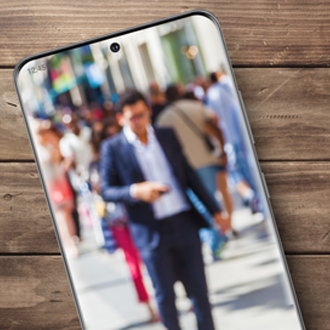
Set photos or videos as wallpaper on a Galaxy phone or tablet

We all have galleries full of photos and videos of our loved ones, and those pictures often make the best Home screen wallpapers. However, if you want to step it up a notch, Galaxy phones and tablets also let you set videos as your Lock screen! Now you can display your family and friends while they’re live in action.
A hand holding a Galaxy S24 Ultra configuring a lock screen wallpaper

Set photos or videos as wallpaper on a Galaxy phone or tablet

Note
Per Google's policy, account users under the age of 13 are restricted from using Generative Wallpaper. The age restriction may vary by country and is subject to change, dependent upon Google’s policy updates.

Set the Lock screen wallpaper

Note
You will need to have a Lock screen set up to use this feature.    

It might be time for a change on your Galaxy phone or tablet. You can set your favorite picture or video as your Lock screen wallpaper background!

  1. Start by touching and holding your Lock screen. Then, enter your security credentials.
  2. Tap Wallpapers in the top left corner. Tap Gallery, and then navigate to and select your desired picture. Tap Done to see the preview of your wallpaper.
  3. Next, touch and drag your picture around to situate it. You can also use your fingers to pinch the screen and zoom in on the picture. Tap Filter at the bottom to add a filter to your wallpaper, and then swipe through the available options until you find one that you like. Your picture will be cropped to fit the screen, so it's best if you don't crop the picture beforehand.
  4. On devices with One UI 6.1 or higher, you'll instead have the option to tap Frame or Effect. Swipe through the options and select your desired Frame or Effect.
  5. If you change your mind, just tap Wallpapers in the top left corner, and then select a different picture.
  6. When you’re satisfied with your new wallpaper, tap Done in the top right corner. Your wallpaper will be applied to your Lock screen.
  7. If you’d like to use a video background instead, touch and hold your Lock screen, and then enter your security credentials again. Tap Wallpapers, and then tap Gallery.
  8. Navigate to and select your desired video. Tap Done to see the preview of your wallpaper.
  9. To edit your video, tap Trim at the bottom. Use the slider to adjust the video’s length, and then tap the Play icon to view it. You can continue adjusting the video until it’s just right. Then, tap Done at the bottom.
  10. Tap Done in the top right corner to set the video as your Lock screen wallpaper.
Read less

Set the Home screen wallpaper

You can set a fun picture or video to your Home screen as well.

  1. Touch and hold a Home screen, and then tap Wallpaper and style.
  2. Tap Change wallpapers to see the available options, such as Featured, Gallery, Creative (available on One UI 6.1 devices), Colors, and Wallpaper services. Tap Gallery to select one of your pictures or videos.
  3. Next, find and select your desired picture, and then tap Done.
  4. You’ll be prompted to select Lock screen or Home screen for the new wallpaper. You can select both if desired. Then, tap Next.
  5. Touch and drag your picture around to situate it. You can also use your fingers to pinch the screen and zoom in on the picture. Tap Filter at the bottom to add a filter to the picture. Your picture can also be cropped to fit the screen.
  6. On devices with One UI 6.1, you'll instead have the option to tap Frame or Effect. Swipe through the options and select your desired Frame or Effect.
  7. Then, tap Done in the top right corner.
  8. To use a video instead, touch and hold a Home screen, and then tap Wallpaper and style. Tap Change wallpapers, and then tap Gallery.
  9. Find and select a video, and then tap Done.
  10. To edit your video, tap Trim at the bottom, and then use the slider to adjust the video’s length. Tap the Play icon to view it. When you’re finished, tap Done.
  11. Tap Done in the top right corner to set the video as your Home screen wallpaper.
Read less

Use Galaxy AI wallpapers

Note
  • Galaxy AI basic features provided by Samsung are free. Any Samsung enhanced AI features and all third party AI features are subject to different terms and may be subject to fees. (Galaxy AI basic features are listed under "Advanced intelligence" in Samsung Services Terms and Conditions.)
  • Wallpapers with Galaxy AI are available on select phones and tablets running Android 14 with One UI 6.1 or higher. If the feature is not available on your device, it may not be compatible. Ensure your device is updated.

Use Generative edit

Galaxy S25 Ultra screen displaying AI wallpaper options, including Generative and Photo ambient designs, for creating custom backgrounds.

Generative edit can be used to create new Home and Lock screens. This feature lets you move or delete objects from your pictures. Galaxy AI will then fill in the picture’s background to transform the image!

  1. Touch and hold a blank area of your Home screen, and then tap Wallpaper and style.
  2. Tap Change wallpapers, then tap Generative under the Creative section.
  3. Select a generative wallpaper template or category, and then select a prompt (white text), and then tap Generate.
  4. Select one of the generated images, then tap Set, and then select where to apply the image.
  5. Tap Next, and then tap Done to apply your changes.

Use Photo ambient

Galaxy phone screen displaying AI wallpaper options using Photo ambient custom wallpaper.

Photo ambient will animate your Lock screen with the area’s current weather conditions. For instance, your Lock screen will display rain droplets if it’s raining. This information is pulled from your phone’s default locations in the Weather app, and works best with photos that are taken outdoors during the day.

  1. Navigate to and open Settings, and then tap Wallpaper and style.
  2. Tap Change wallpapers, and then tap Photo ambient in the Create with AI section.
  3. Tap Try now, and then tap Set up when prompted to set up the Weather app. Allow the permissions.
  4. Choose a picture from your Gallery, and then edit it as desired. When you're finished, tap Done.
Read less

Use wallpaper services

In addition to the Lock screen features mentioned above, you can also use Dynamic Lock screens, which automatically changes your Lock screen’s image every time you turn on the screen. You can download and use image packs that feature plants, animals, food, and artwork.

Your device can also display Samsung Global Goals Lock screen wallpapers. The Global Goals app includes several wallpaper options that can be added to your Lock screen.

Read less

Set the Cover screen wallpaper on the Galaxy Z Flip models

Since the Galaxy Z Flip6, Z Flip7, and Z Flip7 FE have their own Cover screens, why not add a new wallpaper?

  1. From the phone’s main screen, navigate to and open Settings, and then tap Cover screen.
  2. Tap Add new, and then select from the available categories, such as Featured, Gallery, Creative, and Colors. Tap Gallery to select one of your pictures or videos, and then tap your desired picture or video. Tap Done.
    Cover screen customization menu on a Galaxy Z Flip7 showing the current wallpaper preview and an Add new button
  3. Touch and drag your picture or video around to situate it. You can also use your fingers to pinch the screen and zoom in.
  4. You can tap the following additional options.
    Wallpaper selection menu on a Galaxy Z Flip7 showing options for Gallery, Frame, Effect, and Suggest.
    Note: If you choose a video instead, you will see different options, such as Trim.
    • Gallery: Select a different picture or video.
    • Frame: Select a frame and customize the color and transparency.
    • Effect: Select an effect.
    • Suggest a style: Your device will suggest styles for you; swipe through the options to check them out.
  5. When you’re satisfied, tap Done in the top right corner. Your wallpaper will be applied to the Cover screen.
Read less
Was this content helpful?
Table of contents
We're here for you

Contact Samsung Support

Contact us online through chat and get support from an expert on your computer, mobile device or tablet. Support is also available on your mobile device through the Samsung Members App.
auto-contact_us-pc-2x auto-contact_us-pc-2x