Check your Samsung Galaxy device status and run diagnostics
If you recently purchased a Galaxy device or suspect that there may be a problem with its hardware or software, you can use built-in diagnostic tools to check the device condition. Samsung Members and Device care provide self-diagnostic features that help identify issues and monitor device performance, battery health, storage usage, memory status, and security.
Check your Samsung Galaxy device status and run diagnostics
Note
- Samsung Members and its diagnostic functions are only available on Samsung Galaxy phones and tablets.
- Menu names, settings, and screen layouts may vary depending on the model and software version.
Diagnostics for your Galaxy phone or tablet

Samsung Members can diagnose a variety of issues that you may encounter with your phone. If it's not already installed, download Samsung Members from the Galaxy Store or Play Store.
Run Samsung Members Phone diagnostics
You can use the Phone diagnostics feature in the Samsung Members app to check your Galaxy device for hardware and software issues.
- Once Members is installed on your phone, you can access the diagnostics by opening the app, and then tapping Diagnostics on the Discover tab.
Note: You can also access diagnostics from the Support tab in the Samsung Members app. - From here, tap Phone diagnostics.

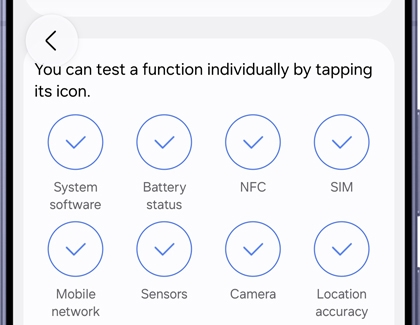
- You can tap an individual test, or tap Test all at the bottom of the screen if you would like to run a full diagnostic. The first time you run diagnostics, a full diagnostic scan starts automatically.

- Many of the tests will require some interaction; follow the on-screen instructions to complete each one. You can also stop the process to run individual tests.

- If a test fails, the app may offer some suggestions. You can also tap View related FAQ for additional help. The available tests listed below may vary depending on the model of your device.
- NFC
- Power restart status
- Mobile network
- Proximity recognition
- Buttons
- Speaker
- Camera
- Location accuracy
- Bluetooth
- Face recognition
- USB connection
- S Pen hovering
- Wireless charging
- SIM card
- Official software
- Sensors
- Touch screen
- Flashlight
- Vibration
- Mic
- Wi-Fi
- Fingerprint recognition
- Wired headphones
- S Pen touching
- Cable charging
- Battery status
Note
Device care diagnostics are available on Galaxy devices running Android 12 or later.
Run diagnostics in Device care
Device care helps you monitor and manage your Galaxy device's performance, battery, storage, memory, security, and overall device health. You can also use the built-in diagnostics feature to check for hardware and software issues.
- Open Settings, then tap Device care.

- Tap Diagnostics.

- From here, tap Phone diagnostics.

- You can tap an individual test, or tap Test all at the bottom of the screen if you would like to run a full diagnostic. The first time you run diagnostics, a full diagnostic scan starts automatically.

- You can stop the process and select specific items to run individual tests.

Check and optimize your device with Device care
- Open Settings, then tap Device care.
- Tap Optimize now to improve device performance.

- Tap Battery to review battery usage and health information.

- Tap Storage to check available and used storage space.

- Tap Memory, then tap Clean now to free up memory.

- Tap App protection > Tap Scan phone to check for security threats.

Read less
Diagnostics for your Galaxy watch
Note
Watch diagnostics are only available for Galaxy watch models operating on Wear OS.

Samsung Members can help diagnose issues you may encounter with your Galaxy Watch when it is paired to a Galaxy phone or tablet.
- First, make sure your watch is connected to your phone, and then open Samsung Members. From the Discover tab, tap Diagnostics.
- Under the Connected device diagnostics section, tap Watch diagnostics.
- Tap the individual tests you want to perform. Many of the tests will require some interaction; follow the on-screen instructions to complete each test.
- If a test fails, the app may offer some suggestions. You can also tap View related FAQ for additional help. The available tests below may vary depending on your model.
- Battery status
- Power restart status
- Check for updates
- Sensors
- Location accuracy
- Buttons
- Vibration
- Wireless charging
- Notifications
- eSIM
- Official software
- Mobile network
- Wi-Fi
- Touch screen
- Speaker
- Mic
- Wrist detection
Read less
Diagnostics for your Galaxy Buds

Samsung Members can diagnose a variety of issues that you may encounter with your devices, including the Galaxy Buds3 Pro, Buds3, and Buds2 Pro. If you don't have the app, you can download Samsung Members from the Galaxy Store or Play Store.
- Once Members is installed, you can access the diagnostics by opening the app, and then tapping Diagnostics on the Discover tab.
- Under Connected device diagnostics, tap Buds diagnostics.
- From here, you can tap on the tests you want to run. Many of the tests will require some interaction; follow the on-screen instructions to complete each test.
The available tests below may vary.
- Check for updates
- In-ear detection
- Touch sensor
- Speaker
- Mic
- Cable charging
- Wireless charging
Read less
Send an error report in Samsung Members
If you’re having an issue with your device, you can send an error report through Samsung Members.
- Touch and hold the Samsung Members app icon on your phone. A pop up menu will appear. Tap Error reports.
- Choose a category that pertains to your issue.

- Next, fill out the required fields. You can also add an image or voice recording by tapping Attach (the paper clip) in the top right corner, and then selecting your desired option.
- Select Send system log data if you’d like to include system data stored on your device.
- When you’re finished, tap Send (the arrow) in the top right corner to send your report.
- You can check your feedback from the Support tab. Tap Check feedback you’ve sent under Send feedback, and then select the feedback report.
Read less
Recommended Articles
Use Samsung Members to troubleshoot your Galaxy phone
Use Samsung Members to troubleshoot your Galaxy phone The Samsung Members app has an ever-growing library of content to help you use your Galaxy phone or tablet. For instance, you can look up troubleshooting tips and articles to help with any issues you may be experiencing, as well as use diagnostic tools to test out some of your device’s functions
Build Relationships with the Samsung Members Community
Build Relationships with the Samsung Members Community Just like social media isn't as fun without friends and followers, Samsung Members wouldn't be the same without its Community. Aside from helpful tutorials and articles in the app, you’ll find a large community of Samsung users at your fingertips. Browse the community's posts, reply to topics,
Master the S Pen of your Galaxy Tablet
Master the S Pen of your Galaxy Tablet Is the S Pen mightier than the sword? We like to think so. Whether it's by writing directly on the screen, accessing menus easily on the fly, or just being able to doodle in a more artistic way than with your finger, the S Pen on Samsung's Tab S7, S8, S9, and S10 series can help boost your creativity and produ
We're here for you
Contact Samsung Support
Contact us online through chat and get support from an expert on your computer, mobile device, or tablet. Support is also available on your mobile device through the Samsung Members App.



